TIME & PAYROLL
Pay contractors with bills
This guide shows how to pay contractors and vendors in PayHr: recording a bill, adding it to a draft payrun, approving it with your payroll, and recording the payment. It also explains how paid bills for T4A contractors become the starting point for their T4A slip at year end.
You need the contractor saved under Contractors and your workspace setup finished, because bills are paid through a payroll run.

 NARRATED TUTORIALWatch: Pay contractorsSee every step below in the actual PayHr screens, with captions.
Before you start
- The contractor’s invoice: number, date, due date, line items and any GST/HST charged
- The contractor saved under Contractors, as a Regular vendor or a T4A Contractor
- For T4A contractors: their name, address and SIN or business number for the slip
- Workspace setup finished (business details, pay schedule and payroll funding)
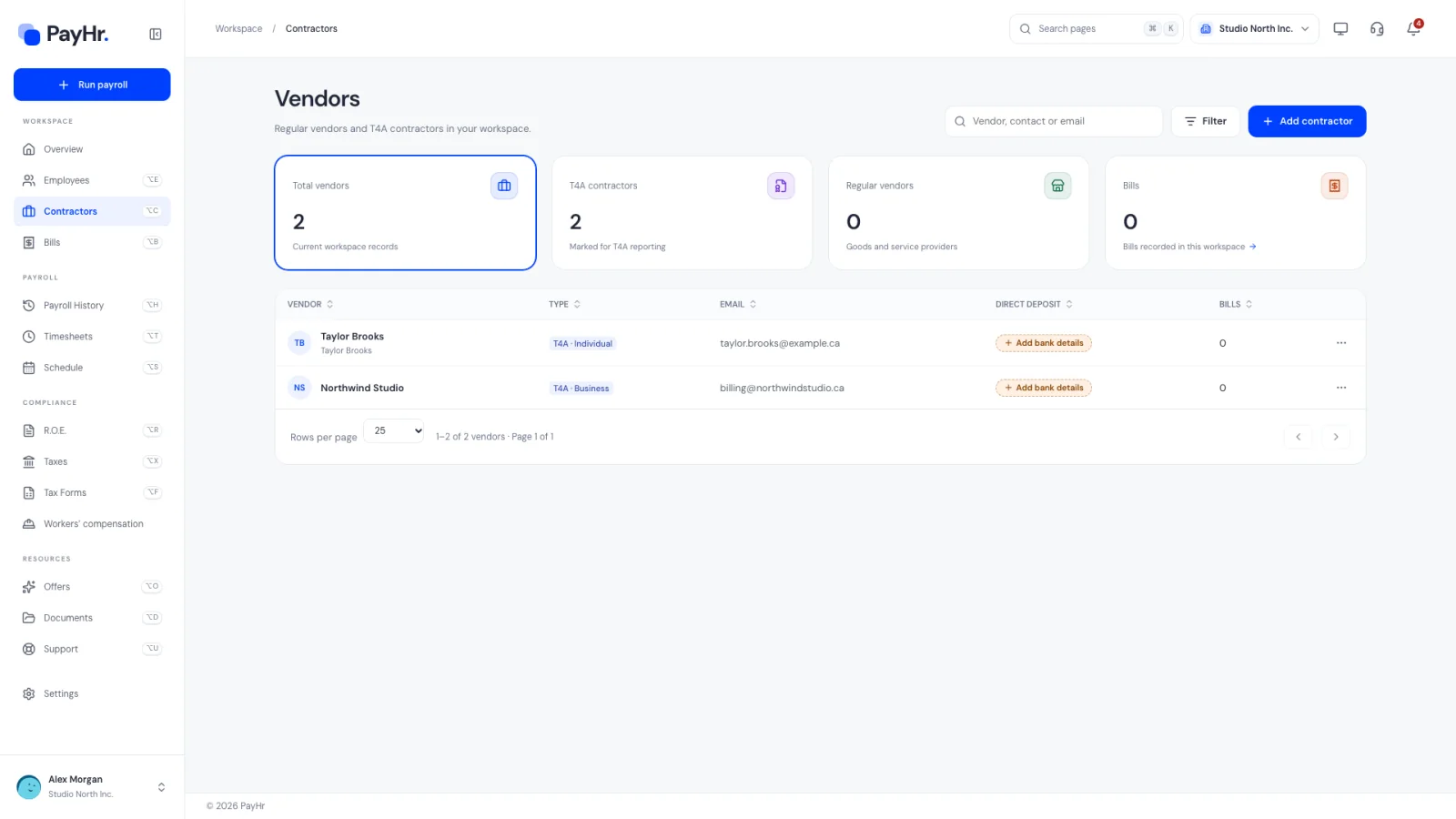
01Set up the contractor as a vendor
Open Contractors in the sidebar. Vendors lists everyone you pay by bill, with their bank details status. Select Add contractor to create one, and choose the Type carefully, because it controls year-end reporting:
- Regular: companies that provide goods and services to your business, such as internet and utility providers. Their bills aren’t reported on a T4A.
- T4A Contractor: contractors whose payments you intend to report on a T4A. Choose a Contractor type of Individual (a single person not registered as a business) or Business, and add their Social Insurance Number or business number if you have it. They’re optional here, but you’ll need them for the T4A slip.
Contractors are not employees. PayHr deducts no CPP, EI or income tax from their bills and doesn’t issue them pay statements. If you’re unsure whether someone is an employee or self-employed, the CRA’s employment status guidance can help you decide before you set them up.
02Open Bills and create a bill
Open Bills under Contractors. It tracks contractor and vendor bills from entry through payroll. The cards also filter the list:
- All bills: every bill in the workspace.
- Outstanding: the total balance due and how many bills have one.
- Included in payroll: bills attached to a payrun.
- Recorded paid: the total recorded as paid, and how many bills are fully paid.
Each bill shows a status: Unpaid, Partially paid, In payroll or Paid, plus an Overdue tag once the due date passes. Search by bill number or vendor, or use Filter for vendor and bill dates.
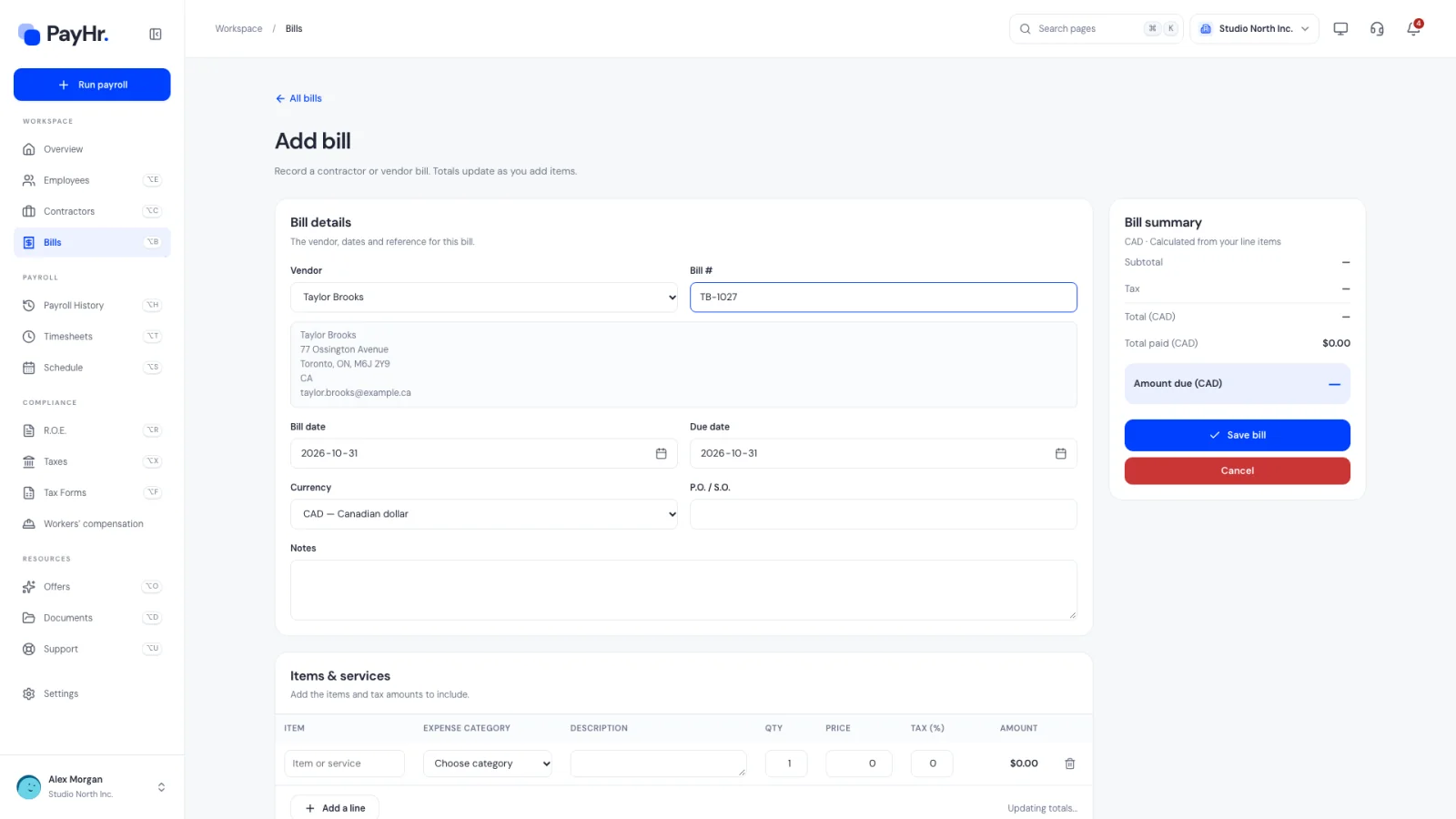
Select Create a bill. Under Bill details, choose the Vendor (their address appears for reference) and enter the Bill # from the invoice, the Bill date and the Due date. Currency is Canadian dollars. P.O. / S.O. and Notes are optional references for your records.
03Add items and services
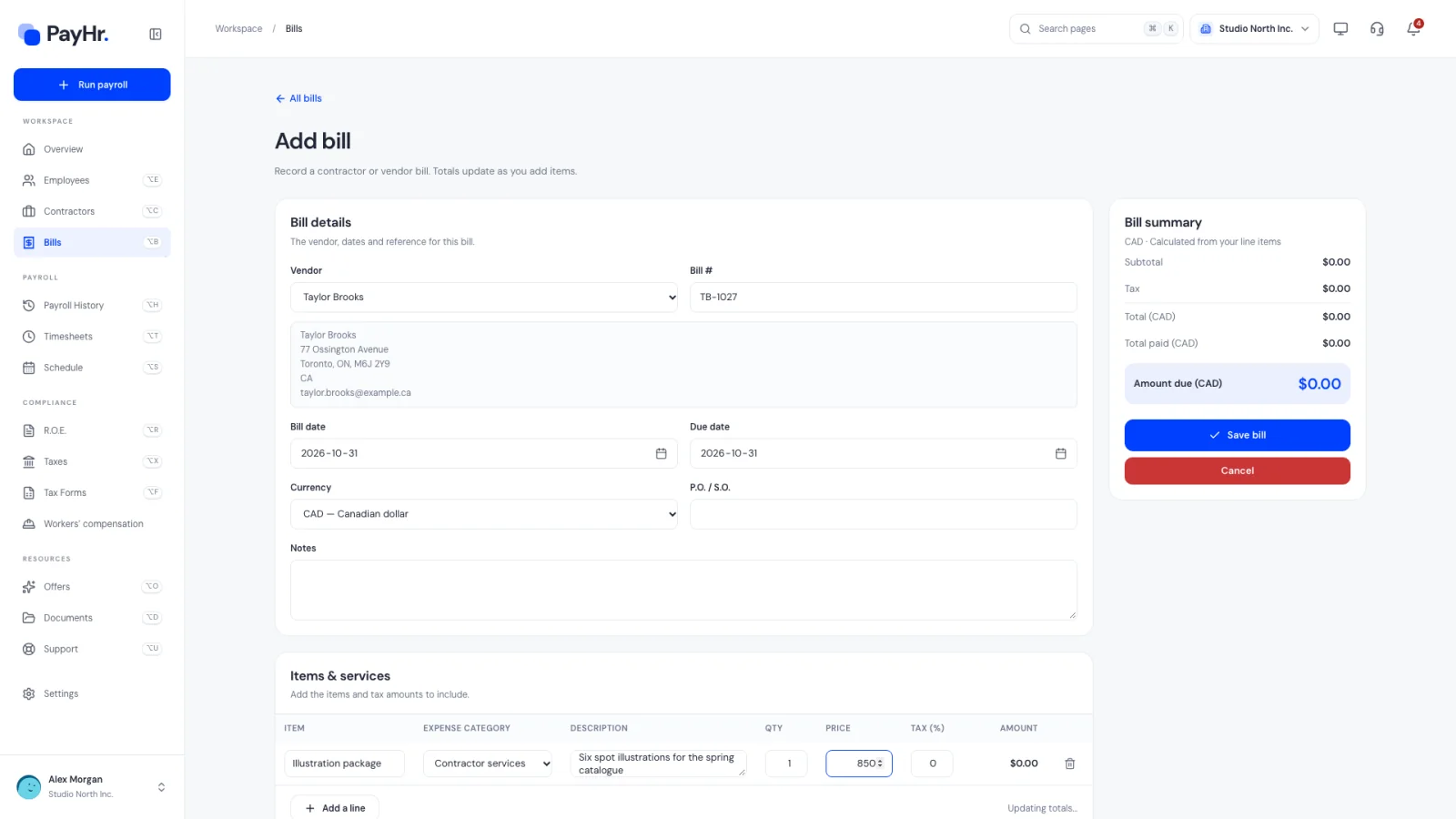
Under Items & services, add one line for each item on the invoice (up to 100). Select Add a line for more, or the bin icon to remove one.
- Item and Description: what was provided.
- Expense category: Contractor services, Utilities, Office expenses, Supplies, Travel or Other. Use Contractor services for fees for services you’ll report on a T4A. Only Contractor services lines count toward T4A box 048, so reimbursed travel or supplies on the same invoice stay out of it.
- Qty and Price: the line amount before tax.
- Tax (%): the sales tax rate the contractor charged, such as 13 for HST in Ontario. Leave it at 0 if they aren’t registered for GST/HST.
The Bill summary updates as you type: Subtotal, Tax, Total (CAD), Total paid and Amount due. Select Save bill. Use the row’s menu in Bills later to View bill (as a PDF), Edit bill, Duplicate it for a recurring invoice, or Delete bill.
04Add the bill to a draft payrun
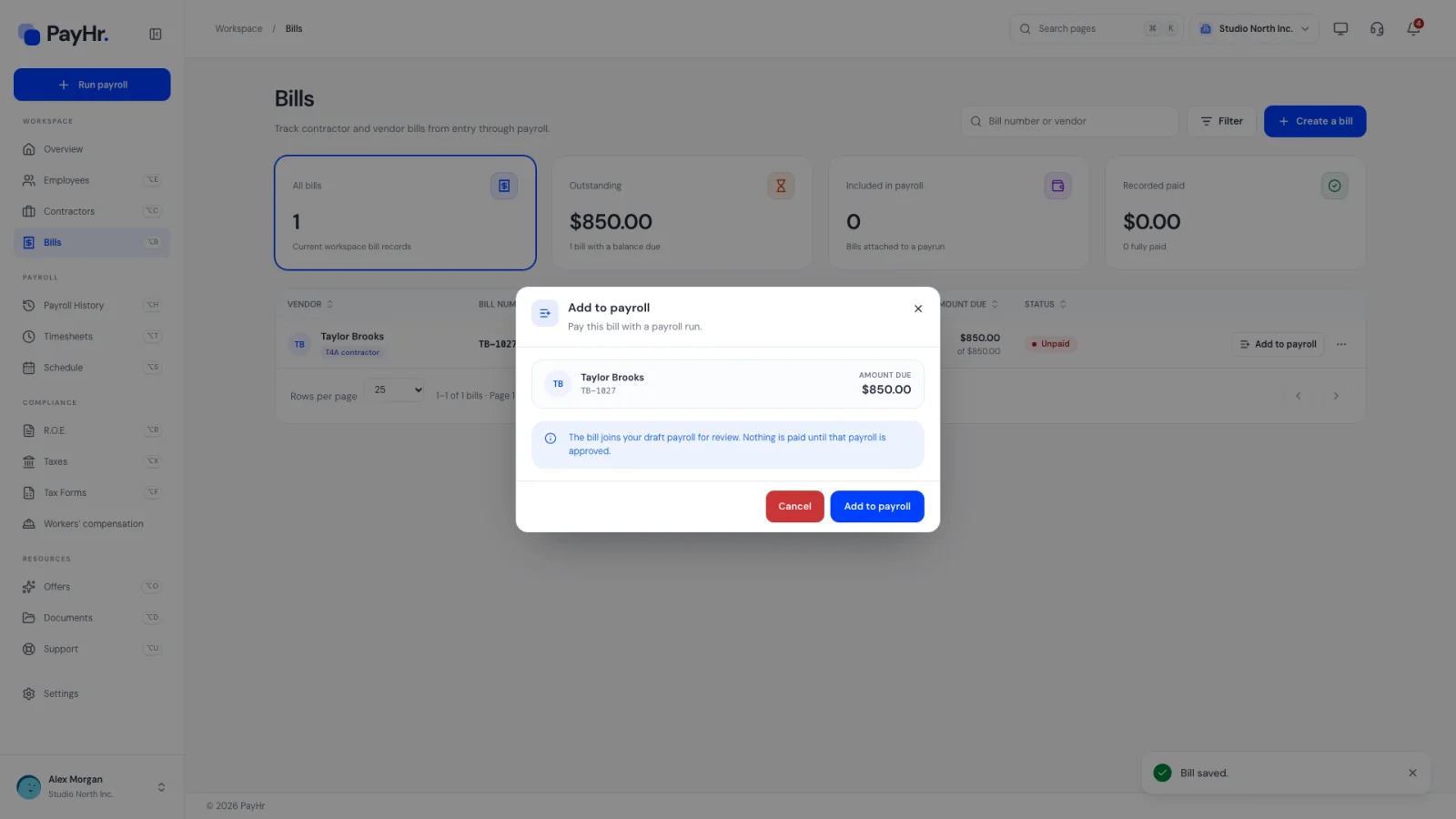
In Bills, an unpaid bill shows Add to payroll. Select it to open the dialog, which shows the vendor, bill number and Amount due.
- If you have saved payruns, choose one under Payrun. Each is listed with its period, run type and payday.
- If you have no saved draft, PayHr adds the bill to a draft for the current pay period.
- Select Add to payroll. You’ll see Bill added to the draft payrun. No money was transferred.
The bill’s status becomes In payroll and the row shows In draft payrun, which links to that run. The full amount due, including any sales tax, is added to the payroll. Nothing is paid until that payroll is approved. If you delete the draft, its bills are released and can be added to another payrun.
05Review the bill in Run payroll
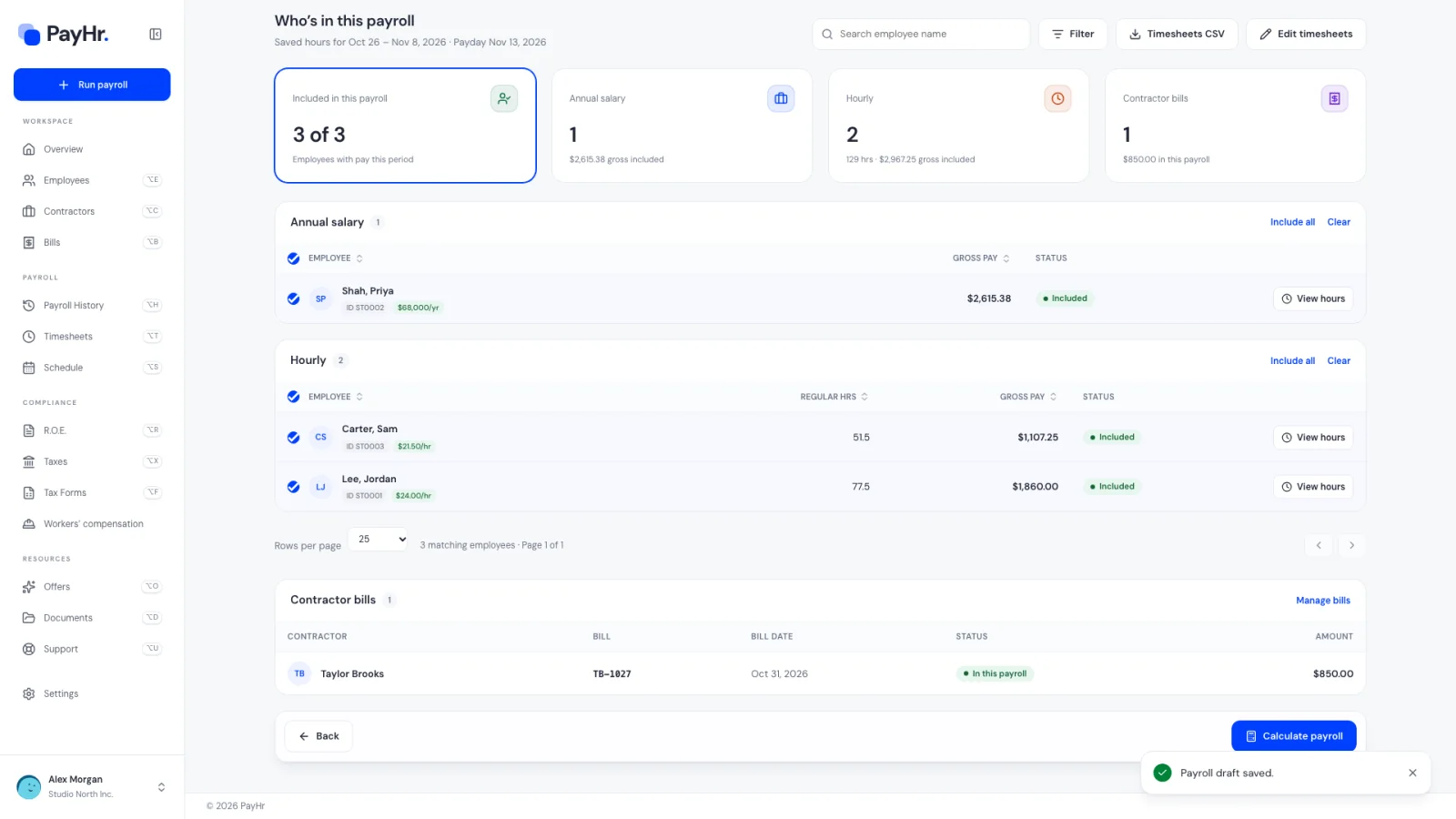
Open the draft (from In draft payrun, or Run payroll and Open payrun) and continue to the Employees step. The Contractor bills card and table list each bill in this payroll with the contractor, bill number, bill date, status (In this payroll) and amount. Bills an earlier approved payroll already paid for the same period show as Already paid.
Select Calculate payroll. On the payroll record, contractor bills appear in their own table, and selecting one previews the bill PDF. Bill amounts are included in the Total payroll cost and in the Amount to pay employees and vendors, but they aren’t part of the CRA remittance, because no source deductions apply to contractors. A payrun can contain only contractor bills, with no employees.
06Approve the payroll and pay the contractor
Approve the payroll as usual (see Run payroll). The confirmation shows the workspace payment mode:
- Manual Pay: approval records the payroll and the contractor payable. It doesn’t send money. You pay the contractor yourself, for example by e-transfer, direct deposit through your bank or cheque. Bank details saved on the vendor are shown when you record the payment, so you can send it.
- Automated payments are available only if your workspace has activated a payment service, and are charged per employee or contractor per pay run as shown in the approval dialog.
After approval with Manual Pay, the bill row in Bills changes to Record in Payroll History, a reminder that the payment still needs recording.
07Record the payment in Payroll History
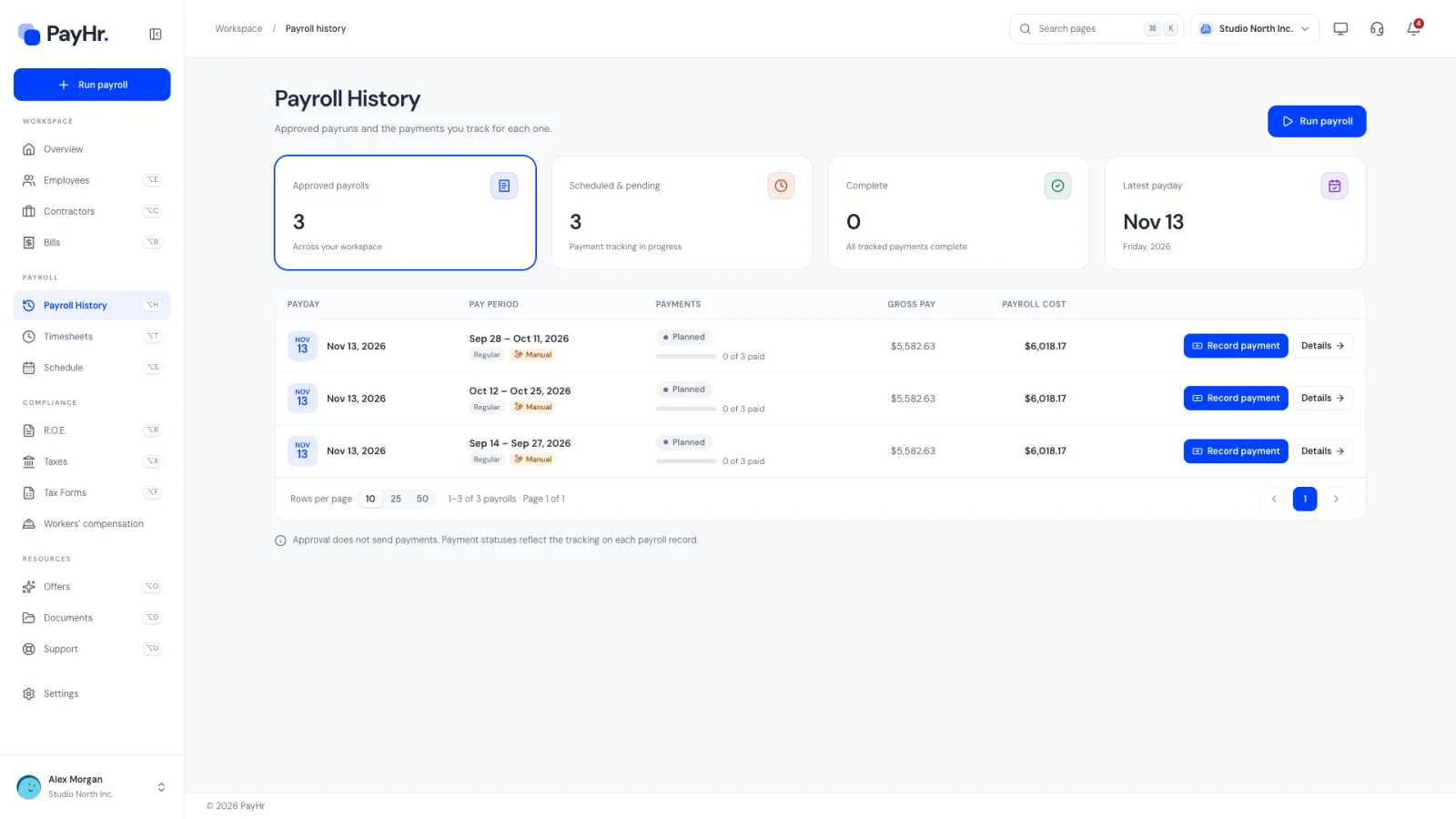
Open Payroll History. Approved payrolls with unrecorded payments show Record payment. For each payee, including the contractor, enter the Amount paid, the Paid on date and an optional Reference, then select Record. You can also use Mark as scheduled while a payment is on its way.
Recording a payment only updates your tracking; PayHr doesn’t move money for manual payrolls. Once the contractor’s payment is recorded as completed, the bill’s Total paid updates and its status becomes Paid.
How this feeds the T4A. At year end, PayHr can prefill T4A slips for T4A Contractors from settled payments. Box 048 (fees for services) is the total of Contractor services line subtotals, excluding GST/HST/PST, for payments settled in the calendar year: recorded payments by their paid-on date, and completed payroll payments by their payday. Approved but unrecorded bills count for nothing, and contractors paid $500 or less in the year aren’t added. Before filing, confirm whether each recipient needs a slip: fees paid to corporations generally aren’t reported, non-residents providing services in Canada go on a T4A-NR, and commissions belong in box 020. T4A slips are due to the CRA and recipients by the last day of February.
Questions people ask
Does adding a bill to payroll pay the contractor?
No. It attaches the bill to a draft payrun for review. Nothing is paid until the payroll is approved, and with Manual Pay you still send the payment yourself and record it in Payroll History.
Does PayHr deduct tax from contractor payments?
No. Contractors are self-employed, so no CPP, EI or income tax is withheld and their bills aren’t part of your CRA remittance. The bill’s full amount due, including any GST/HST they charged, is paid.
When does a bill show as Paid?
When payments recorded against it cover the total. For a bill paid through payroll, that happens once the contractor’s payment for that payroll is recorded as completed in Payroll History.
Which amounts go in T4A box 048?
Only Contractor services lines, excluding sales tax, on bills for T4A Contractors, counted when the payment was settled in the calendar year. Travel, supplies and other categories are left out, and so are approved bills with no recorded payment.
Can I remove a bill from a draft payrun?
Yes, before approval. Deleting the draft payrun releases all its bills back to Bills, where you can add them to another payrun. After approval the bill is part of the payroll record.