TIME & PAYROLL
Run payroll
This guide walks through a complete pay run in PayHr: confirming the pay period and payday, choosing who is paid, calculating, reading the payroll record, editing and recalculating, and approving. It also explains what approval does, and doesn’t do, when your workspace uses Manual Pay.
You need your business details, pay schedule and payroll funding set up, at least one employee (or a contractor bill), and saved timesheets for hourly employees. Approving also needs an active PayHr payroll plan.

 NARRATED TUTORIALWatch: Run payrollSee every step below in the actual PayHr screens, with captions.
Before you start
- Business details, pay schedule and payroll funding completed in workspace setup
- Employees added with their pay rate, province of employment and TD1 claim amounts
- Timesheets saved for hourly employees for every day in the pay period
- Pay so far this year for anyone you paid outside PayHr earlier in the year
- Your CRA remittance schedule confirmed in organization settings, to see remittance due dates
- An active payroll plan, needed before you can approve
01Start a pay run and confirm the pay period
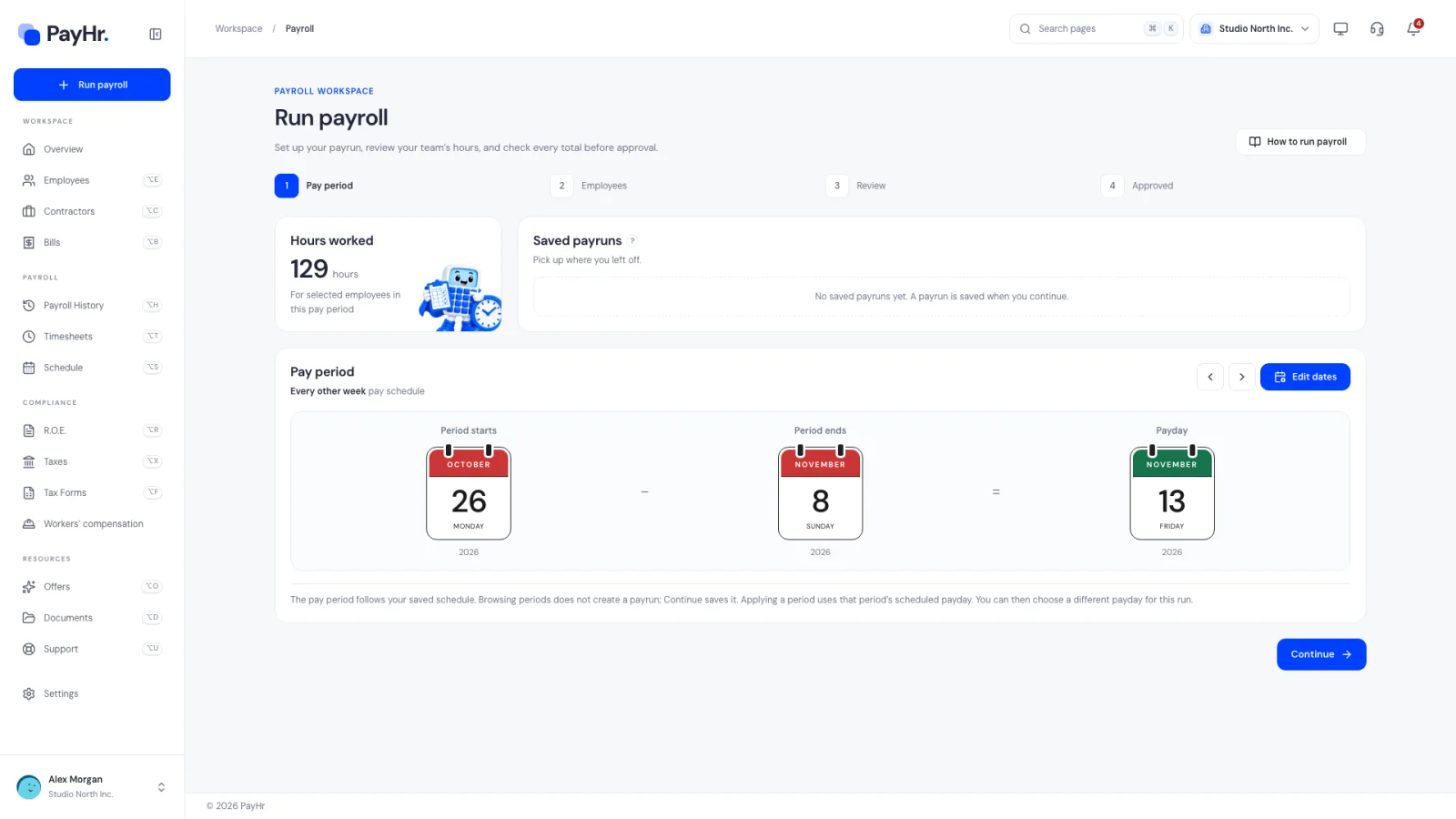
Select Run payroll in the sidebar. The progress bar shows the four steps of a pay run: Pay period, Employees, Review and Approved.
- Pay period shows Period starts, Period ends and Payday as calendars. They come from your saved pay schedule. An every-other-week (biweekly) schedule has 26 or 27 paydays a year; weekly has 52 or 53, twice a month 24, and monthly 12.
- The arrows step to the Previous pay period or Next pay period. Browsing doesn’t create anything.
- Hours worked totals the regular, overtime and double-time hours of the employees selected for this period.
- Saved payruns lists drafts you’ve started. Open payrun picks one up where you left off, and Delete draft removes it and releases any contractor bills attached to it. Drafts save progress only; they don’t approve payroll or send payments.
Why the dates matter: earnings are counted for work inside the period, while the payday decides which tax year the pay belongs to, which year-to-date totals it joins, and when the CRA remittance for it is due. Select Continue to save the payrun and move on.
02Change the dates for this run (optional)
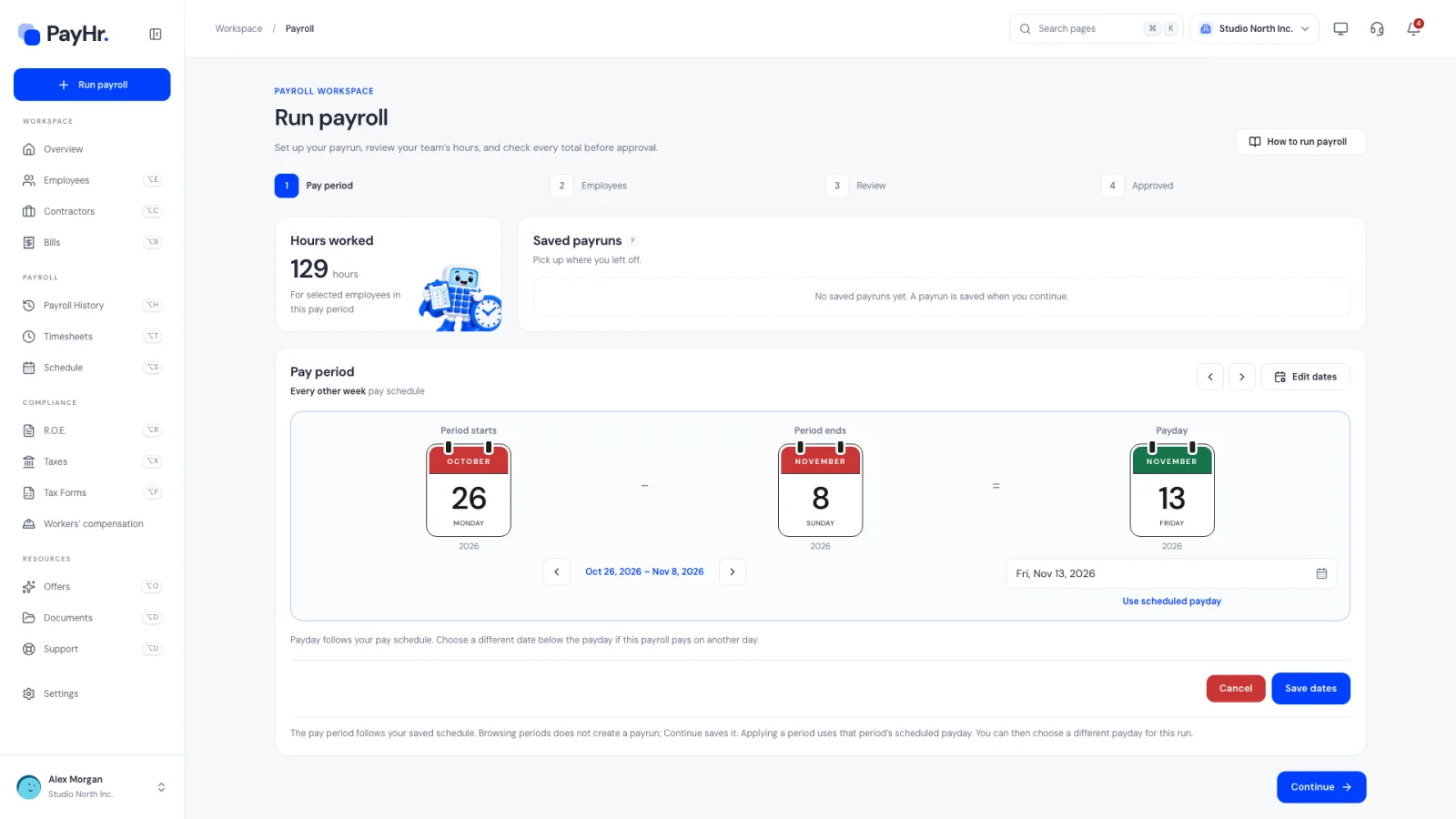
Edit dates opens an editable copy of the calendars. Changes apply to this payroll only; your workspace’s regular schedule stays the same.
- Use the arrows to move the period through the periods your schedule allows. The start date adjusts automatically, because periods must match the schedule.
- Pick a different payday if this run needs one, for example when the usual payday is a bank holiday. The payday must be on or after the period end date. You can always go back to the scheduled payday.
- Select Save dates to apply them, or Cancel to leave them as they were.
Choosing a payday only records the date on the payroll. It does not schedule a bank transfer, so confirm the date with your bank. If you change the dates after calculating, calculate again before approving.
03Choose who’s in this payroll
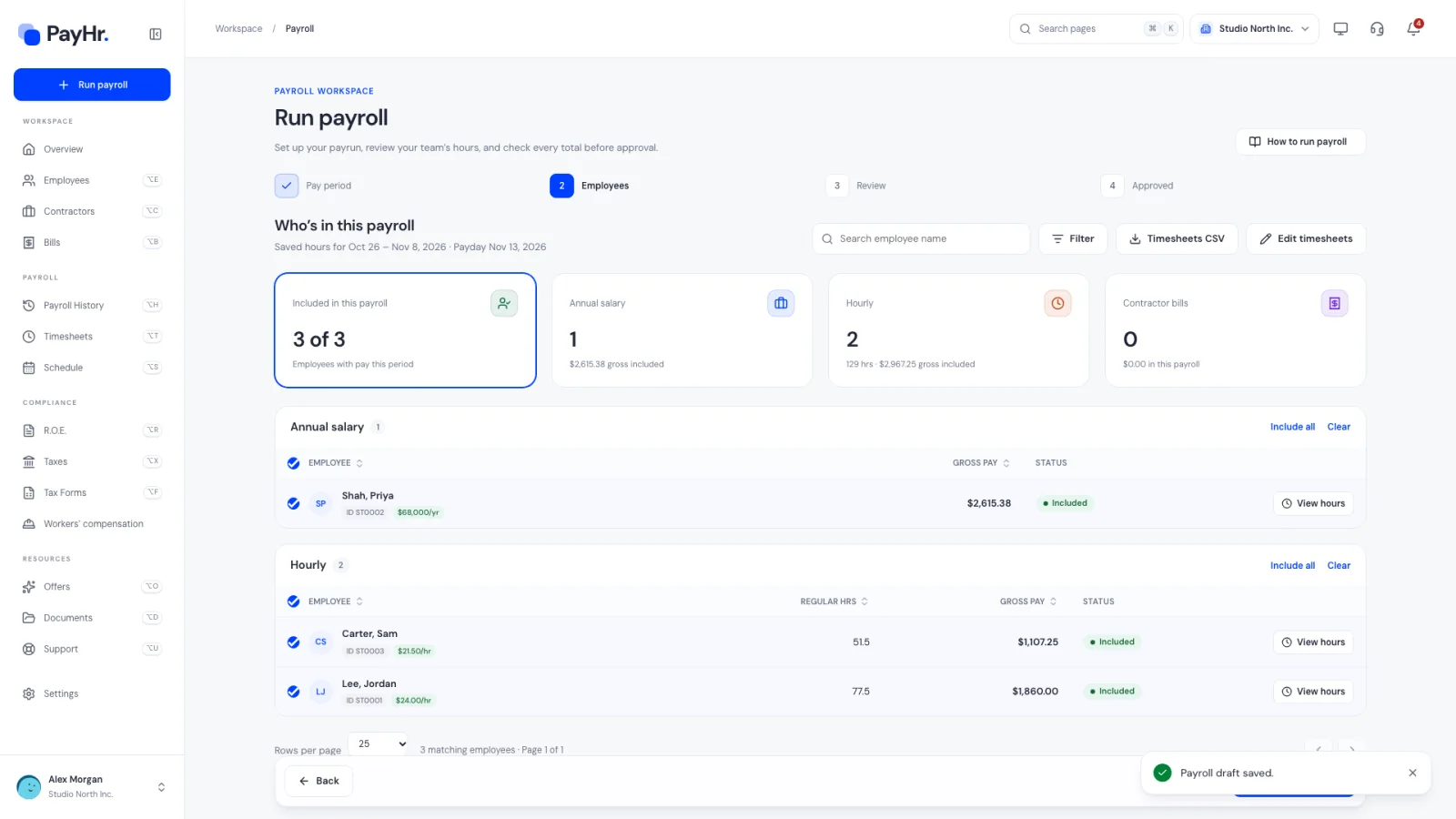
Who’s in this payroll lists your team for the period, with separate tables for Annual salary and Hourly employees, plus Contractor bills if any are attached.
- The cards count who is Included in this payroll and total the gross pay for each group. Select a card to show only that group.
- Tick or untick employees, or use Include all and Clear. Everyone with pay this period is included by default.
- Hourly employees’ Gross pay comes from saved timesheet hours × their rate (overtime at 1.5 times, double time at 2 times). Salaried employees receive their annual salary divided by the number of pay periods in the year. If the employee’s vacation policy pays vacation with each payroll, the row says Includes $… vacation pay with the percentage used.
- View hours shows an employee’s saved daily hours. Edit timesheets opens Timesheets in a new tab; after saving there, reload this page. Timesheets CSV downloads the hours.
- Status tags explain each row: Included, Not included, No pay this period, Already paid (an approved payroll already covers this employee for the period), Final pay, On leave and Needs attention. Select Needs attention to see what to fix.
If PayHr asks you to Add payroll before PayHr, enter that employee’s earlier pay this year first. Without it, CPP, CPP2 and EI restart from zero and could go over the yearly maximums. When the selection is right, select Calculate payroll.
04Read the payroll record
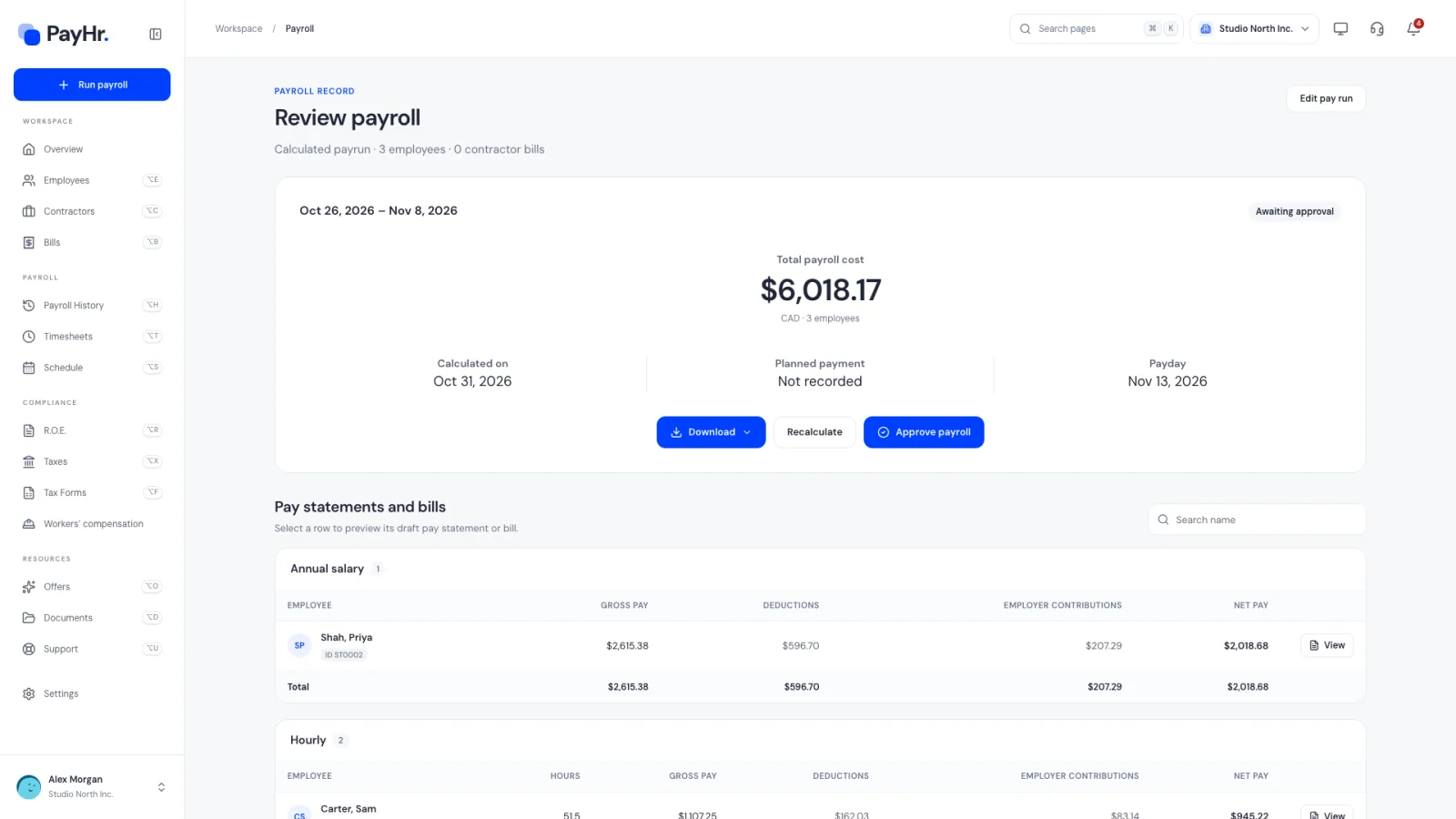
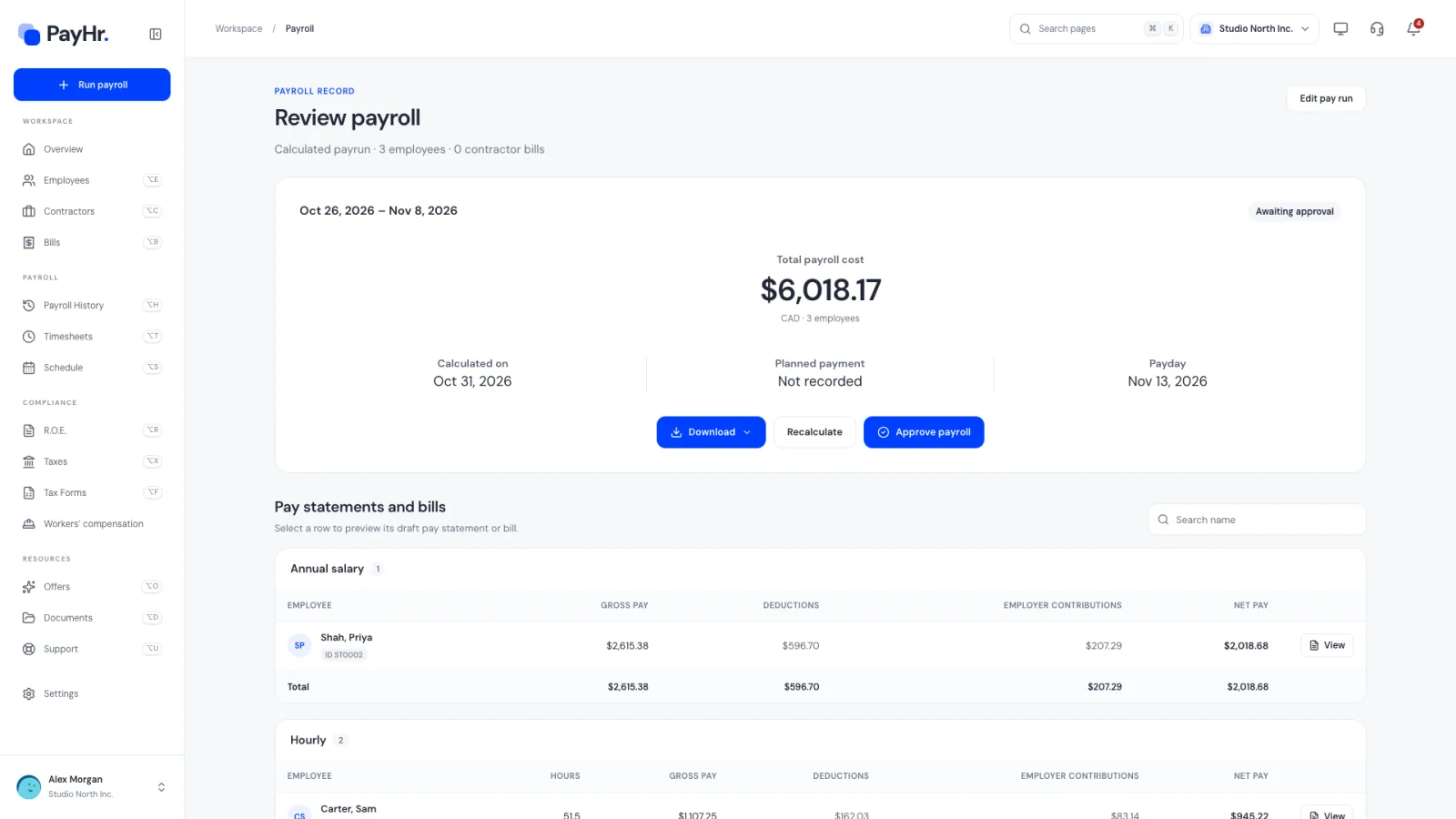
Calculating creates a payroll record marked Awaiting approval. The summary card shows the Total payroll cost: gross pay plus the employer’s CPP and EI contributions, plus any contractor bills. It also shows Calculated on and Payday.
Below, Pay statements and bills has a table for each pay type:
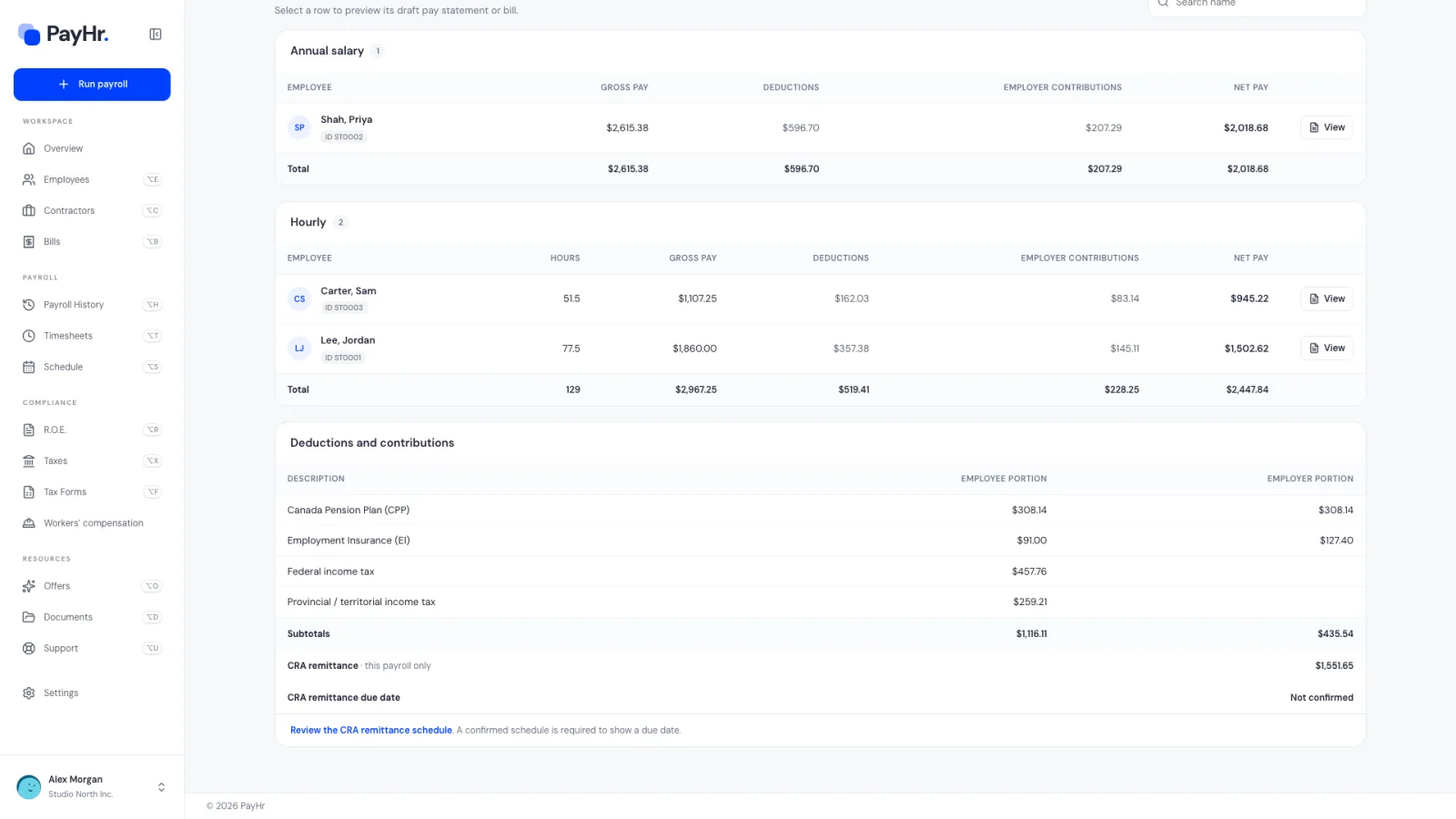
- Gross pay: earnings before deductions, including vacation pay and any pay items.
- Deductions: what is withheld from the employee, which is CPP, CPP2, EI, federal and provincial income tax, and any other deductions set up for them.
- Employer contributions: what you pay on top, which is your share of CPP and CPP2 (matching the employee’s) and EI (1.4 times the employee’s premium at the standard rate).
- Net pay: what the employee takes home.
Income tax is based on each employee’s province of employment, their TD1 claim amounts and the pay period frequency. CPP is calculated on earnings above the basic exemption up to the yearly maximum, CPP2 on earnings between the first and second earnings ceilings, and EI on insurable earnings up to the yearly maximum. PayHr tracks year-to-date amounts so contributions stop once a maximum is reached.
05Check deductions, contributions and the CRA remittance
Deductions and contributions totals each type across the payroll, split into Employee portion and Employer portion: Canada Pension Plan (CPP), Second additional CPP (CPP2), Employment Insurance (EI), federal income tax and provincial or territorial income tax.
- CRA remittance · this payroll only is the amount of source deductions this payroll creates: the income tax, CPP, CPP2 and EI withheld from employees plus your employer CPP, CPP2 and EI.
- CRA remittance due date depends on your remitter type and this payroll’s payday. It shows Not confirmed until your remittance schedule is confirmed; use Review the CRA remittance schedule to set it. For example, regular remitters generally remit by the 15th of the month after the payday.
With Manual Pay, PayHr doesn’t send remittances. You pay the CRA yourself, through your bank or CRA My Business Account, by the due date. Late remittances can attract penalties and interest.
06Preview pay statements and download the register
Select any row, or View, to preview that employee’s draft pay statement: earnings by type with hours and rates, each deduction, employer contributions, net pay, and year-to-date totals that include this payroll. Use Download in the preview to save the PDF. The search box filters the tables by name.
The Download menu on the summary card gives you the payroll register for the whole run:
- Summary PDF: a printable summary to keep with your records.
- Download Excel and Download CSV: the same figures for your accountant or bookkeeping software.
Files downloaded before approval are marked as drafts. Check a few statements against your expectations (hours, rates, vacation pay) before you approve.
07Edit the pay run and recalculate
Until you approve, everything can change.
- Edit pay run returns to the Employees step, where you can include or remove people, then select Calculate payroll again. Use Back there to change the dates.
- Recalculate recalculates the same run using current data. Use it after you fix timesheets, change an employee’s pay or TD1 amounts, or add a contractor bill.
PayHr checks that the calculation you approve still matches the run. If the dates, selection or underlying data changed since it was calculated, you’ll be asked to calculate again (This payroll changed after review. Calculate it again before approving.). That way the approved record always matches what you reviewed.
08Approve payroll and choose the payment mode
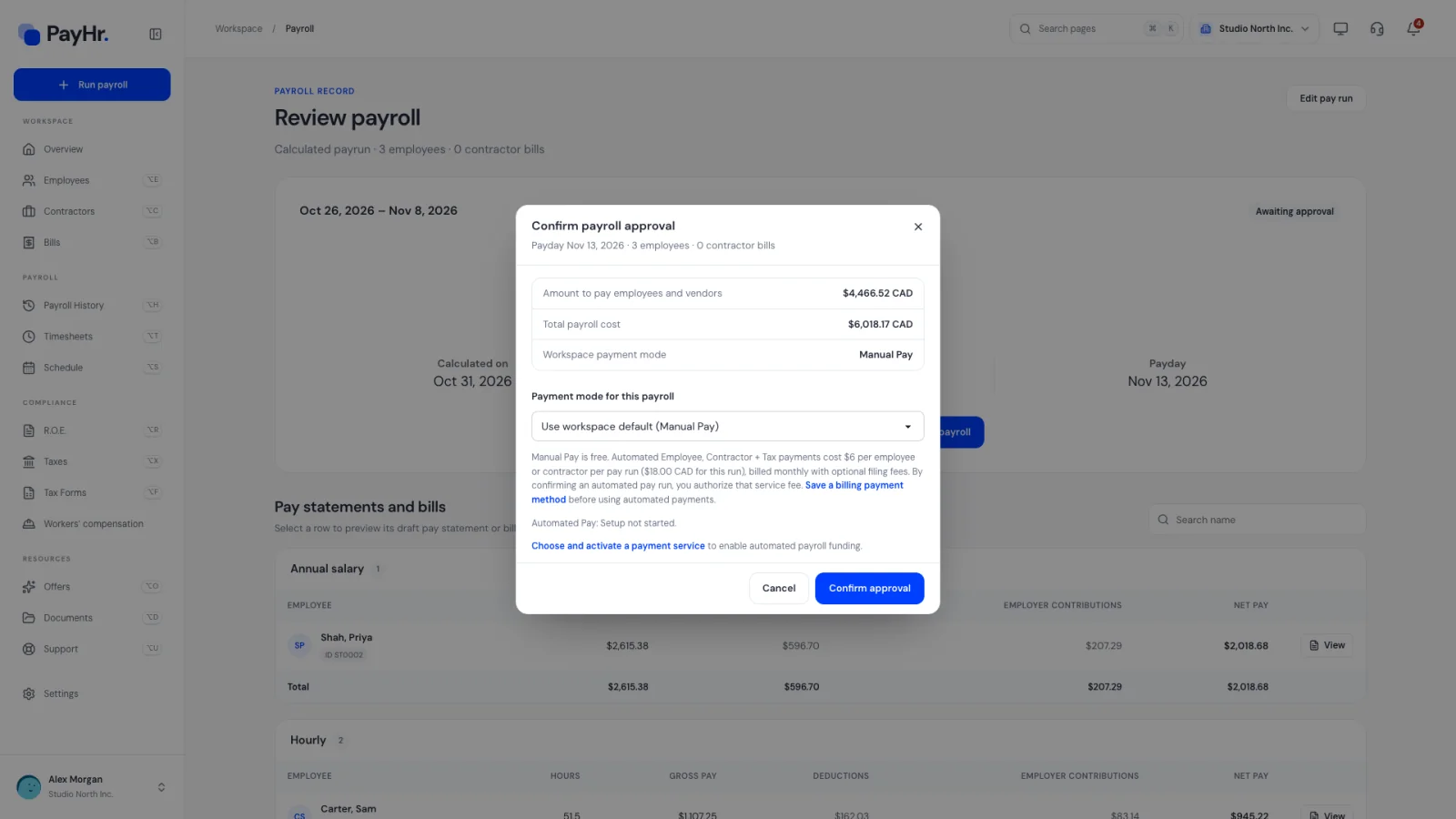
Select Approve payroll. The confirmation shows the payday, the number of employees and contractor bills, the Amount to pay employees and vendors (net pay plus bills), the Total payroll cost, and the Workspace payment mode.
- Payment mode for this payroll: Use workspace default or Manual Pay — this payroll only. Automated options appear only when a payment service is activated for your workspace.
- Manual Pay is free. You pay employees and contractors yourself, by direct deposit through your bank, cheque or a service such as Telpay, and you remit to the CRA yourself.
- Select Confirm approval.
Approving records the payroll. It finalizes the pay statements, adds the amounts to each employee’s year-to-date totals (used for CPP, CPP2 and EI maximums and for year-end T4 slips), records vacation pay, and locks the period’s timesheet dates. It does not, on its own, transfer wages or remit taxes. An approved payroll can’t be edited.
09After approval: pay people and track payments
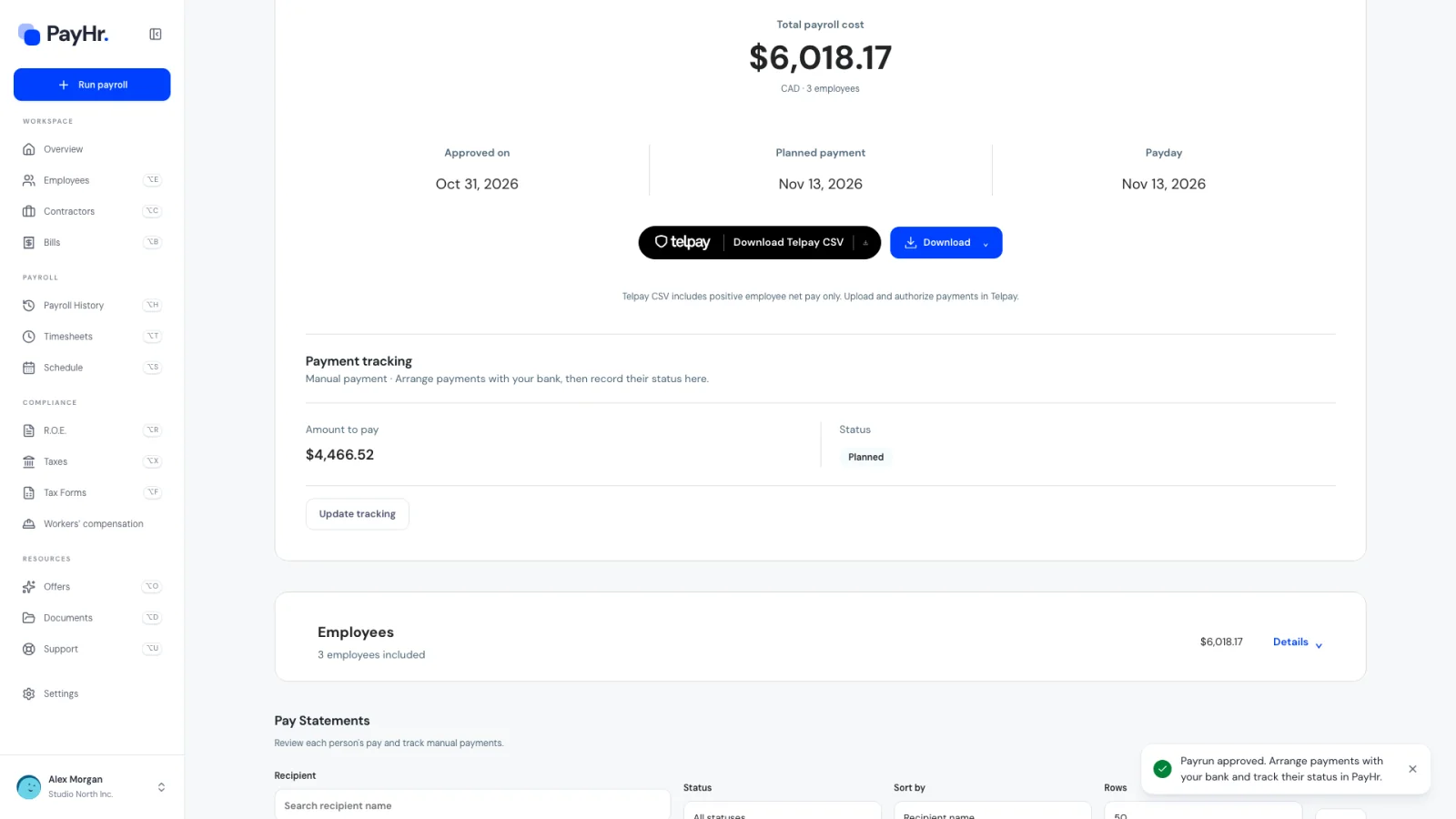
You land on the approved payroll record with the message Payrun approved. Arrange payments with your bank and track their status in PayHr.
- Payment tracking shows the amount to pay and its status. As you arrange payments, update the status (Planned, Scheduled, Processing, Completed or Failed), the scheduled date and an optional bank reference, then select Save tracking.
- Pay Statements lists each employee and contractor bill. Open statement and Download PDF give you the final pay statement, with This payrun and Year to date columns, to share with the employee.
- Download provides the final Summary PDF, Excel and CSV registers. Download Telpay CSV prepares employee net pay for upload to Telpay if you use it.
Every approved payroll also appears in Payroll History, where Record payment lets you mark each payment as paid. Recording a payment only updates your tracking; PayHr doesn’t move money for manual payrolls.
Questions people ask
Which provinces does PayHr support?
PayHr supports payroll in every Canadian province except Quebec. Bring payroll, employee records and timesheets together for your Canadian business.
Supported provinces: Ontario, Alberta, British Columbia, Manitoba, New Brunswick, Newfoundland and Labrador, Nova Scotia, Prince Edward Island and Saskatchewan. Quebec payroll is not supported.
Does approving payroll pay my employees?
Not with Manual Pay. Approval records the payroll, finalizes pay statements and updates year-to-date totals. You send the wages yourself through your bank, by cheque or through Telpay, then record each payment under Payment tracking or in Payroll History.
Does PayHr remit CPP, EI and income tax to the CRA?
Not for manual payrolls. The payroll record shows how much this payroll adds to your CRA remittance and, once your remittance schedule is confirmed, the due date. You make the remittance to the CRA yourself.
Can I change a payroll after approving it?
No. An approved payroll is final, and its timesheet dates are locked so the record and year-to-date totals stay consistent. Review the draft statements and recalculate as often as you need before approving.
Why is an employee marked “No pay this period”?
They have no saved hours in the period (hourly employees), they start after the period ends, or they’re on leave with nothing payable. Save their timesheet or check their employment details, then reload the page.
Why can’t I approve?
Common reasons: the calculation is out of date (select Recalculate), your payroll plan isn’t active (PayHr sends you to billing), or the payday’s payroll year has been closed in organization settings. The message on screen says which.
Why does CPP or EI stop partway through the year?
CPP, CPP2 and EI have yearly maximums. Once an employee’s year-to-date contributions reach a maximum, PayHr stops deducting it for the rest of the year. Add earlier pay for anyone paid outside PayHr this year so the maximums are tracked correctly.