TIME & PAYROLL
Enter weekly timesheets
This guide shows how to record your team’s hours on PayHr’s weekly Timesheets page, and how those hours become payroll earnings. It is for owners and admins who manage hourly employees, or who need to record vacation and sick time for anyone on the team.
You need at least one employee in your workspace. Hours only count toward pay once you select Save.

 NARRATED TUTORIALWatch: Enter weekly timesheetsSee every step below in the actual PayHr screens, with captions.
Before you start
- At least one employee added under Employees
- Each person’s daily hours for the week, from their time records
- Which hours were overtime, vacation or sick time
- Your pay schedule set up, so you know which week falls in which pay period
01Open Timesheets and choose the week
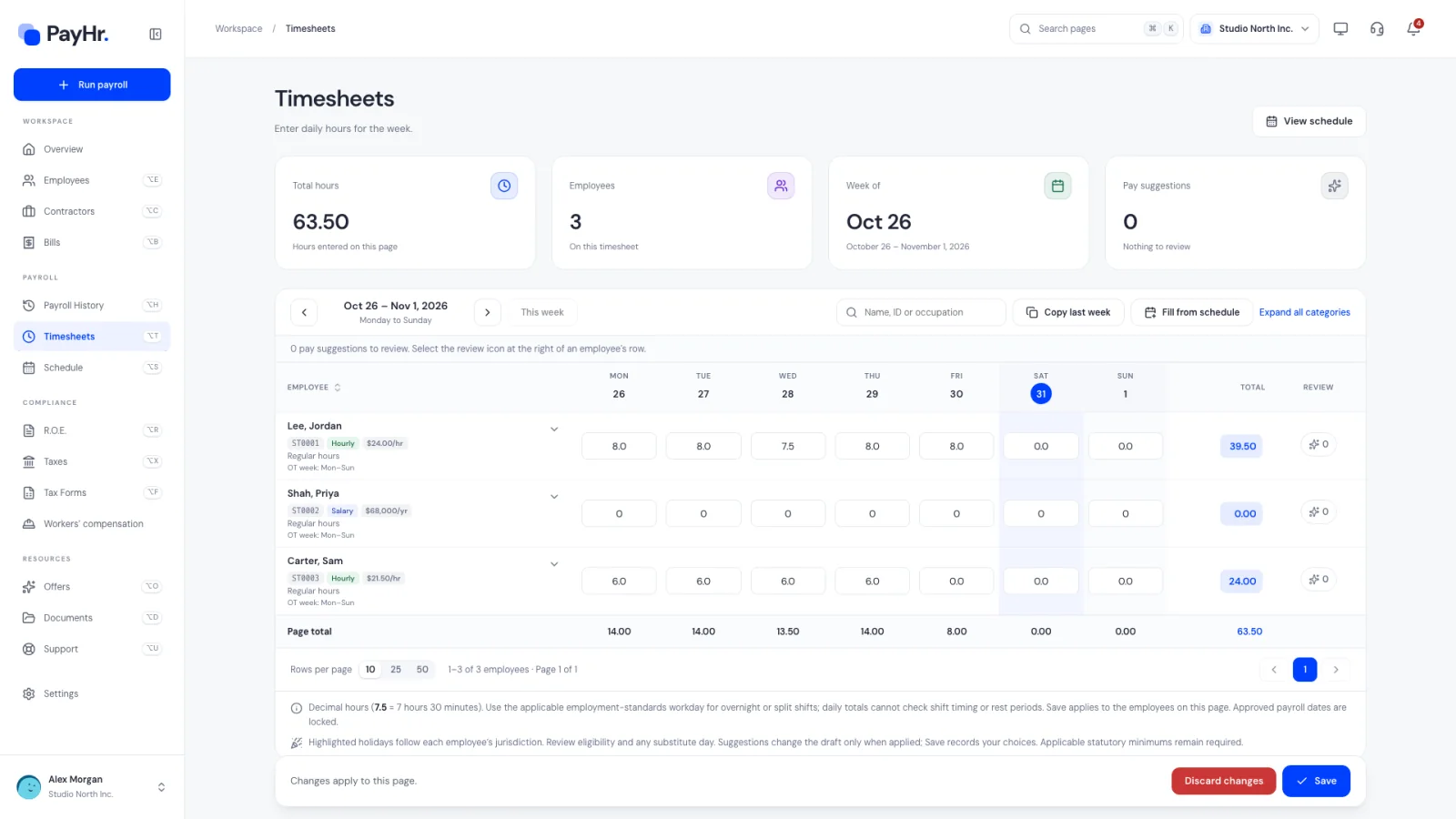
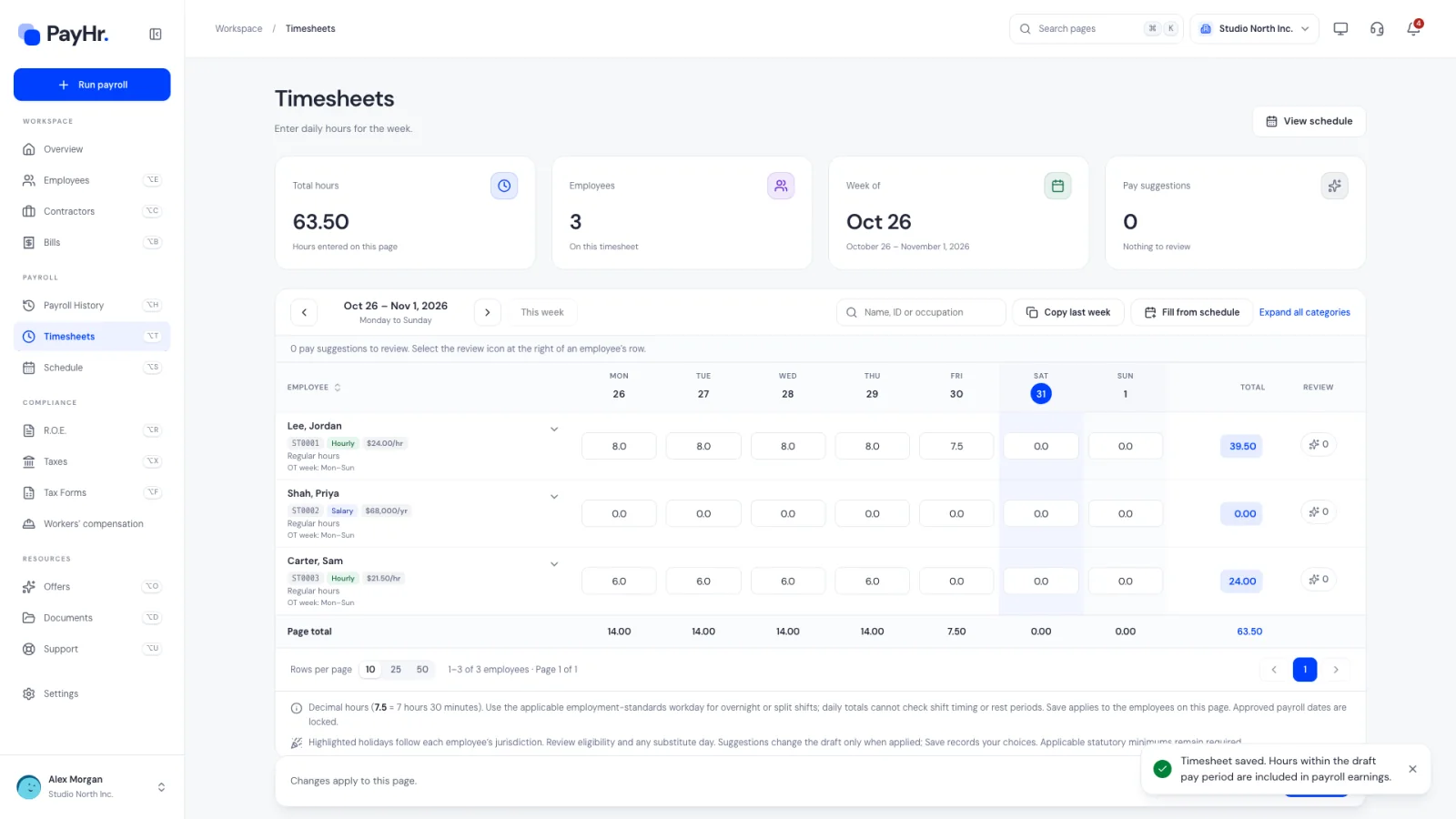
Choose Timesheets in the Payroll section of the sidebar. A timesheet always covers one week, Monday to Sunday, and the date range shows between the arrows.
- Use Previous week and Next week (the arrows) to move one week at a time, or This week to jump back to the current week. Today’s date is circled in the table header.
- The cards at the top summarize the page: Total hours entered, Employees on this timesheet, Week of, and Pay suggestions waiting for review.
- Use the search box (Name, ID or occupation) to find someone quickly, and Rows per page (10, 25 or 50) to choose how many employees appear at once. Select the Employee column heading to sort by last name.
Why the week matters: your pay periods follow your pay schedule (for example, every other week), and a biweekly period spans two timesheet weeks. When you run payroll, PayHr adds up the saved hours that fall inside that pay period’s start and end dates, day by day. If a week straddles two pay periods, each day’s hours count toward the period that day belongs to.
02Enter regular hours in decimals
Each employee has a Regular hours row with one box per day. Under the name you’ll see their employee ID, occupation, pay type (Hourly or Salary) and the rate in effect that week, so you can confirm you’re on the right person.
- Enter decimal hours, not hours and minutes: 7.5 is 7 hours 30 minutes, 7.25 is 7 hours 15 minutes, and 7.75 is 7 hours 45 minutes. Up to two decimals are allowed.
- Each box accepts 0 to 24, and all categories together can’t exceed 24 hours in one day. Days before the employee’s hire date are disabled.
- The Total column, the Page total row and the Total hours card update as you type. A blank box counts as zero.
- For overnight or split shifts, record the hours on the workday your provincial employment standards use. The timesheet checks daily totals, not shift start times or rest periods.
Hourly employees are paid from these hours: regular hours × their hourly rate. Salaried employees are paid from their annual salary for each pay period, so their regular hours aren’t what determines their pay; record vacation or sick time they take so their records and balances stay accurate.
03Record overtime, double time, vacation and sick time
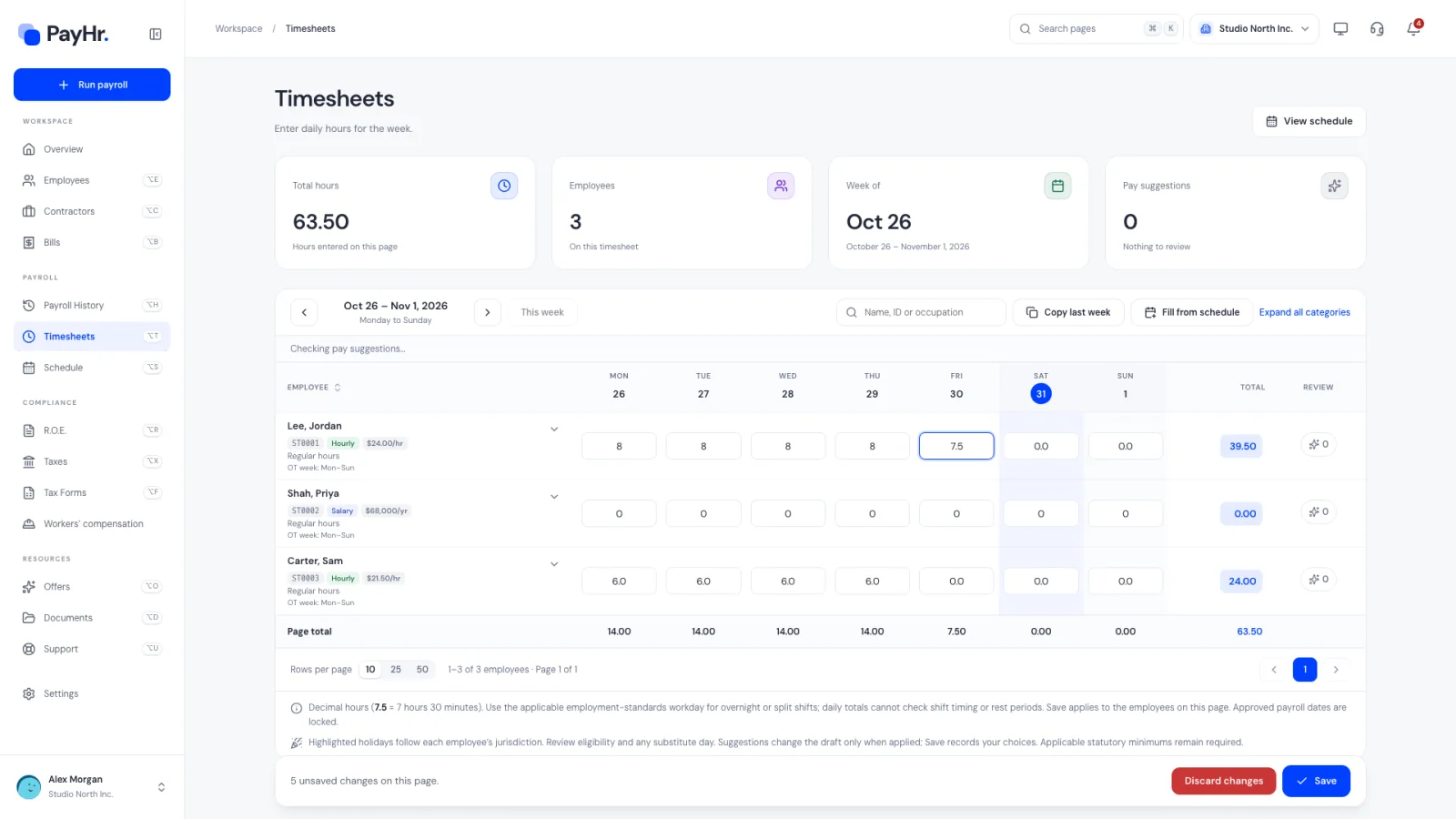
Select the arrow beside a name (More hours) or Expand all categories to show four more rows. Rows that already contain hours open automatically.
- Overtime (Rate × 1.5): hours paid at one and a half times the regular rate. When overtime starts depends on the employee’s jurisdiction; in Ontario, for example, it generally begins after 44 hours in a work week. The OT week label under the name shows the work week PayHr uses for that employee.
- Double Time (Rate × 2.0): hours paid at twice the rate, for situations your province’s rules or your own policy require.
- Vacation: vacation days taken. If the employee’s vacation policy is Don’t offer vacation, the row is disabled and shows Not offered.
- Sick Time: sick hours. Paid sick leave entitlements differ by province, so sick pay is reviewed separately through pay suggestions.
PayHr doesn’t move hours into Overtime on its own. Enter what was worked, then use pay suggestions (below) to check the week against the employee’s employment standards.
04Copy last week or fill from the schedule
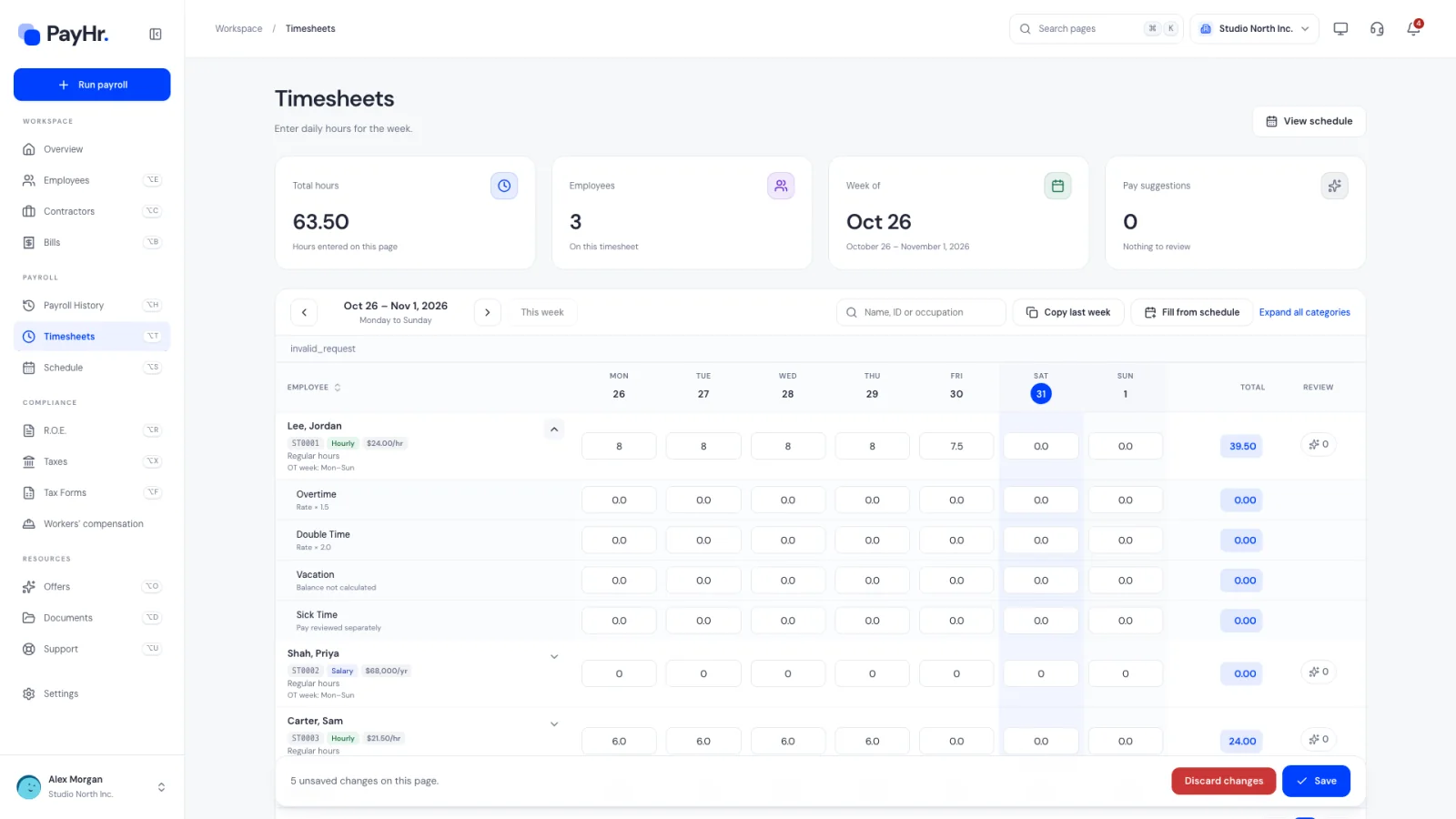
Two toolbar buttons can save typing. Both load hours into the page for you to review; neither saves anything until you select Save.
- Copy last week copies the previous week’s saved hours, in every category, for the employees on this page. Days on approved payroll keep their recorded hours, and days that aren’t allowed (before hire, or vacation not offered) stay at zero.
- Fill from schedule copies hours from your Schedule into empty days as regular hours. Days that already have hours, or that are approved, are kept as they are, and the message tells you how many were kept.
- Scheduled hours also appear as light, italic placeholders in empty boxes. A row with scheduled hours shows Use scheduled under the name to copy just that employee’s schedule.
Copying or filling replaces any unsaved edits on the page, so use these tools before you start typing. Afterwards, adjust for real attendance, such as late starts or overtime, before saving.
05Review pay suggestions and statutory holidays
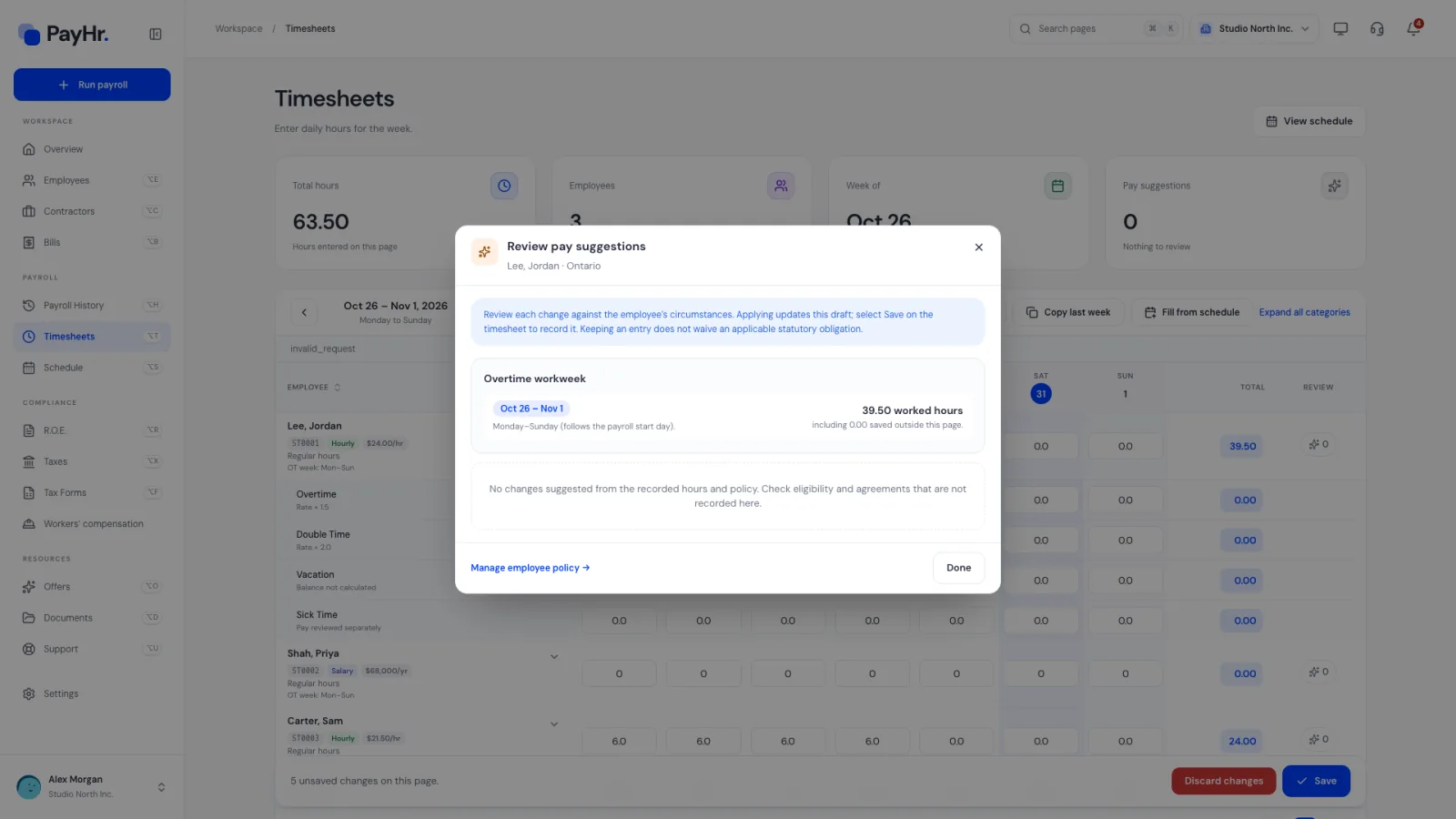
The sparkle button in the Review column opens Review pay suggestions for that employee, and the count on the button shows how many need attention. Suggestions compare the week with the employee’s employment standards and labour policy, including:
- Overtime when the work week or workday goes past the applicable threshold.
- Statutory holidays: holidays are highlighted in the table header and on the day’s cells, based on each employee’s jurisdiction. Eligibility and the amount of holiday pay depend on provincial rules, and a calculator helps you work out the pay.
- Sick time: paid sick day entitlements for the jurisdiction.
Applying a suggestion updates the draft on the page; select Save to record it. Keeping your entry instead is recorded as your decision, but it does not waive any statutory minimum the employee is owed. Manage employee policy opens the employee’s labour policy if the jurisdiction or overtime settings need changing. Select Done to close.
06Save the page, and what happens next
Select Save in the bar at the bottom. You’ll see Timesheet saved. Hours within the draft pay period are included in payroll earnings.
- Save applies to the employees on this page only. If your team spans several pages, save each one. Search, sort and page size stay the same when you save, so you save exactly the rows you see.
- Discard changes reloads the page and drops anything unsaved.
- If two people edit the same timesheet, PayHr stops the second save rather than overwrite the first. Reload and re-enter the change.
Next, open Run payroll. Hourly employees’ gross pay is calculated from the saved hours in the pay period, and View hours on the employee step shows the daily entries. Once a payroll is approved, its dates are locked: the boxes are disabled with Already approved — hours locked, and the employee shows an Approved dates locked tag. This keeps approved pay statements, year-to-date totals and the hours behind them consistent.
Questions people ask
Do salaried employees need timesheets?
Not for their regular pay. PayHr pays a salaried employee their annual salary divided across the pay periods in your schedule. Record their vacation and sick time on the timesheet so balances and records stay accurate.
Why can’t I edit some days?
The day is covered by an approved payroll (shown as Already approved — hours locked), it falls before the employee’s hire date, or it is in the Vacation row for someone whose policy is Don’t offer vacation. Approved hours are locked so the approved payroll record and year-to-date totals don’t change underneath you.
Does PayHr calculate overtime automatically?
No. You enter overtime hours in the Overtime row, and they’re paid at 1.5 times the rate. Pay suggestions check each week against the employee’s jurisdiction and tell you when hours may need to be moved to overtime, but nothing changes until you apply a suggestion and save.
How do I enter 7 hours and 40 minutes?
Enter 7.67. Divide the minutes by 60 (40 ÷ 60 = 0.67) and add it to the hours. Timesheets accept up to two decimals.
I saved hours after calculating payroll. Is my pay run updated?
Not until you calculate again. Open the payroll record and select Recalculate, or use Edit pay run and Calculate payroll. PayHr won’t approve a calculation that no longer matches the current data.