PEOPLE & RECORDS
Add a contractor or vendor
This guide covers Add a vendor, where you record the businesses and self-employed people you pay outside payroll. It explains the difference between a regular vendor and a T4A contractor, what PayHr needs for the T4A slip, and how to add bank details so you can pay their bills by direct deposit.

 NARRATED TUTORIALWatch: Add a contractorSee every step below in the actual PayHr screens, with captions.
Before you start
- The vendor’s legal or business name
- Whether you will report their fees on a T4A (self-employed people and businesses providing services) or not
- For a T4A contractor: their SIN (individual) or nine-digit CRA business number (business), if you have it
- Their mailing address and email (optional, but used on the T4A and for sending documents)
- A void cheque or bank form for direct deposit (optional, can be added later)
01Open Contractors and choose Add contractor
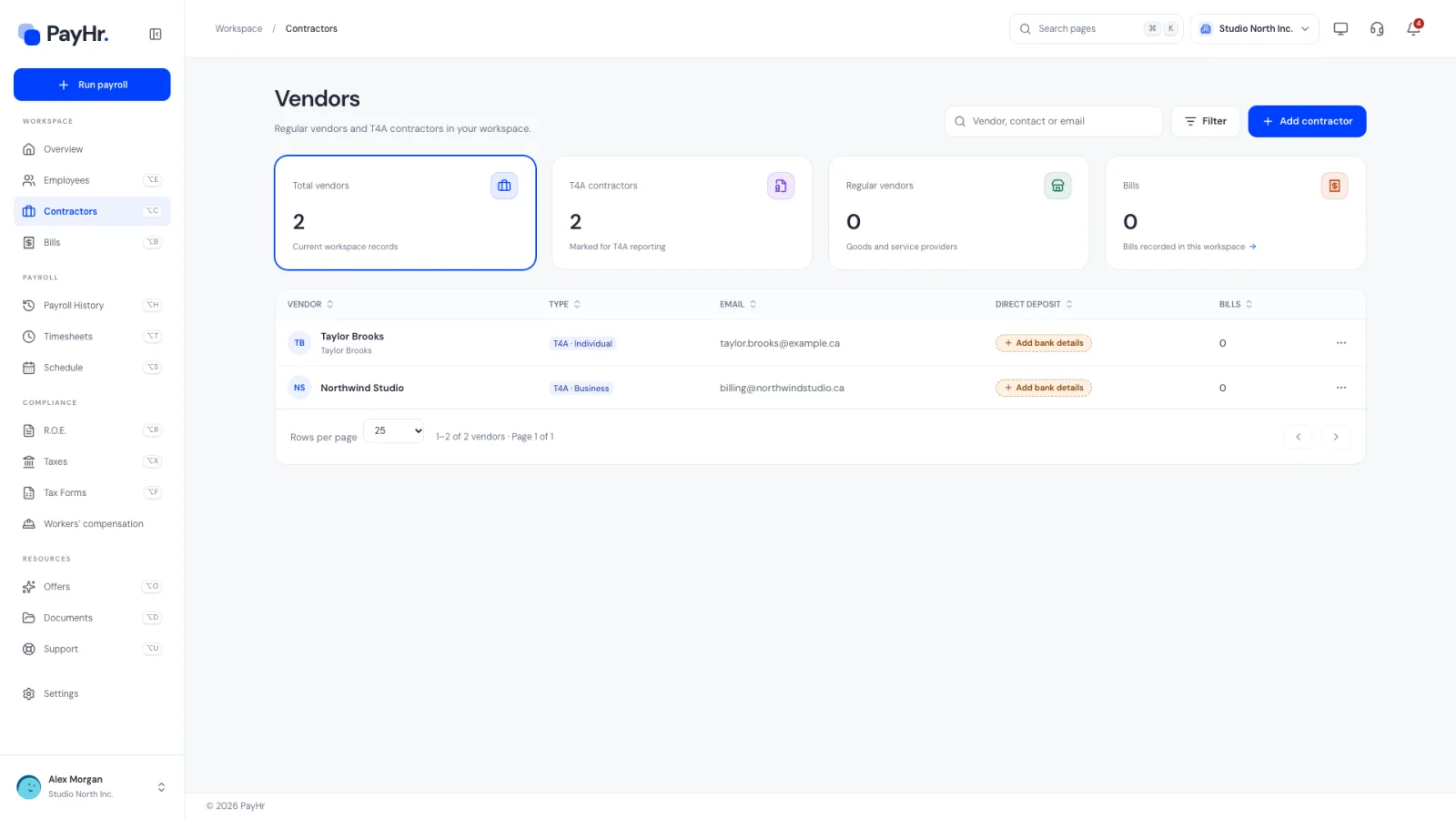
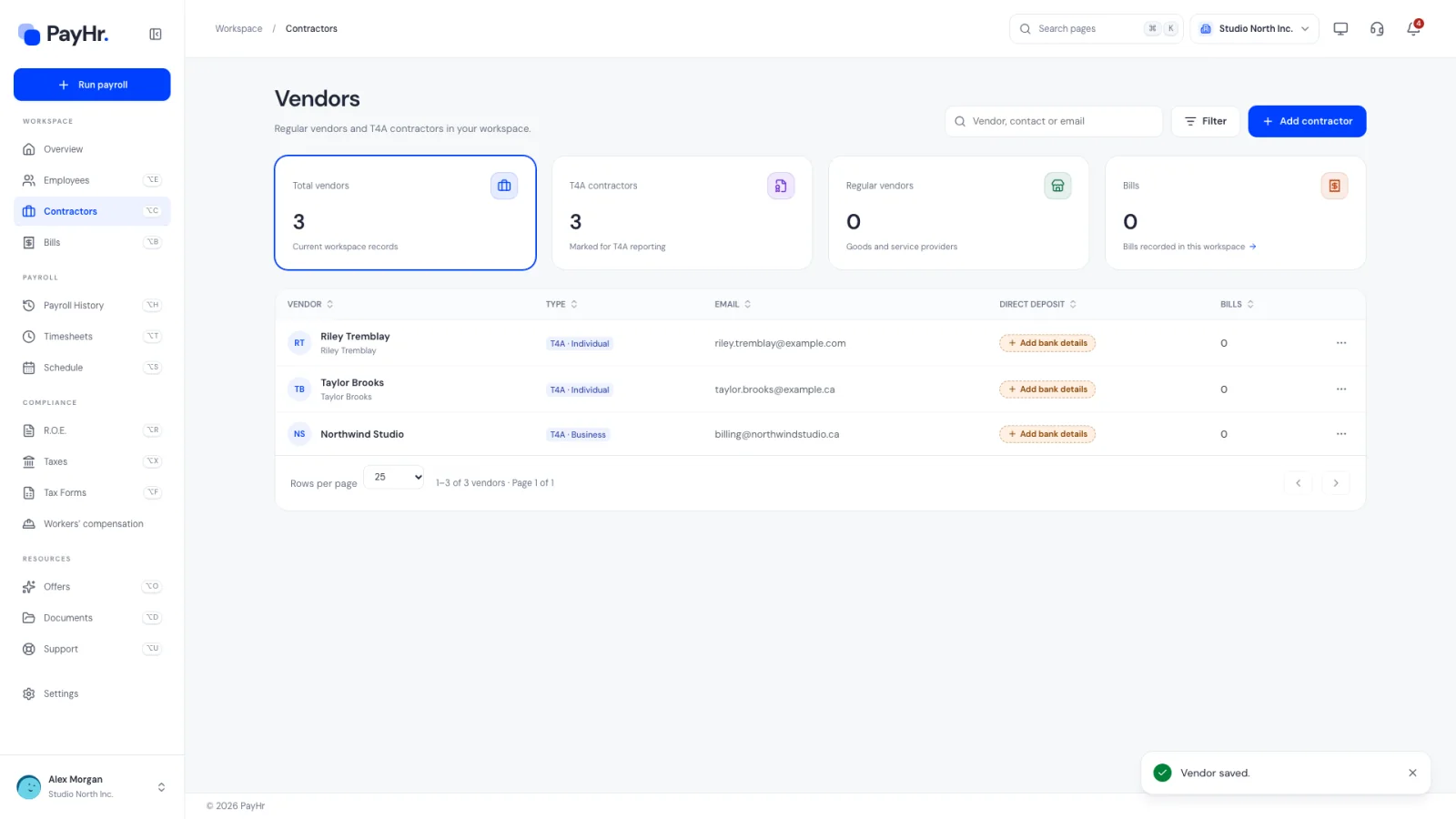
Select Contractors in the sidebar to open Vendors. The cards count Total vendors, T4A contractors (marked for T4A reporting) and Regular vendors; selecting a card filters the table. The Bills card opens the bills you have recorded.
The table shows each vendor’s type, email, whether bank details are on file in the Direct deposit column, and how many bills they have. Use Filter to show only vendors with or without bank details. Select Add contractor to start.
02Enter the vendor name and choose a type
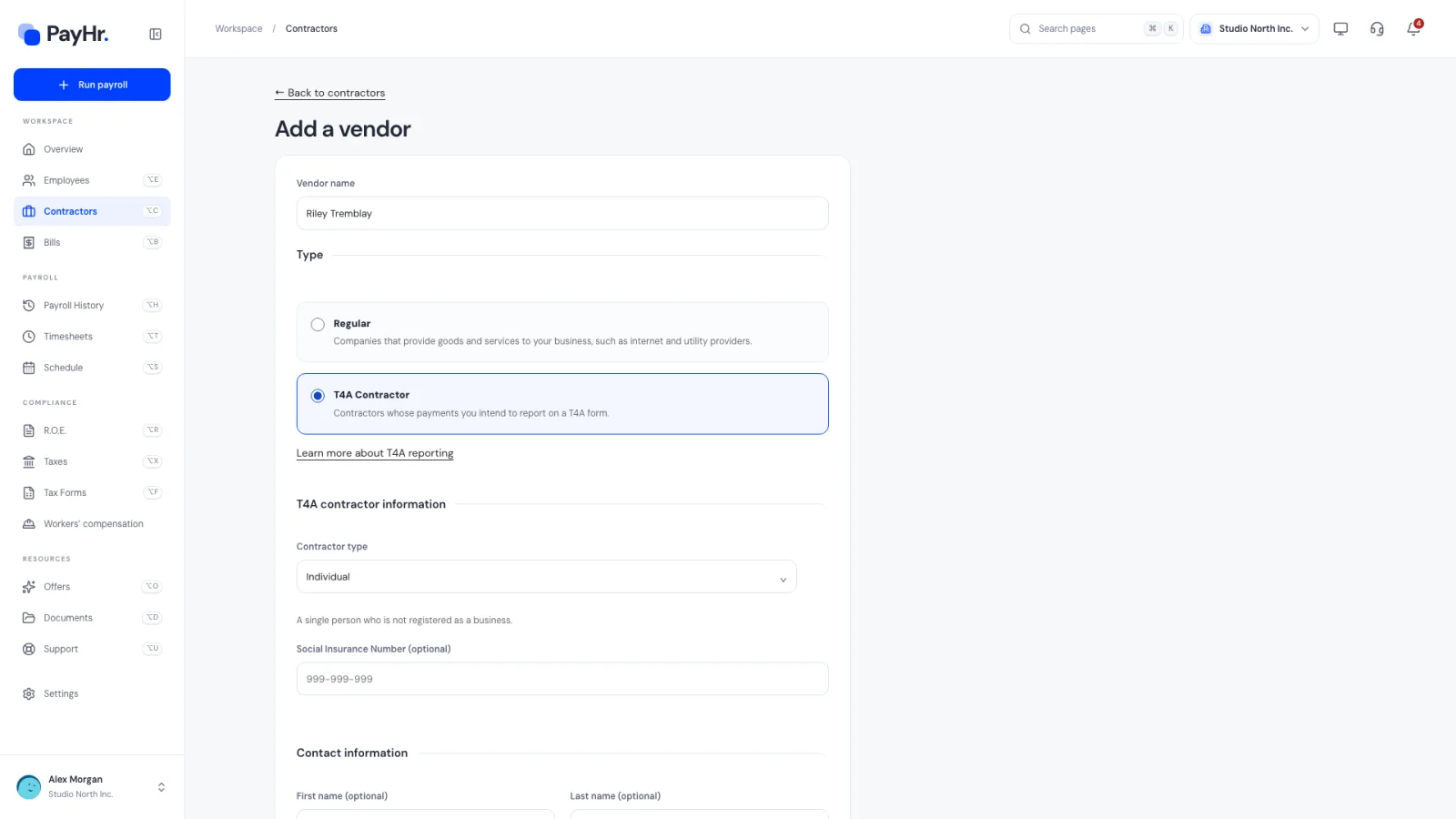
Vendor name is the name you will see on bills and, for T4A contractors, the name reported on the T4A slip. Use the person’s legal name or the business’s registered name.
Then choose a Type:
- Regular: companies that provide goods and services to your business, such as internet and utility providers. No tax slip is prepared for them.
- T4A Contractor: contractors whose payments you intend to report on a T4A. CRA generally expects a T4A, box 048 (fees for services), when you pay a self-employed person or business more than $500 for services in a calendar year. The Learn more about T4A reporting link opens CRA’s guidance.
Choosing a type reveals the rest of the form and turns on Save.
03Choose individual or business and add their tax number
For a T4A contractor, T4A contractor information asks for the Contractor type:
- Individual: a single person who is not registered as a business. You can add their Social Insurance Number. PayHr checks it passes the SIN checksum.
- Business: a registered business providing services. You can add their nine-digit Business number from CRA.
Both numbers are optional when you save, so you can add a contractor before you have their paperwork. The T4A slip needs the recipient’s SIN or business number, so ask for it before year-end; you can add it any time with Edit details.
04Add contact information
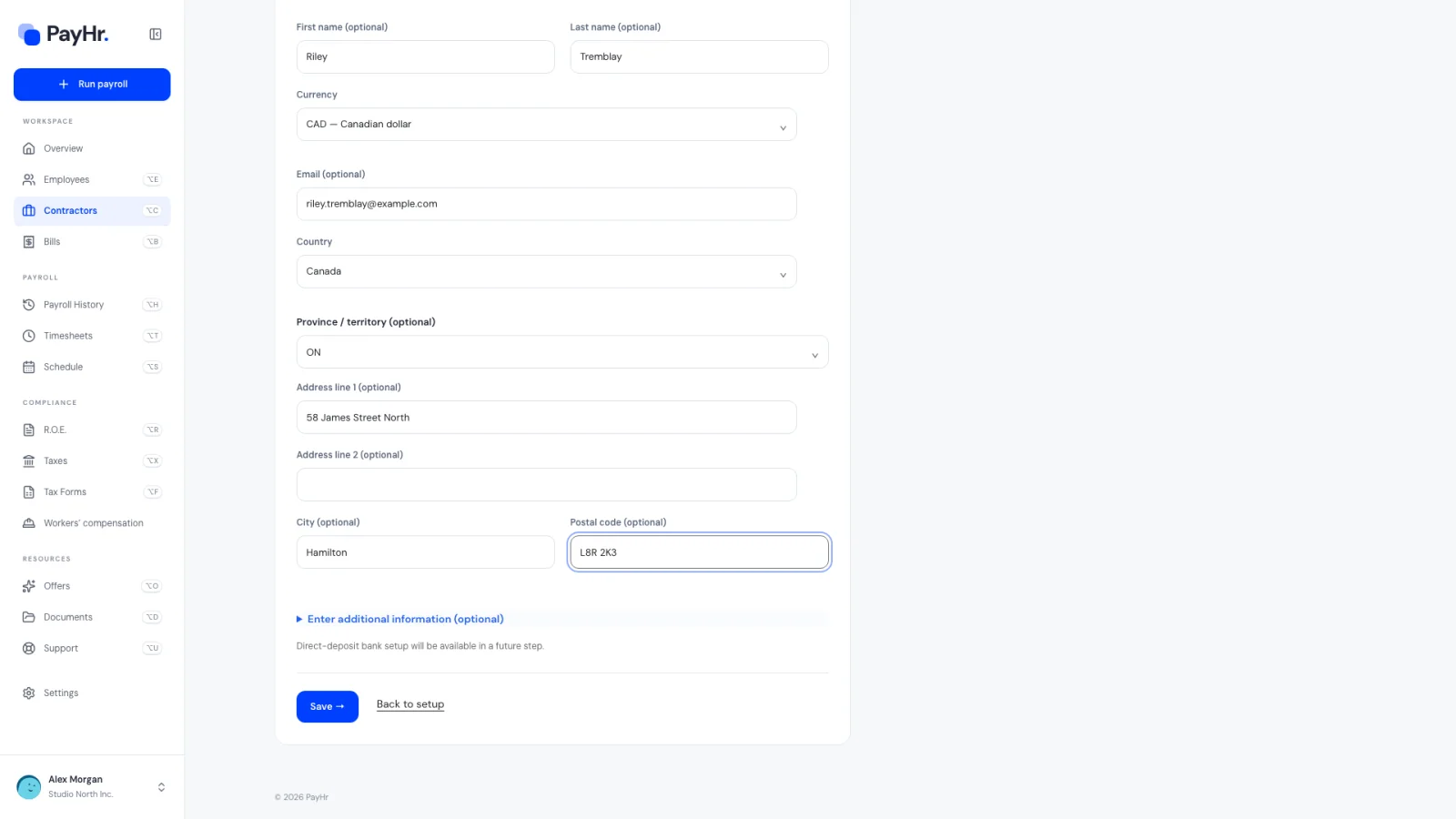
Everything under Contact information is optional, but worth filling in:
- First name and Last name: your contact person, shown under the vendor name in the table.
- Currency and Country: vendors are paid in Canadian dollars and based in Canada.
- Email: needed to send them documents to sign from Documents, where vendors with an email appear as recipients.
- Province / territory, Address line 1 and 2, City and Postal code (format A1A 1A1, with the space): the mailing address printed on the T4A slip and on bills.
Enter additional information opens fields for your Account number with the vendor (your customer reference), Phone, Fax, Mobile, Toll free and Website.
05Save the vendor
Select Save. PayHr returns to Vendors with the message Vendor saved. The new row shows the type (for example T4A · Individual) and No bank details under Direct deposit.
The … menu at the end of each row has Create bill, Edit details, Add bank details (or Edit bank details) and Delete vendor. Selecting the vendor’s name also opens Edit vendor.
06Add bank details for direct deposit
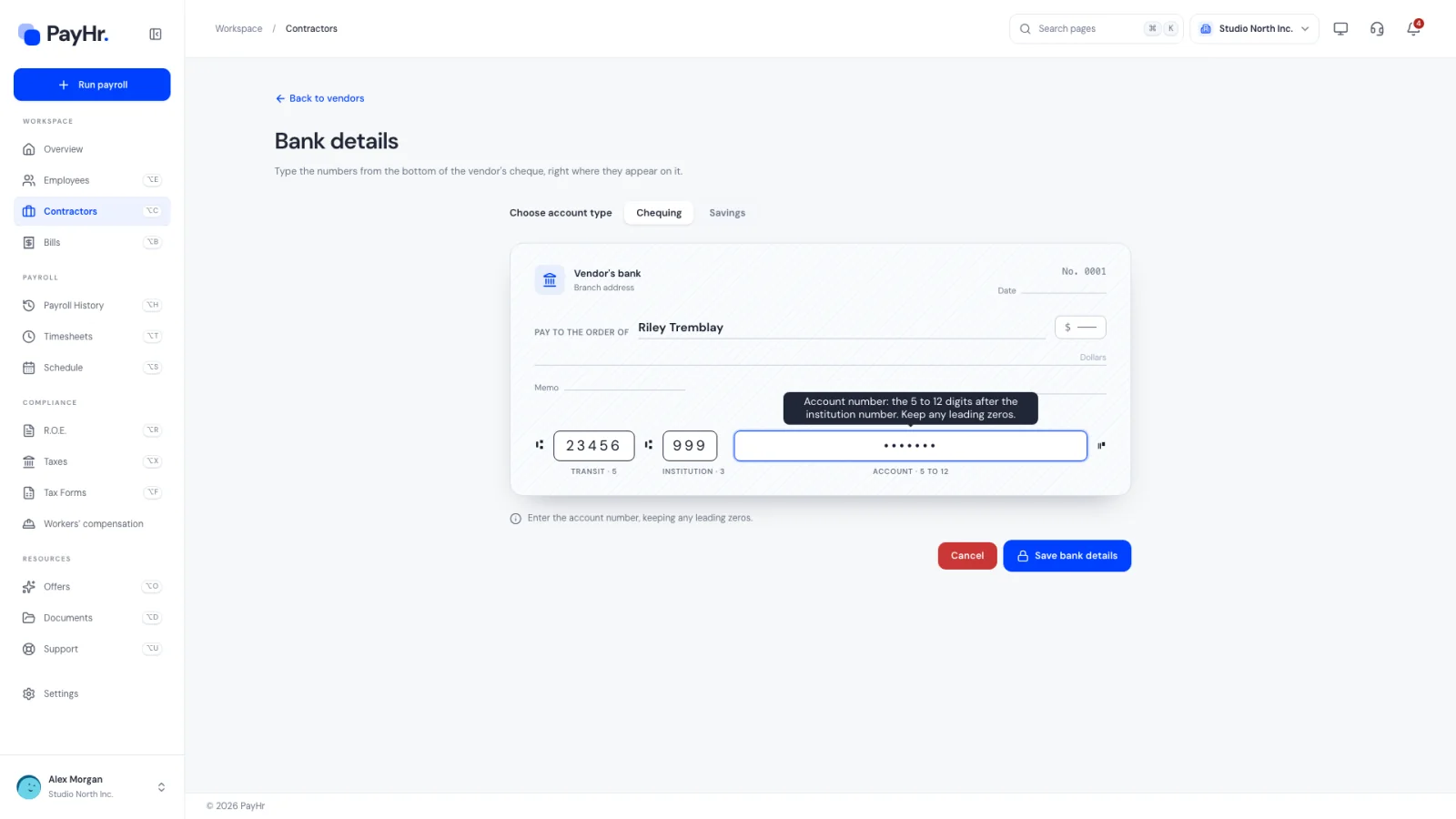
Select Add bank details in the Direct deposit column, or from the row menu. On Bank details, choose Chequing or Savings, then type the numbers from the bottom of the vendor’s cheque into the cheque picture:
- Transit (5 digits): the branch.
- Institution (3 digits): the bank or credit union.
- Account (5 to 12 digits): keep any leading zeros.
Select Save bank details. You return to Vendors with Vendor bank details saved, and the row shows Bank details added.
07Pay them and report on the T4A
Record what you owe a vendor with Create bill, then pay the bill from Bills. For T4A contractors, PayHr adds up the Contractor services lines (before sales tax) of bills paid in the calendar year. That total becomes their T4A box 048 amount when PayHr drafts the year’s T4A slips. Contractors paid $500 or less in the year are left off the draft and listed in a note, so you can decide whether to add a slip yourself.
If someone’s status changes, for example a contractor incorporates, use Edit details to switch between Individual and Business or between T4A and Regular.
Questions people ask
When should I choose T4A Contractor instead of Regular?
Choose T4A Contractor for self-employed people and businesses you pay fees for services and intend to report on a T4A slip. Choose Regular for suppliers of goods and everyday services, like utilities or software, that don’t get a slip.
Do I need the contractor’s SIN or business number?
Not to save them. The T4A slip needs the recipient’s SIN (individual) or business number (business), so collect it before year-end and add it with Edit details.
Do I deduct CPP, EI or income tax for contractors?
No. Contractors are paid their bill amount; payroll deductions apply to employees. If the person is really an employee, add them under Employees instead.
Can I pay a contractor in US dollars?
No. Vendors in PayHr are based in Canada and paid in Canadian dollars.
What happens if I delete a vendor?
Delete vendor removes them from your list. Bills you already recorded stay in your history, and a T4A contractor deleted mid-year still counts toward that year’s T4A from the bills you paid them.