TAXES & COMPLIANCE
Prepare T4 and T4A slips and close the payroll year
This guide walks through year end in PayHr: checking the payroll behind each slip, preparing a T4 (or T4A) return, issuing the slips, filing them with the Canada Revenue Agency (CRA) and closing the payroll year. It is for owners and admins who run payroll. You need the year's pay runs approved and every employee's SIN and home address saved in their employee details.

 NARRATED TUTORIALWatch: Prepare T4 slipsSee every step below in the actual PayHr screens, with captions.
Before you start
- Every pay run with a payday in the tax year approved (or deleted)
- Each employee's SIN, full home address and province of employment saved in their employee details
- Your CRA payroll account number (the 15-character RP number) saved in Business details
- Payroll you ran before PayHr this year entered under Payroll before PayHr, so the slips include it
- For T4A slips: contractors set up as T4A vendors, with their bill payments recorded
- A CRA sign-in (My Business Account or Represent a Client) if you will upload the XML yourself
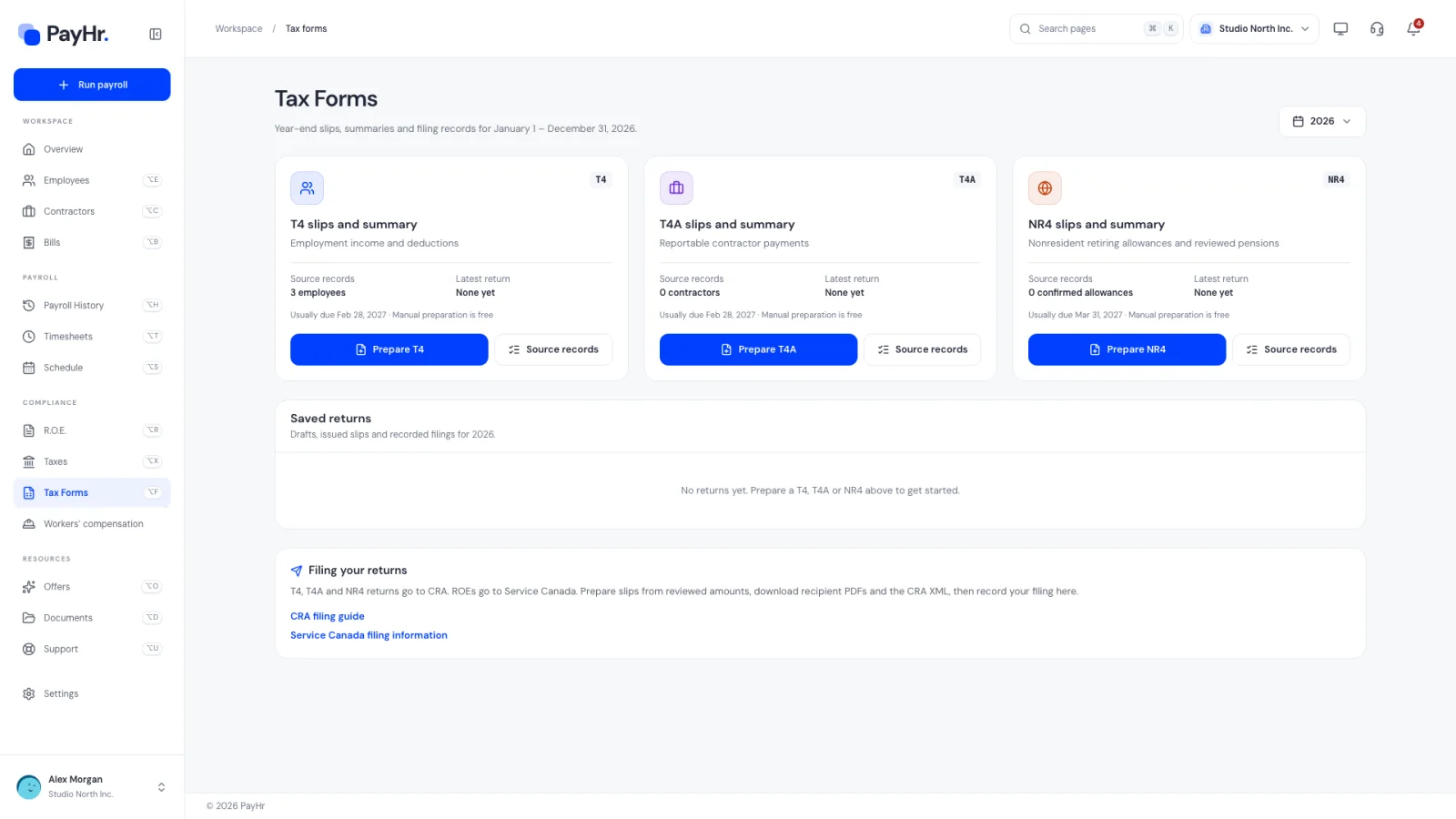
01Open Tax Forms and choose the tax year
In the sidebar, open Taxes and choose Tax Forms. Use the year button at the top right to pick the tax year you are reporting. A tax year always runs January 1 to December 31, and slips follow the payday, not the work period: a December period paid in January belongs to the next year's slips.
There is one card per return type:
- T4 slips and summary: employment income and deductions for employees.
- T4A slips and summary: reportable fees paid to contractors (for example box 048, fees for services).
- NR4 slips and summary: retiring allowances and reviewed pensions paid to non-residents. Most small businesses never need this one.
Each card shows Source records (how many people have payroll or payments for that year), the Latest return status (Draft, Issued, Filing recorded, or None yet) and the usual deadline. T4 and T4A returns are usually due on the last day of February of the following year; NR4 returns by March 31. The line Manual preparation is free means you can prepare, download and file every return yourself at no cost.
02Check the source records behind the slips
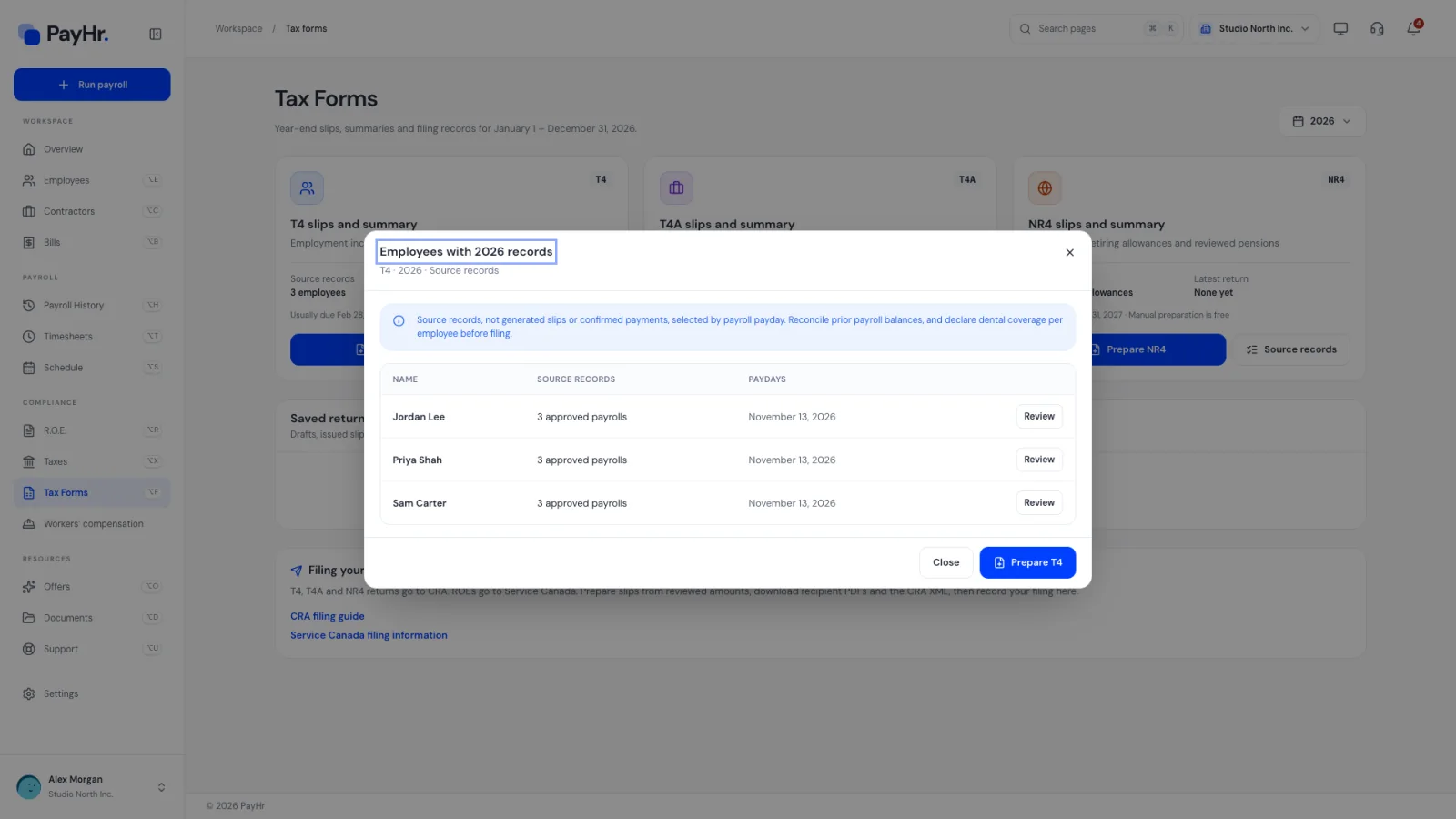
Before preparing anything, select Source records on the card. A popup lists everyone with records for the year, the number of approved payrolls, and the first and last payday.
- These are source records, not slips. They tell you who should get a slip and which payrolls feed it.
- A Prior payroll balance tag means the employee has year-to-date amounts imported from before PayHr. Check those amounts match your previous provider's records, because they are added to the slip.
- For T4A, the popup separates approved payroll bills that were paid from those approved but not yet paid, and lists recorded manual payments. Approval alone is not proof of payment, and a vendor category alone doesn't make someone T4A-reportable: verify payment dates, fees excluding sales tax, and residency.
Select Review on a row to open that employee's tax details (or the contractor's profile) in a new tab and fix anything that looks wrong at the source.
03Prepare the return and choose how to file
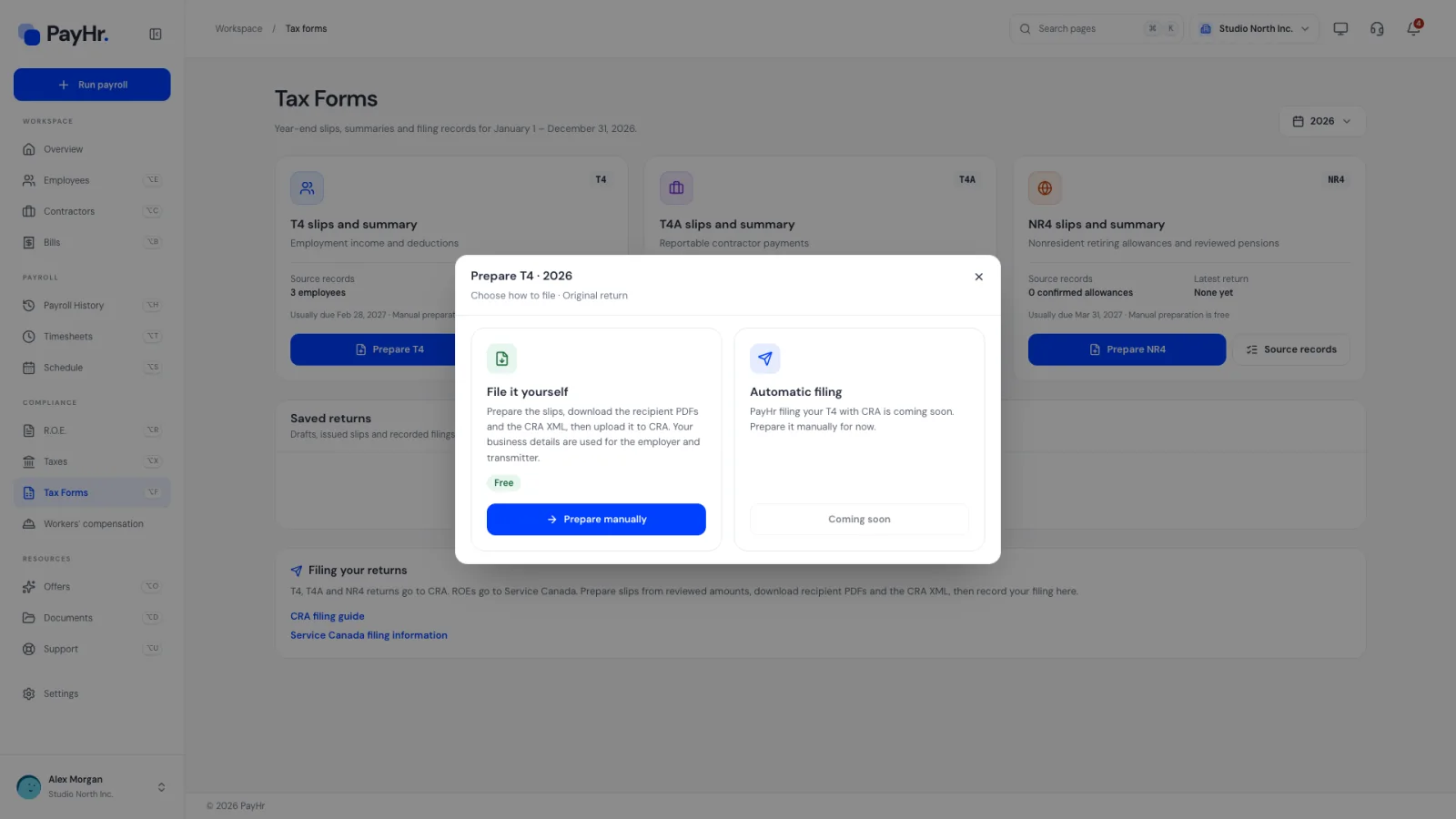
Select Prepare T4 (or Prepare T4A). PayHr asks how you want to file:
- File it yourself (marked Free): PayHr prepares the slips and gives you the recipient PDFs and the CRA XML file; you upload the XML to CRA. Your saved business details are used as both the employer and the transmitter, so there is nothing else to type. Select Prepare manually.
- Automatic filing: PayHr files the return with CRA as your transmitter. Whether it is available is shown on this card in your workspace. When it isn't, the button reads Coming soon and you prepare the return manually.
PayHr saves a draft and opens it. Drafts can be changed freely until you issue them. You can return to a draft at any time with Continue draft on the Tax Forms card or in Saved returns. If your employer details need correcting for this return, use Employer details at the top of the draft.
04Prefill the slips from payroll
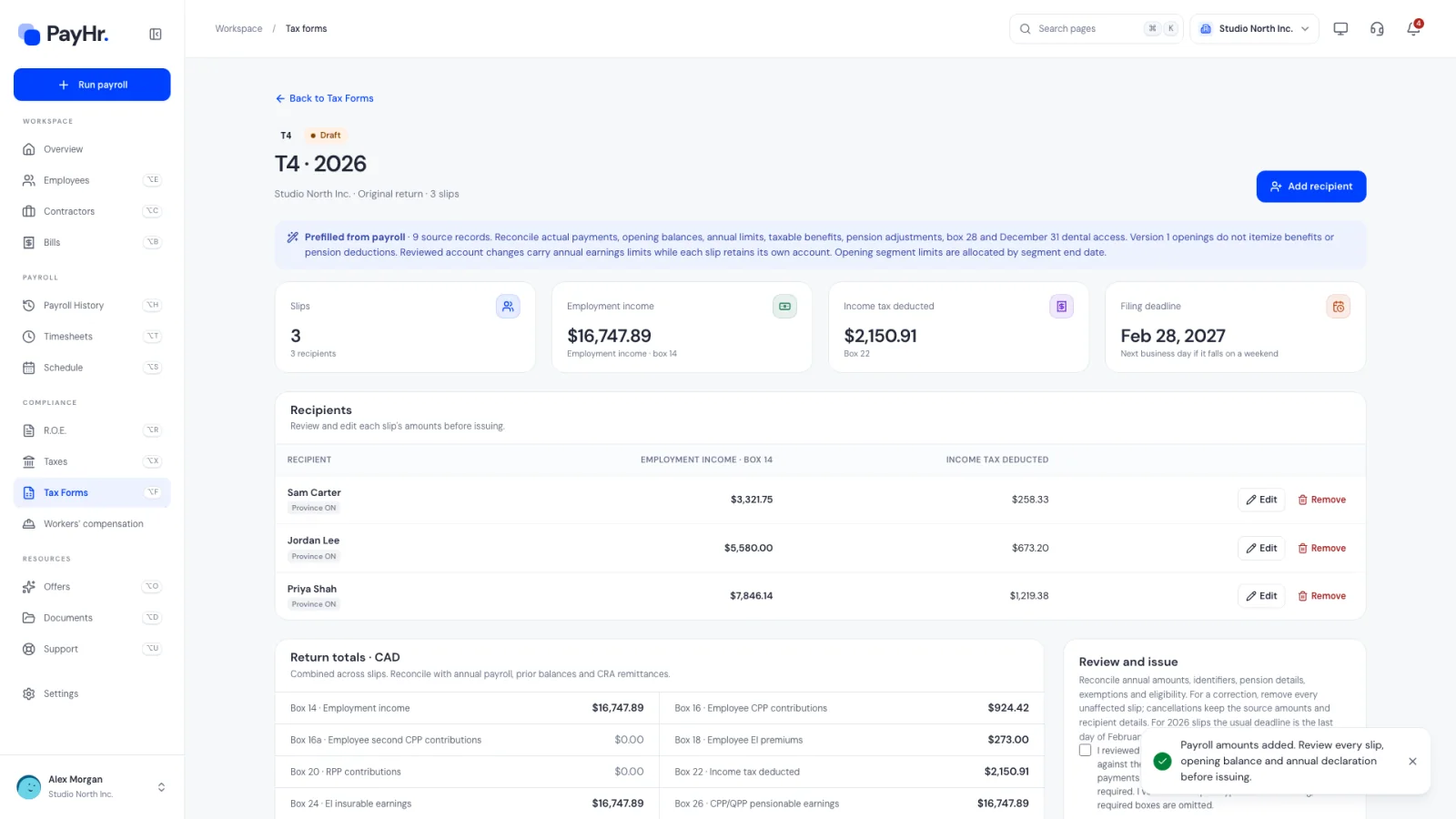
On the draft, select Prefill from payroll (for T4A: Prefill from paid bills). PayHr adds one slip per employee and province from approved pay runs and any balances from before PayHr. The Recipients table then shows each person's employment income (box 14) and income tax deducted (box 22).
- An employee who worked in more than one province gets a separate slip for each province of employment, as CRA requires.
- For T4A, prefill adds box 048 from each contractor's paid bills. Before issuing, you confirm actual payments, the tax year and reporting eligibility for each recipient.
- To add someone who was missed, use Add recipient; to drop a slip, use Remove.
If payroll changes after you prefill (for example a pay run is corrected), the draft shows a notice asking you to review the changed records before issuing. Your manual edits are kept.
05Review each slip
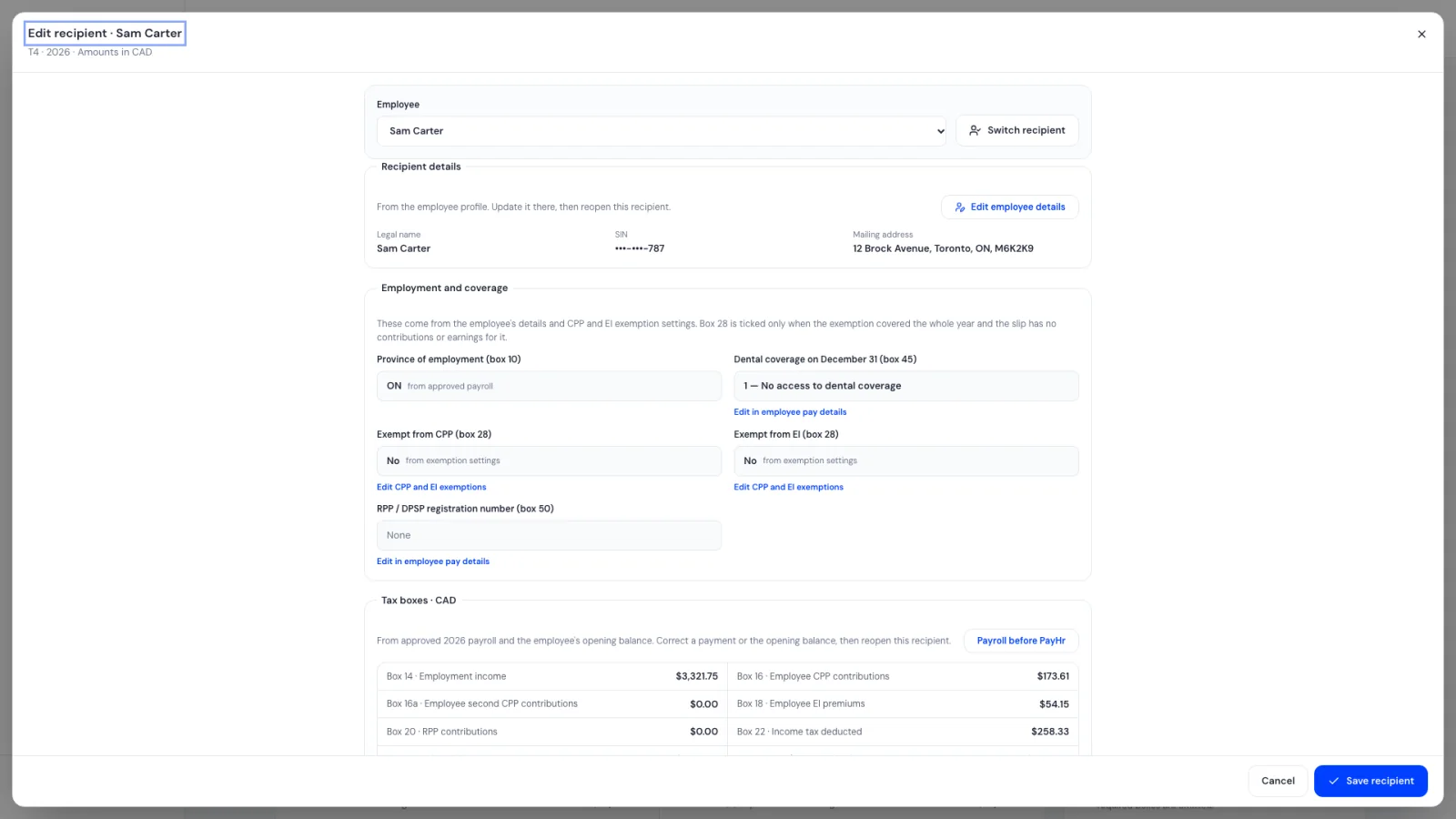
Select Edit on a recipient to open the full slip. On a T4, almost everything is read from PayHr's records rather than typed:
- Recipient details (name, SIN, address) come from the employee's details. Correct them on the employee's profile and the slip updates. This keeps one source of truth for every form PayHr produces.
- Province of employment (box 10), the tax boxes (income, CPP, CPP2, EI, income tax, union dues, pension adjustment and so on) and the employer contributions come from approved payroll.
- Employment and coverage shows box 28 (CPP/EI exemptions), box 45 (employer-offered dental benefits) and box 50 (pension plan registration) from the employee's pay details and exemption settings. Box 28 is only ticked when an exemption covered the whole year.
Only information no record keeps, such as other-information codes or a confirmation that you have requested a missing SIN, is entered on the slip. Select Save recipient if you changed anything.
06Reconcile the return totals
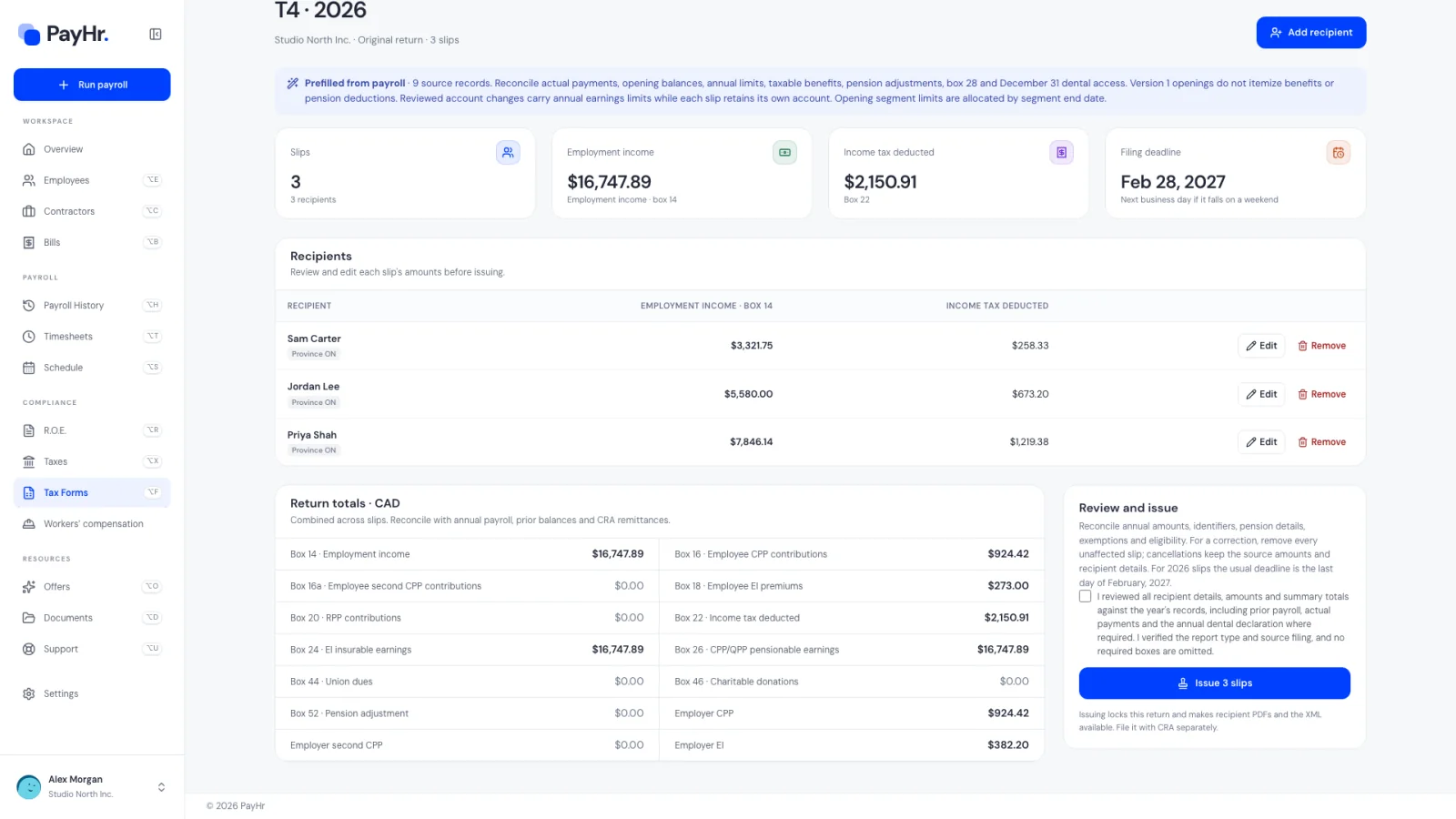
Below the recipients, Return totals · CAD adds every box across all slips, plus employer CPP, CPP2 and EI. These totals become the T4 Summary CRA receives.
Reconcile them before issuing. Total income tax, CPP, CPP2 and EI (employee and employer shares) should match what you remitted to CRA for the year on the Taxes page. A difference usually means a missed remittance, a pay run corrected after remitting, or prior-provider amounts that weren't imported. CRA compares the summary with your remittances and can assess a balance owing, so fix differences now rather than after filing.
After issuing, Reconciliation CSV downloads every slip and box in a spreadsheet for your accountant.
07Issue the slips
In Review and issue, tick the box confirming you reviewed every recipient's details, the amounts and the summary totals (including prior payroll, actual payments and the annual dental declaration where required). Then select Issue.
Issuing locks the return and makes the files available. It does not send anything to CRA. Once issued, you get:
- Recipient PDF on each row: the copy each employee or contractor receives.
- Download CRA XML: the electronic return in CRA's internet file transfer format.
- Reconciliation CSV and a File with CRA link to CRA's filing page.
If you spot a mistake after issuing but before filing, use Replace unfiled return to create a corrected draft. The old version is archived and should not be submitted or distributed.
08File with CRA, distribute copies and record the filing
File the return by the last day of February (the next business day if it falls on a weekend). If you file more than five slips of one type, CRA requires electronic filing:
- Internet file transfer (XML upload): sign in to CRA and upload the XML from PayHr. CRA gives you a confirmation number.
- CRA Web Forms: type the slips into CRA's online form instead.
- Paper: only for five slips or fewer, using CRA's current forms. The recipient PDFs leave out your payroll account number, so they are not filing copies.
Give each recipient their slip by the same deadline: two paper copies, or email if they have given you written consent. PayHr's Document emails page can email a reviewed PDF to a recipient's saved email address; sending it there does not file anything with CRA.
Then select Record CRA filing on the return. Choose the Filing method, the Date filed and the CRA confirmation / mailing reference, tick the confirmation and select Record filing details. The status becomes Filing recorded. This is your own record, not proof that CRA accepted the return, so keep CRA's confirmation too. To correct a return CRA has already processed, use Amend or cancel filed slips.
09Close the payroll year
From December 1 until the year is closed, Overview shows Close 2026 before starting 2027 (with the current years). Select Open checklist. Items under Before closing must be done:
- No draft pay runs left with a payday in the year.
- Every hour is paid: unpaid timesheet hours can be carried into the first pay run of the new year with Pay in, deleted, or fixed on the timesheet.
- Year-end vacation payouts settled.
- Employee details ready for T4s: everyone paid has a SIN and full address.
- Last pay run approved for the final payday of the year.
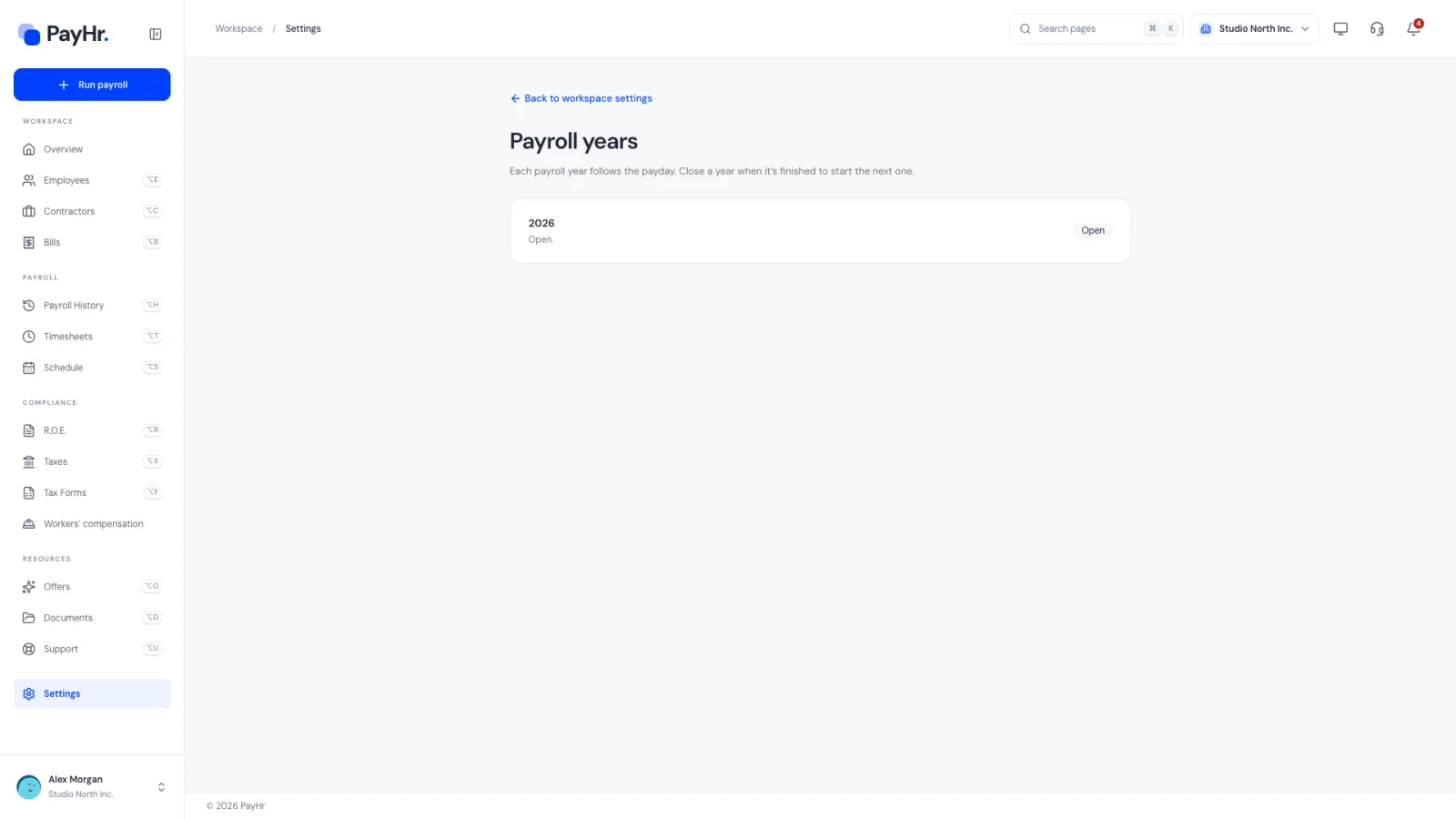
When everything is green, select Close. Closing locks that year's pay runs and changes dated in that year, and starts each employee's tax settings for the new year. Items under Continues into (CRA remittances, ROEs, WCB and EHT, garnishment payments and T4 slips) stay open and don't block closing. You can reopen a closed year from Settings > Payroll years; if its T4s are already filed, any pay change will need amended T4s.
Questions people ask
When are T4 and T4A slips due?
Both the return to CRA and the recipients' copies are due by the last day of February after the tax year. If that day falls on a weekend, the deadline is the next business day. Late filing can lead to CRA penalties, so plan to issue in early February.
Does PayHr file my T4s with CRA?
When you prepare a return manually (free), you file it yourself by uploading PayHr's XML to CRA or using CRA Web Forms. Automatic filing, where PayHr files as your transmitter, is shown on the Prepare popup with its availability for your workspace.
I issued the slips and then found a mistake. What now?
If you haven't filed yet, open the return and choose Replace unfiled return: PayHr creates a corrected draft and archives the old one. If CRA has already processed it, choose Amend or cancel filed slips to create an amended (or cancellation) return containing only the affected recipients, and give those people their corrected slips.
An employee is missing from the T4 draft. Why?
Prefill only includes employees with approved payroll (or imported prior balances) with a payday in that tax year. Check the employee's pay runs are approved, then prefill again or use Add recipient. If they were paid only before PayHr, enter that under Payroll before PayHr first.
Can I email T4s to employees?
Yes, if the employee has agreed in writing to receive slips electronically. Download the recipient PDF and send it from the Document emails page, which sends it to the email saved in their profile. Otherwise give two paper copies.
Do I have to close the payroll year?
Yes. Next year's pay runs wait until the previous year is closed, so close it once the checklist is green. T4s, ROEs, remittances and corrections remain available afterwards, and you can reopen the year from Settings if needed.