PEOPLE & RECORDS
Add an employee
This guide walks through Add employee, the four-step form that puts a new person on your payroll. It explains what each field is for, how PayHr uses it for income tax, CPP, EI and vacation pay, and what to do next. Workspace owners and admins can add employees.

 NARRATED TUTORIALWatch: Add an employeeSee every step below in the actual PayHr screens, with captions.
Before you start
- The employee’s legal first and last name, as it appears on their SIN record
- Their Social Insurance Number, date of birth, email and phone number
- Their home address in Canada
- Their job title, hire date, the province or territory where they work, and their hourly wage or annual salary
- Their signed federal and provincial TD1 forms, if you already have them (optional: you can send them to sign later)
- A void cheque or direct deposit form for their transit, institution and account numbers
01Open Employees and choose Add employee
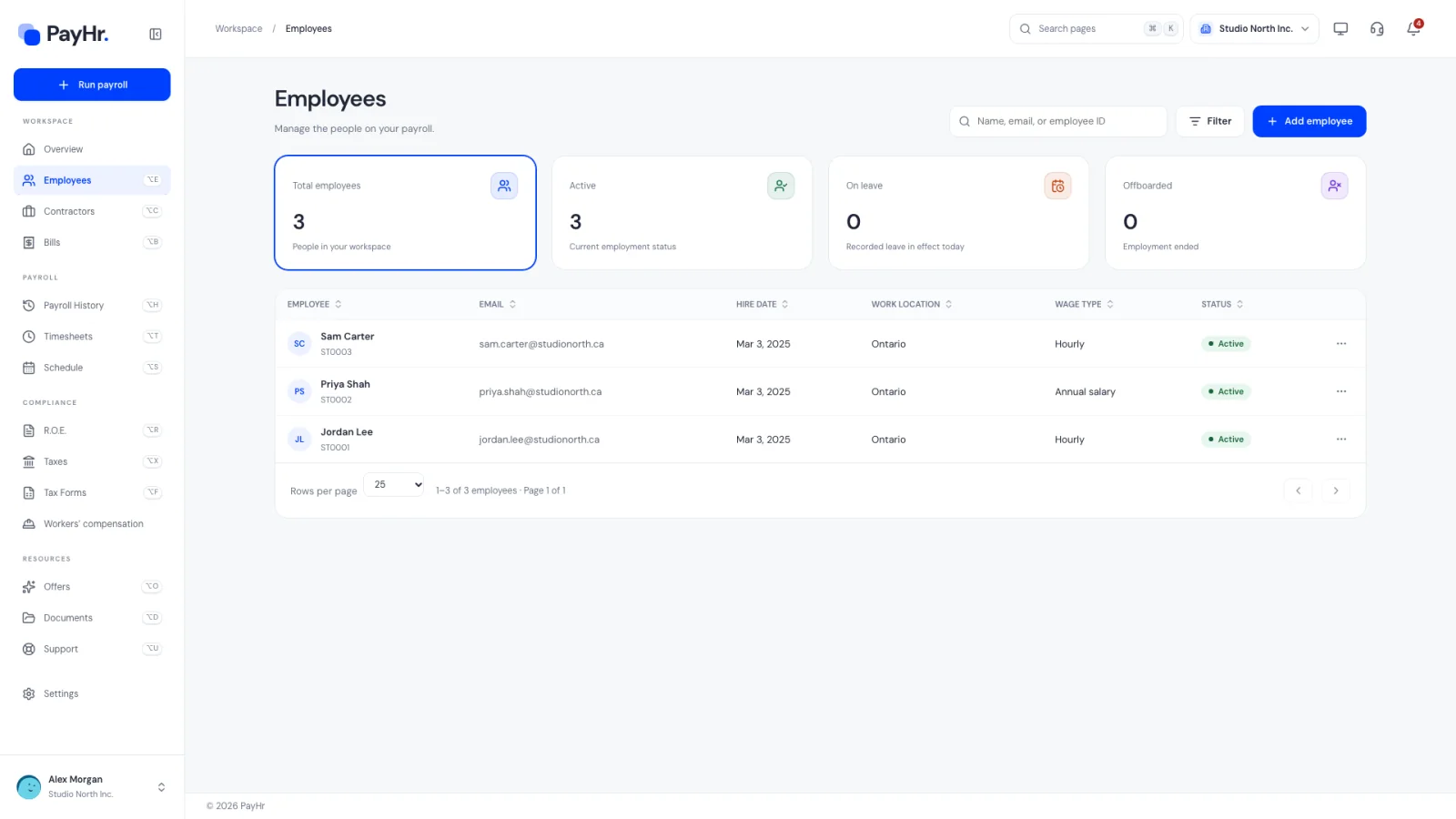
Select Employees in the sidebar. The cards at the top count Total employees, Active, On leave and Offboarded; selecting a card filters the table to that status. The table lists each person’s email, hire date, work location, wage type and status, and you can search by name, email or employee ID.
Select Add employee in the top right. The form has four steps, shown across the top: Personal information, Employment, Tax information and Direct deposit. Nothing is saved until you select Save employee on the last step, so you can move back and forth freely. Exit setup leaves without saving.
02Enter personal information and home address
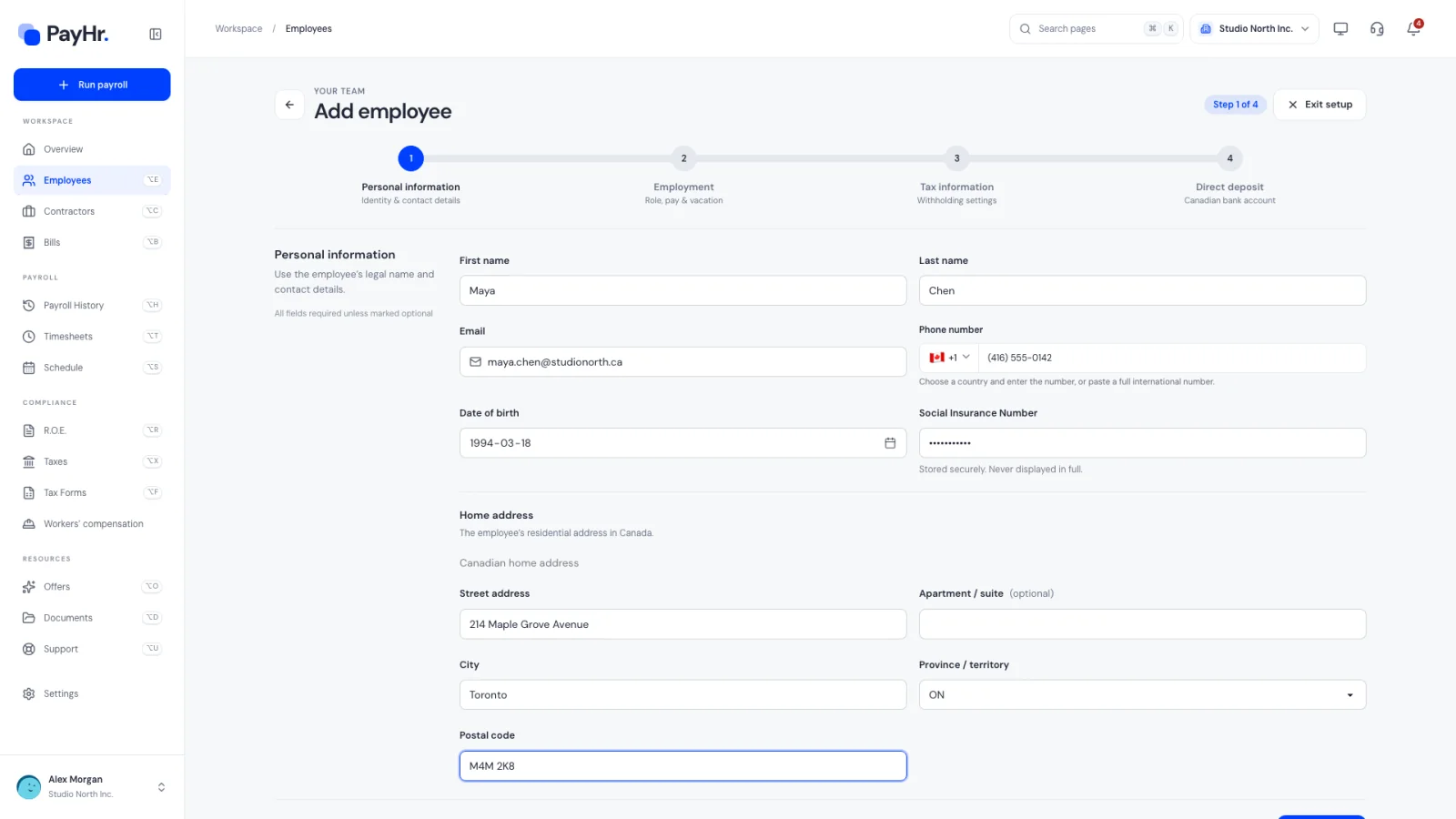
Use the employee’s legal name. It prints on pay statements, the T4 slip and any Record of Employment, and CRA and Service Canada match those documents to the name on the employee’s SIN record.
- Email: where pay statement notices, portal invitations and documents to sign are sent. Use an address the employee checks; it is also how they sign in to the employee portal.
- Phone number: pick the country and type the number, or paste a full international number.
- Date of birth: PayHr uses it to decide CPP contributions. CPP starts at 18 and stops at 70, so the age on each pay date matters.
- Social Insurance Number: required for every employee and printed on the T4 and ROE. PayHr checks it is nine digits and passes the SIN checksum, stores it securely and only shows the last three digits afterwards. A SIN starting with 9 belongs to a temporary resident; PayHr will later suggest asking for their work permit.
Under Home address, enter the residential address in Canada: Street address, optional Apartment / suite, City, Province / territory and Postal code (checked against the Canadian format). The home address goes on the employee’s T4. Select Continue; if a field needs attention, PayHr points you to it.
03Set the occupation, hire date and work location
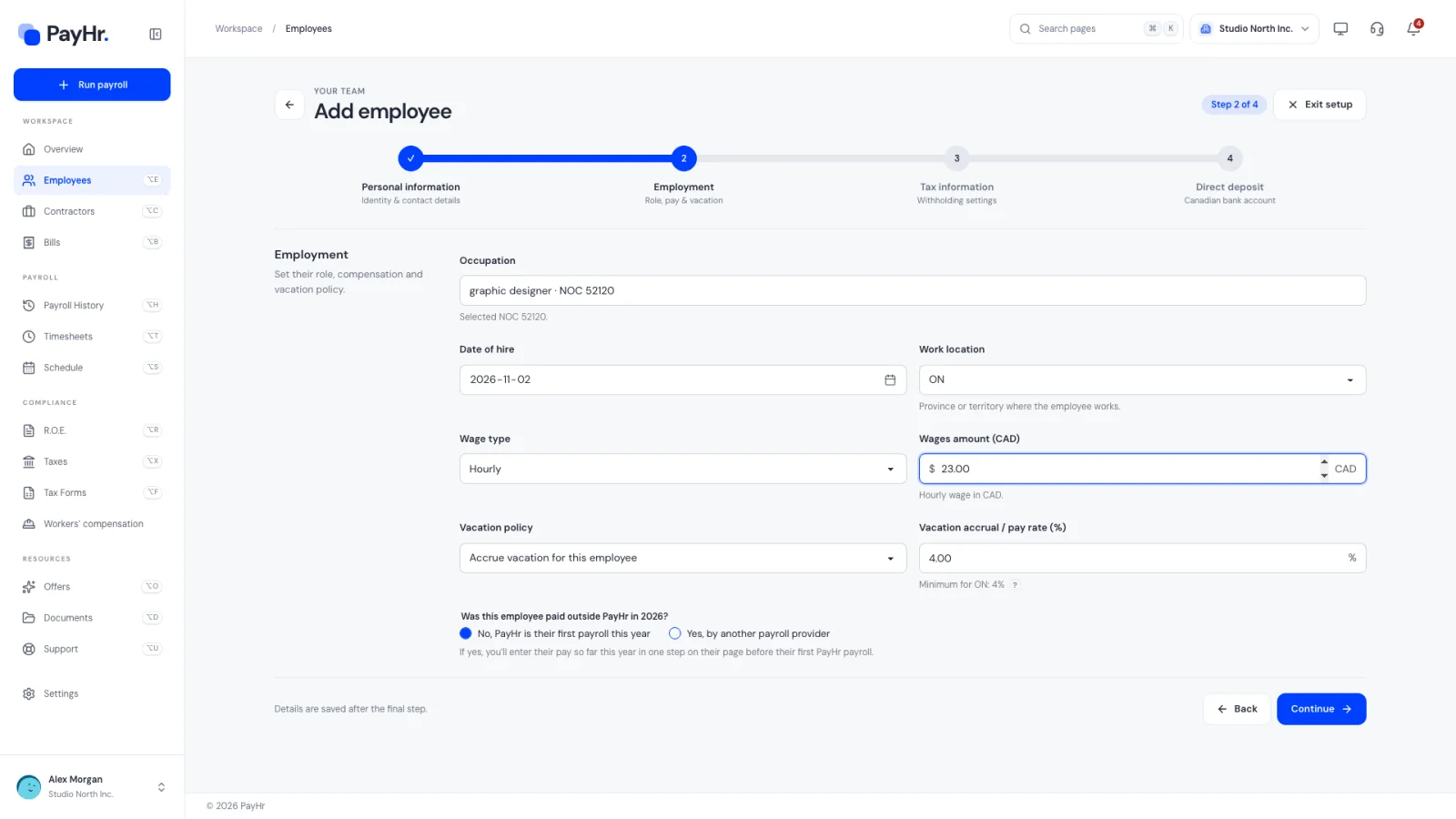
On Employment, start typing in Occupation to search Canadian job titles or five-digit NOC (National Occupational Classification) codes, then pick a result. If nothing fits, choose Other and type a Custom occupation name. The occupation is used on the Record of Employment.
- Date of hire: their first day. It must be after the date of birth. It also sets when their tax settings take effect, and it starts their length of service for vacation entitlements.
- Work location: the province or territory where they report to work. This is the province of employment: it decides which provincial income tax table and which employment standards (vacation, overtime, public holidays) apply. If it differs from the home province, PayHr asks you to confirm it. For Northwest Territories and Nunavut, PayHr notes that territorial payroll tax applies.
04Choose the wage type, pay and vacation policy
Pick a Wage type:
- Hourly: enter the hourly rate in Wages amount (CAD). Pay each period comes from the hours you enter in Timesheets.
- Annual salary: enter the yearly amount. A Normal weekly hours field appears (40 by default). PayHr uses it for partial pay periods, salaried overtime, holiday pay and vacation hours.
Vacation policy has three choices: Accrue vacation for this employee (vacation pay builds up as a balance they draw on when they take time off), Pay vacation with each payroll (the vacation percentage is added to every paycheque) or Don’t offer vacation for this employee. Vacation accrual / pay rate (%) is filled in with the minimum for the work province, for example Minimum for ON: 4%. Raise it if your policy or contract is more generous; federally regulated employers set that in Business details so the Canada Labour Code minimum is used instead.
05Answer “Was this employee paid outside PayHr this year?”
This question sits at the bottom of the Employment step. It matters when you switch to PayHr partway through the year.
- No, PayHr is their first payroll this year: for new hires and anyone not paid yet this calendar year.
- Yes, by another payroll provider: after you save, PayHr opens a short step on their page to enter what they were paid so far this year. Those year-to-date totals let PayHr stop CPP and EI at the yearly maximums and produce one correct T4 for the whole year.
06Review the tax information (TD1 claim amounts)
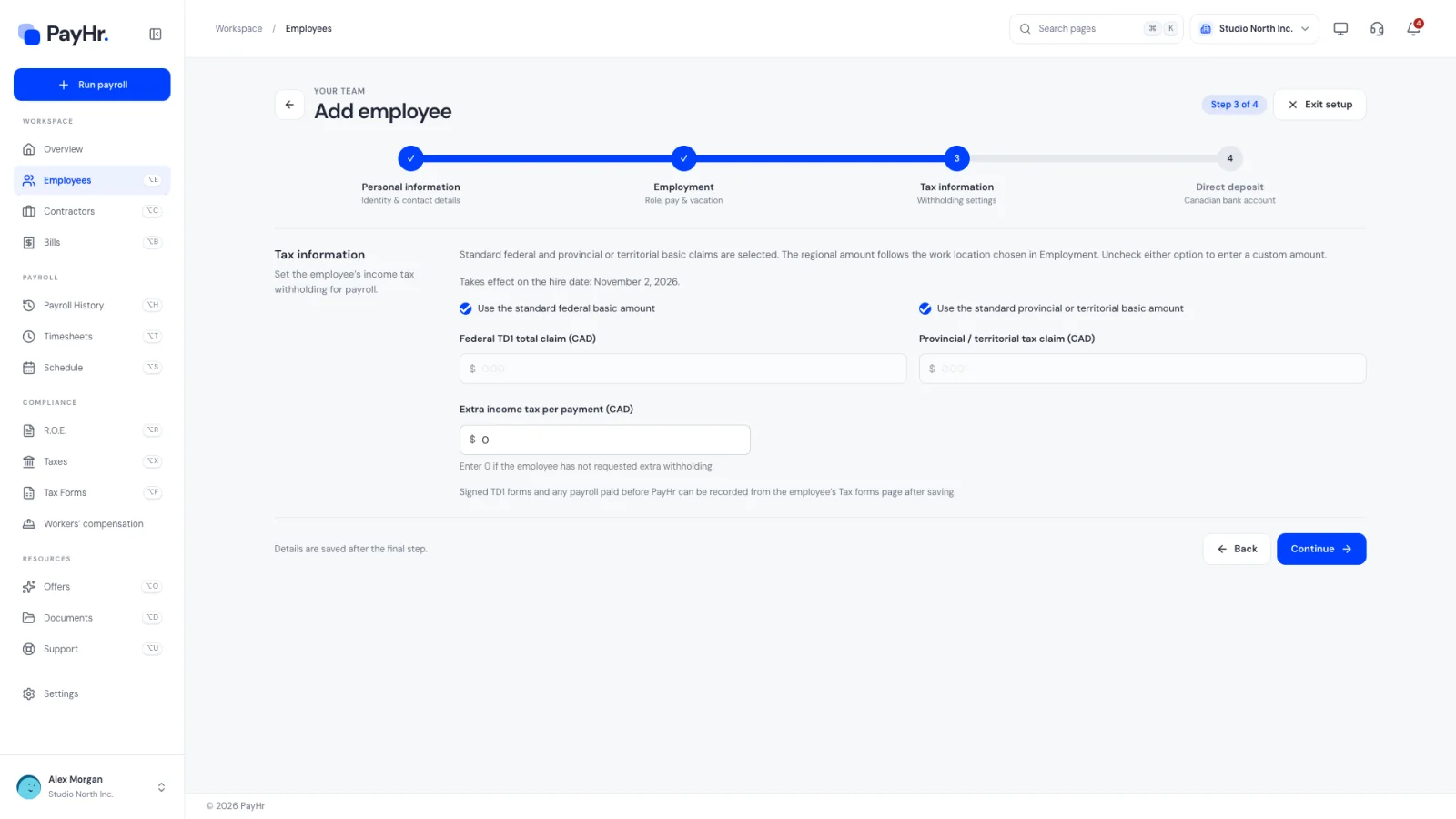
Income tax withholding is driven by the employee’s TD1 forms: the federal TD1 and the TD1 for their province of employment. Each form adds up the tax credits the employee claims, starting with the basic personal amount.
- Use the standard federal basic amount and Use the standard provincial or territorial basic amount are checked by default. That matches an employee who claims only the basic personal amount, which is also what CRA tells you to use when you don’t have a completed TD1. The provincial amount follows the work location from the previous step.
- If the employee gave you signed TD1s with a different total (for example a disability, caregiver or tuition amount, or zero because they have another job), uncheck the box and enter the Federal TD1 total claim (CAD) or Provincial / territorial tax claim (CAD).
- Extra income tax per payment (CAD): extra tax the employee asked you to deduct on the TD1. Enter 0 if none.
The settings take effect on the hire date, or January 1 of this year for someone hired earlier. CPP and EI are set up automatically after you save, based on date of birth; you can review them later under Taxes. You don’t need the signed forms today: from the employee’s page you can send the TD1 forms to sign or upload signed copies.
07Add direct deposit details and save
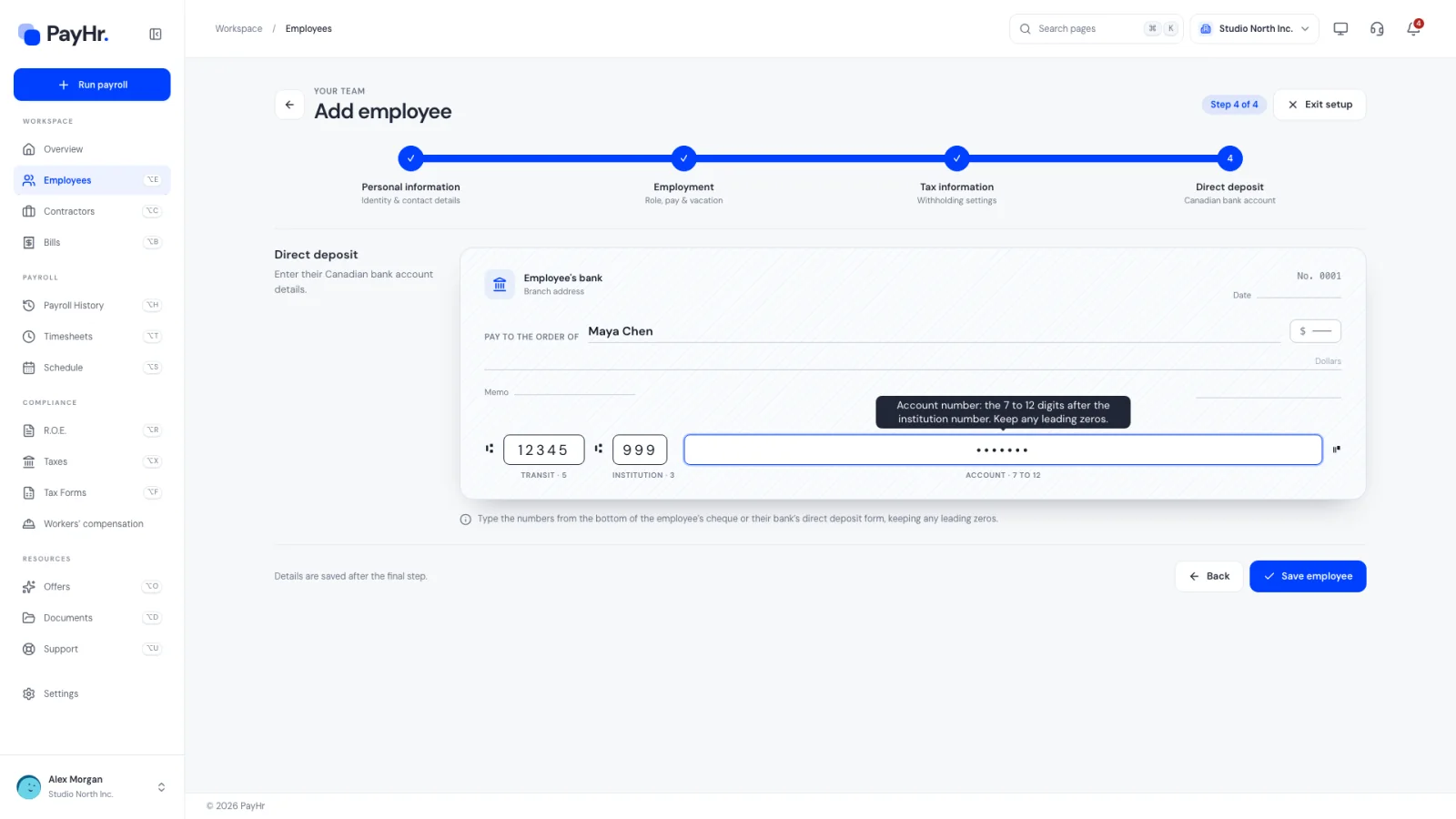
Type the three numbers from the bottom of a void cheque or the bank’s direct deposit form into the cheque picture, exactly as they appear:
- Transit (5 digits): identifies the branch.
- Institution (3 digits): identifies the bank or credit union.
- Account (7 to 12 digits): the account itself. Keep any leading zeros.
Hover over each box for a reminder of where it is on the cheque. Select Save employee. PayHr checks every step once more, then returns you to Employees with the message Employee saved. If you answered Yes to being paid outside PayHr, you land on their payroll before PayHr step instead. If another employee in the workspace already uses the same email or phone number, PayHr says so and links to that profile.
08Check the saved employee profile
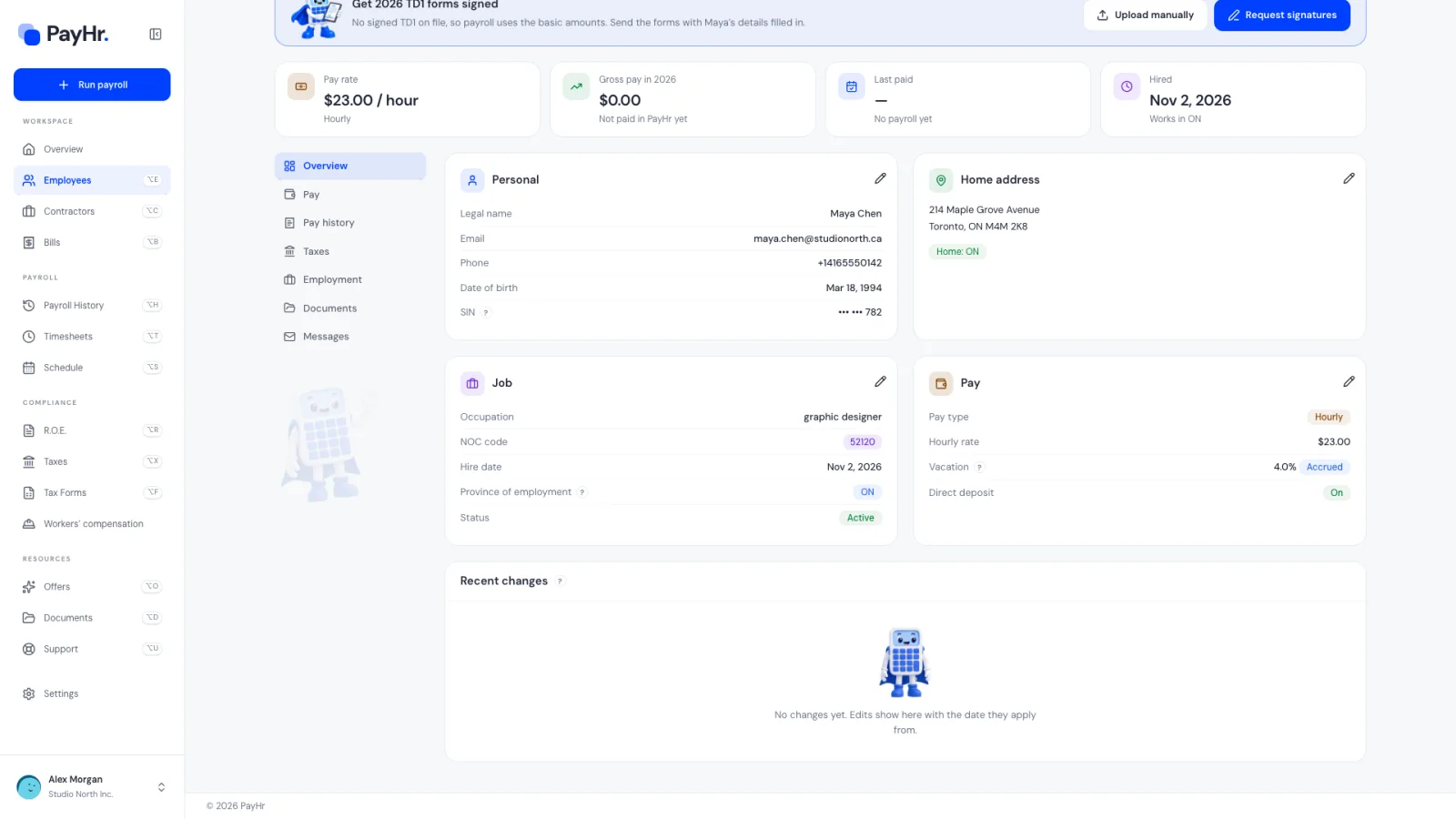
Select the employee’s name in the table to open their page. The header shows their employee number, occupation and work province, plus Invite to portal. Below are their numbers at a glance (pay rate, gross pay this year, last paid, hire date) and an Overview with Personal, Home address, Job and Pay cards. A pencil on each card opens it for editing.
This page is the one place an employee’s facts live. Pay statements, T4s, ROEs and the TD1 forms you send all read from it, so when something changes (a new address, a raise), update it here and every form picks it up. The menu on the left leads to Pay, Pay history, Taxes, Employment, Documents and Messages. If no signed TD1 is on file, a banner offers to send the forms to sign.
Questions people ask
Do I need the employee’s signed TD1 before adding them?
No. The standard federal and provincial basic amounts are selected by default, which is what CRA expects when no TD1 has been completed. You can send the TD1 forms to sign from the employee’s page, or upload signed copies, and their tax settings update.
Why does PayHr need the date of birth and SIN?
The date of birth decides whether CPP is deducted (from age 18 to 70). The SIN is required on the T4 slip and Record of Employment. PayHr stores the SIN securely and only shows the last three digits.
What is the difference between Accrue and Pay vacation with each payroll?
With Accrue, vacation pay builds up as a balance the employee is paid when they take time off. With Pay vacation with each payroll, the vacation percentage is added to every pay. Either way the rate can’t be lower than the minimum for their province of employment.
The employee lives in one province and works in another. Which do I choose?
Enter their real home address, and set Work location to the province where they report to work. Payroll tax and employment standards follow the work location.
I switched to PayHr mid-year. What should I do?
Answer Yes, by another payroll provider to the paid-outside-PayHr question. After saving, enter their pay so far this year. PayHr uses those totals for CPP and EI maximums and to produce a single T4 for the year.
Can I add an employee without bank details?
The Direct deposit step asks for the transit, institution and account numbers before you can save. Ask the employee for a void cheque or their bank’s direct deposit form first.