PEOPLE & RECORDS
The employee app and portal
Every employee you pay in PayHr can have their own view of their pay and tax information, in the web employee portal or the PayHr employee app for iOS and Android. This guide covers inviting employees, how they sign in, and exactly what they can see. There is nothing to set up beyond the employee’s email address.

 NARRATED TUTORIALWatch: The employee app and portalSee every step below in the actual PayHr screens, with captions.
Before you start
- The employee added in PayHr with a correct, personal email address on their profile
- The employee’s status set to active (the invite button shows for active employees)
01Invite the employee from their page
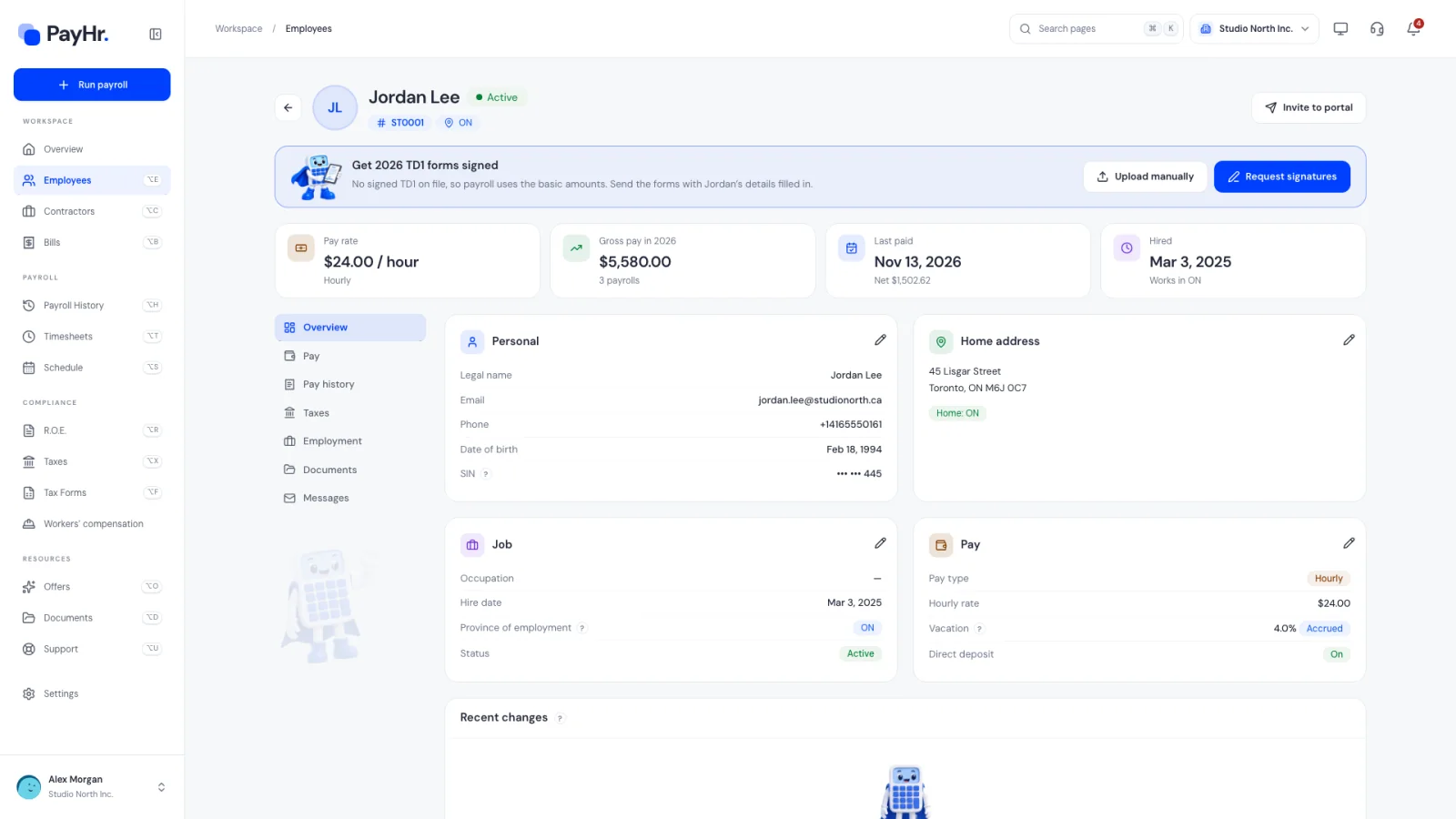
Open Employees, select the employee and choose Invite to portal in the top right of their page. PayHr emails the address on their profile: [Your workspace] invites you to your employee portal, with a Log in to employee portal button. You’ll see Employee portal invitation email queued.
The button is unavailable when the profile has no email. To avoid duplicates, a second click within a minute doesn’t send another email. You can invite again any time later, for example if the employee can’t find the first email.
02How the employee signs in
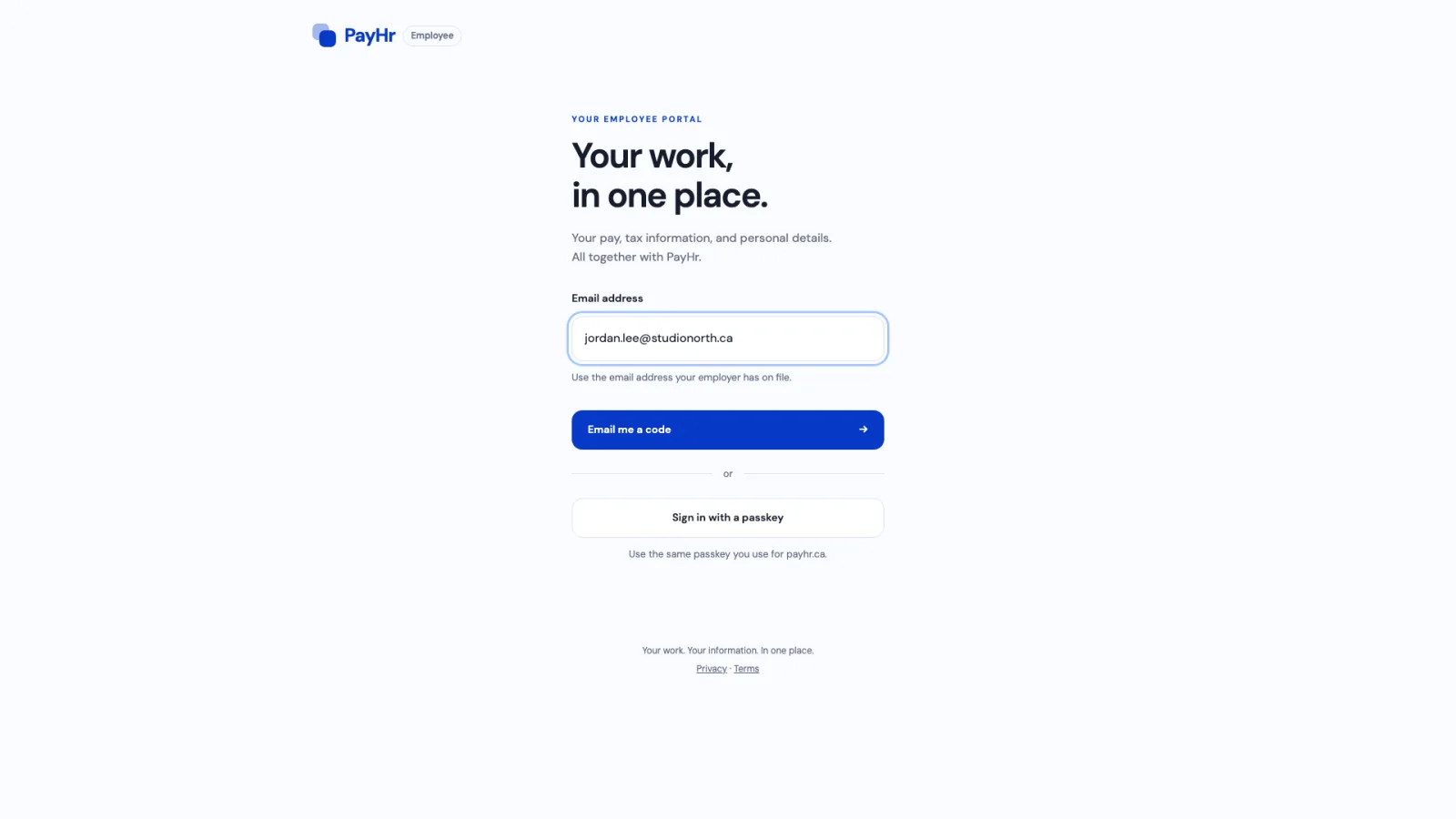
The employee opens the employee portal from the invitation (or from payhr.ca’s Employee app page) and enters the Email address their employer has on file. They select Email me a code, then type the six-digit Verification code and select Verify and continue. Codes expire in 10 minutes.
There is no password. After signing in once, they can add a passkey (fingerprint, face or device PIN) from Passkeys and use Sign in with a passkey next time. In the app, they sign in the same way.
03How the account is linked (claiming access)
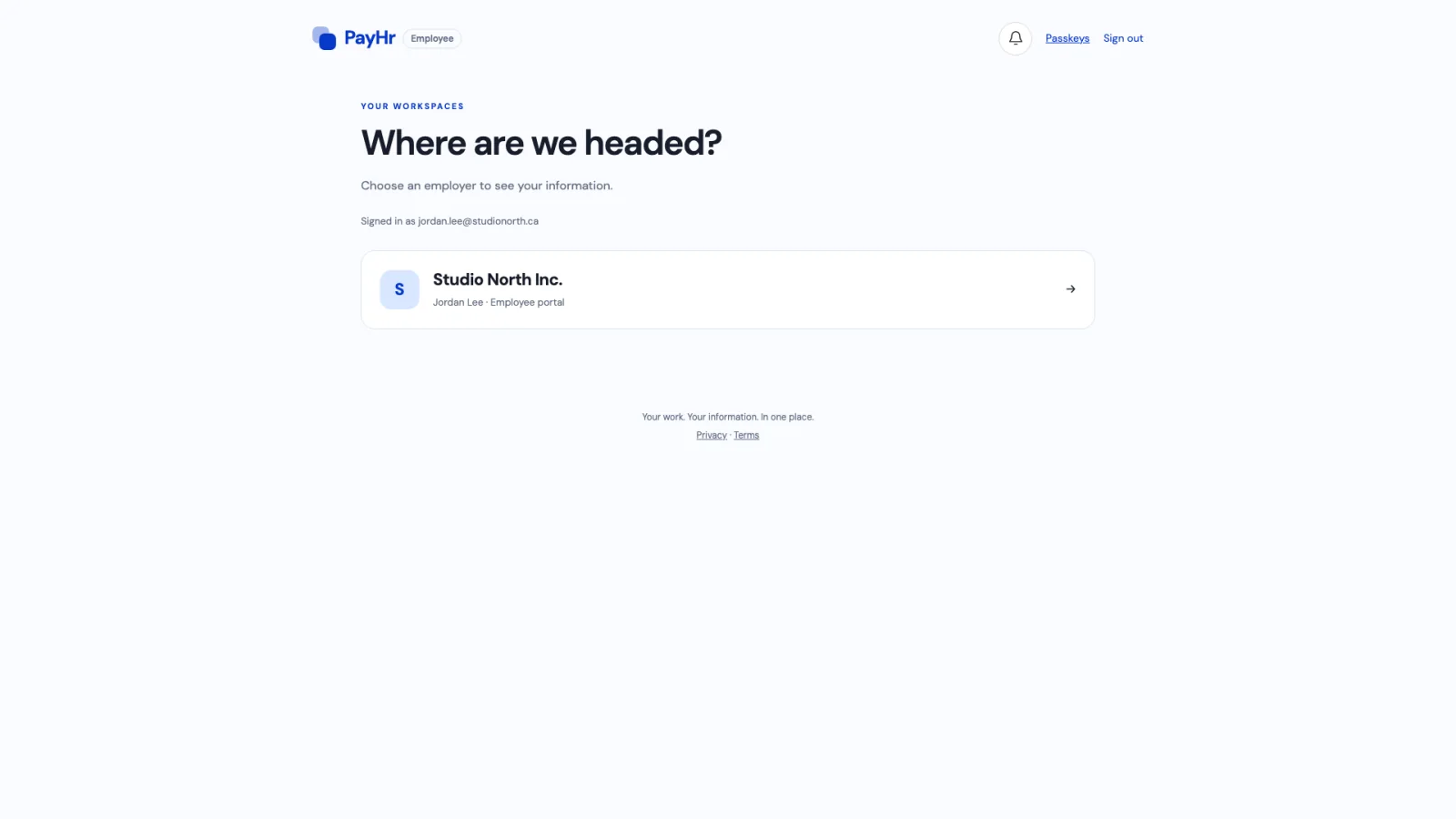
There’s no separate claim step. When someone signs in with a verified email, PayHr looks for employee records with that exact address and links them to the sign-in. If the employee works for more than one employer using PayHr, each appears under Your workspaces, and they choose one to see that employer’s information.
If they see No workspaces yet, the email they used doesn’t match their profile. Check the email on their Overview, correct it if needed, and ask them to sign in with that address.
04My profile
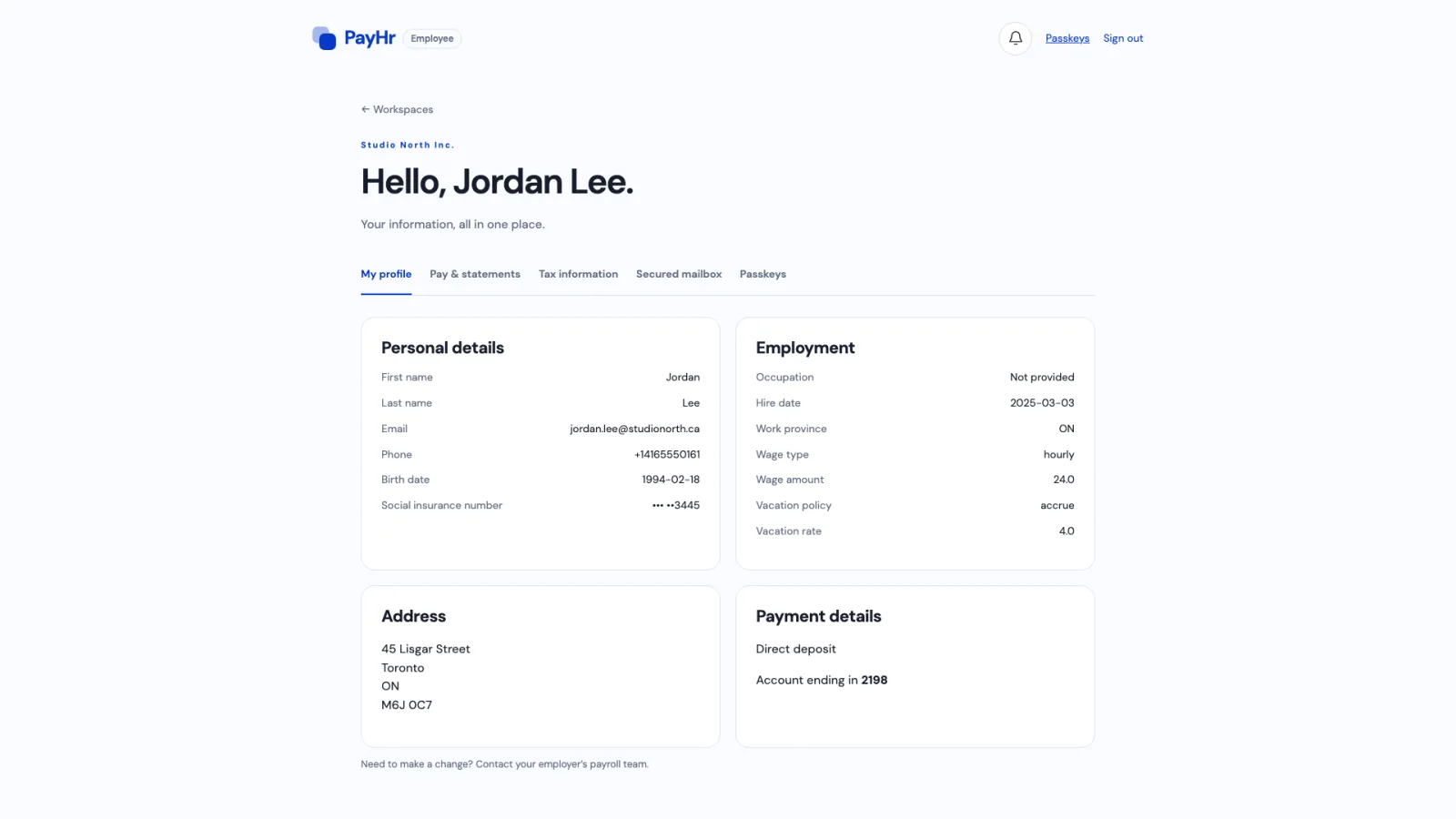
My profile shows the details on their employee record: name, contact details, home address, date of birth, employment (occupation, hire date, work province), pay type and rate, vacation policy, and payment details. Only the last digits of the SIN and bank account are shown.
Employees can’t edit these details themselves. The page tells them to contact your payroll team; you update the employee’s page and the portal reflects it.
05Pay & statements
Pay & statements lists each approved pay, newest first, with the pay date, pay period, gross and net pay. Opening one shows the full Statement of earnings: earnings lines with hours and rates, deductions such as income tax, CPP and EI, employer contributions, year-to-date totals and vacation pay, plus Download PDF.
Statements appear once you approve a payroll. Drafts are never shown. The portal notes that a statement is not confirmation of payment; the deposit itself shows in the employee’s bank account.
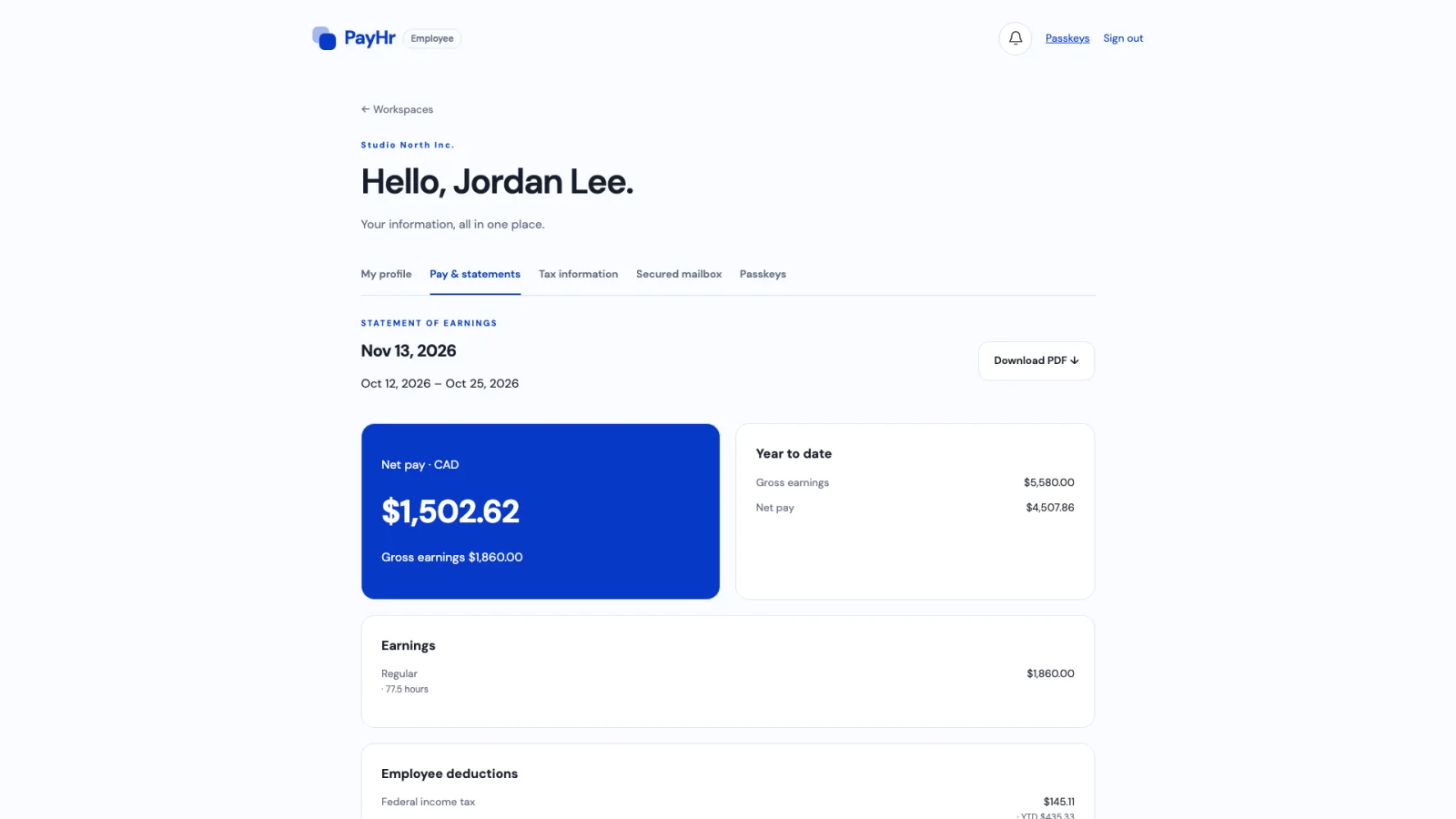
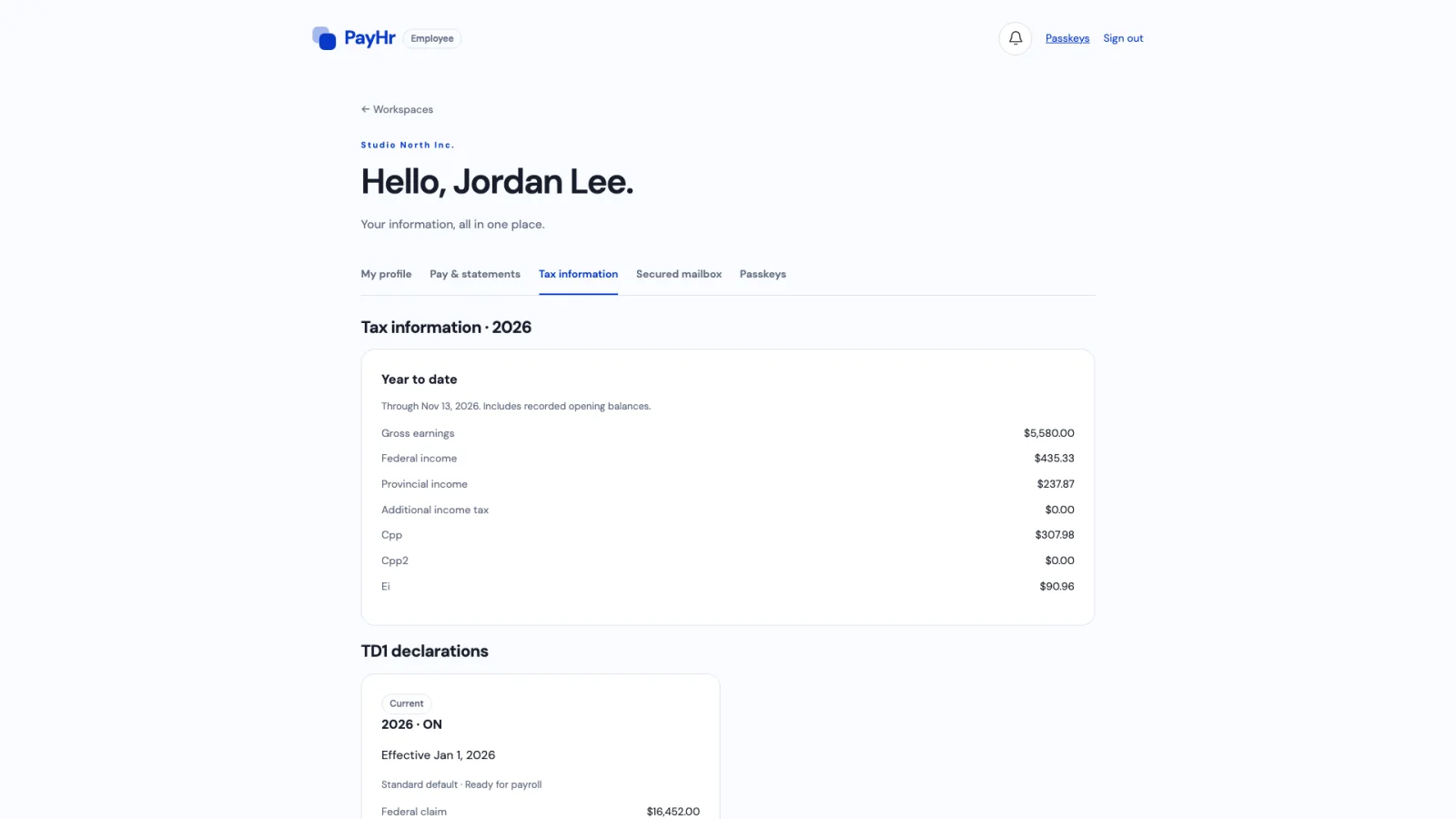
06Tax information
Tax information shows the year’s totals through the latest pay date (including any payroll before PayHr you recorded) and the TD1 declarations on file, with the one in effect marked Current.
Year-end slips such as the T4 aren’t delivered in the portal: the Year-end tax slips card tells employees to contact their employer for them. Share T4s with employees yourself once they are issued.
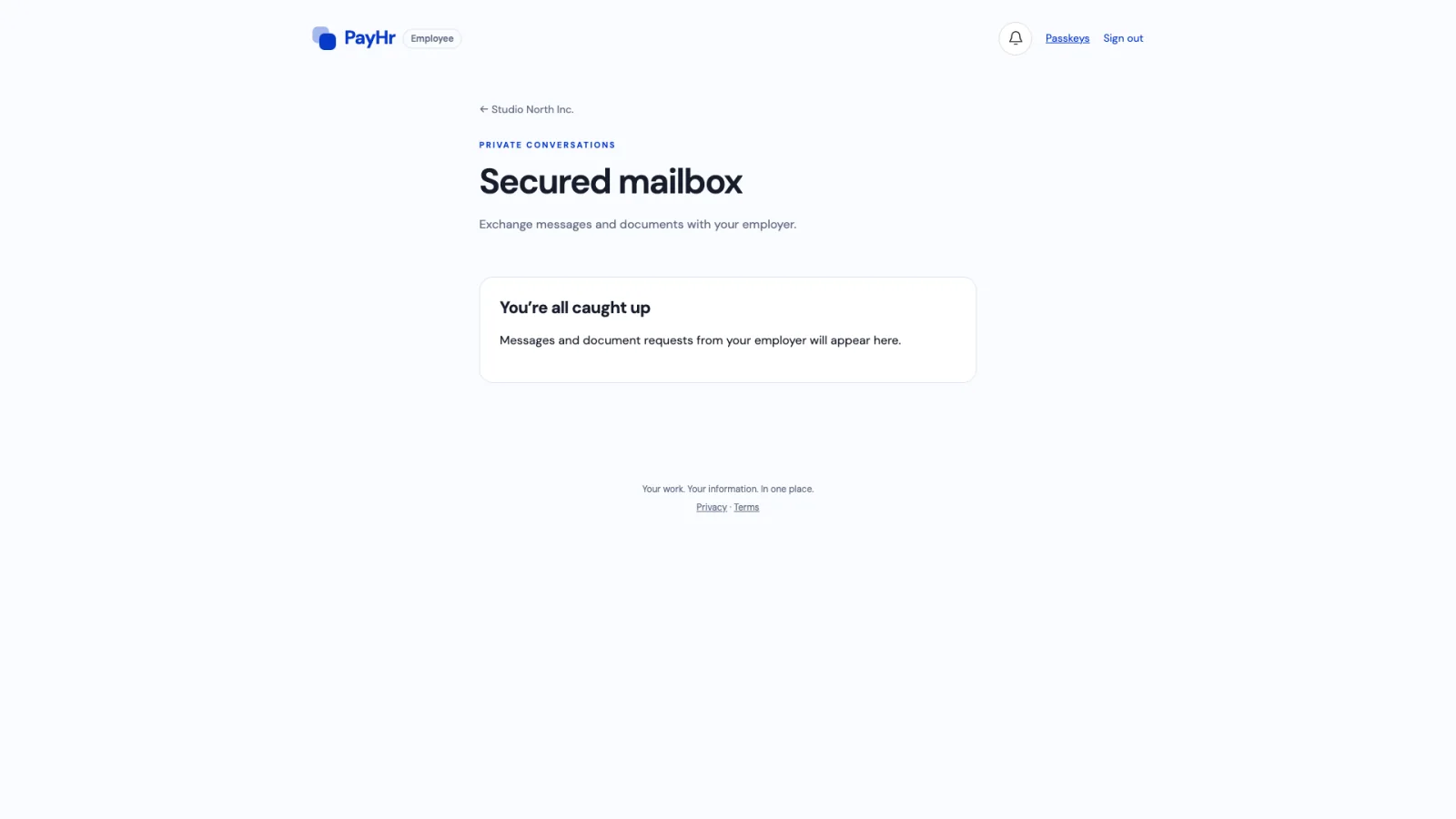
07Secured mailbox and documents to sign
The Secured mailbox holds private conversations you start from the employee’s Messages, including document requests. Employees reply with text and can attach a PDF, JPEG or PNG up to 10 MB; you can save their file straight to their Documents. When you close a conversation, they can read it but not reply.
Documents you send for e-signature, including TD1 forms, arrive by email with their own private signing link and don’t require the portal.
08The PayHr employee app
The PayHr employee app for iOS and Android shows the same information in four views: Home (latest pay at a glance), Pay, Taxes and Profile. Employees download it from the App Store or Google Play, or from payhr.ca’s Employee app page, and sign in with the same email. On a phone browser, the portal offers to open the app.
Questions people ask
Do employees need to create an account?
No. They sign in with the email on their employee record using a one-time code. PayHr links their records to that sign-in automatically.
An employee says they see “No workspaces yet”. Why?
The email they signed in with doesn’t match their profile. Check the email on the employee’s Overview, correct it, and ask them to sign in with that address.
Can employees download their T4 from the portal?
No. The portal’s Year-end tax slips card asks them to contact you for their T4, so share it with them directly once it is issued.
Can employees change their address or bank account?
No. They can view their details and contact you; you make the change on their employee page, with the date it takes effect.
What about employees who have left?
Offboarded employees keep their portal access through the same email, so they can still find past pay statements.
Do employees get emails when they’re paid?
PayHr can email employees when a pay statement is available after you approve payroll. The statement itself is in the portal and app.