PEOPLE & RECORDS
Send TD1 forms to sign
The TD1 forms tell you how much income tax to withhold: each employee claims their personal tax credits on a federal TD1 and on the TD1 for their province of employment. This guide shows how to send both forms for e-signature from the employee’s page, what the employee does, and how the signed amounts appear on their Taxes page. You can also record paper forms instead.

 NARRATED TUTORIALWatch: Send TD1 forms to signSee every step below in the actual PayHr screens, with captions.
Before you start
- The employee added in PayHr, with an email address on their profile
- A payment method saved in Settings → Billing (each signed form is billed as one signed document, $1)
- The employee working in a province or territory other than Quebec
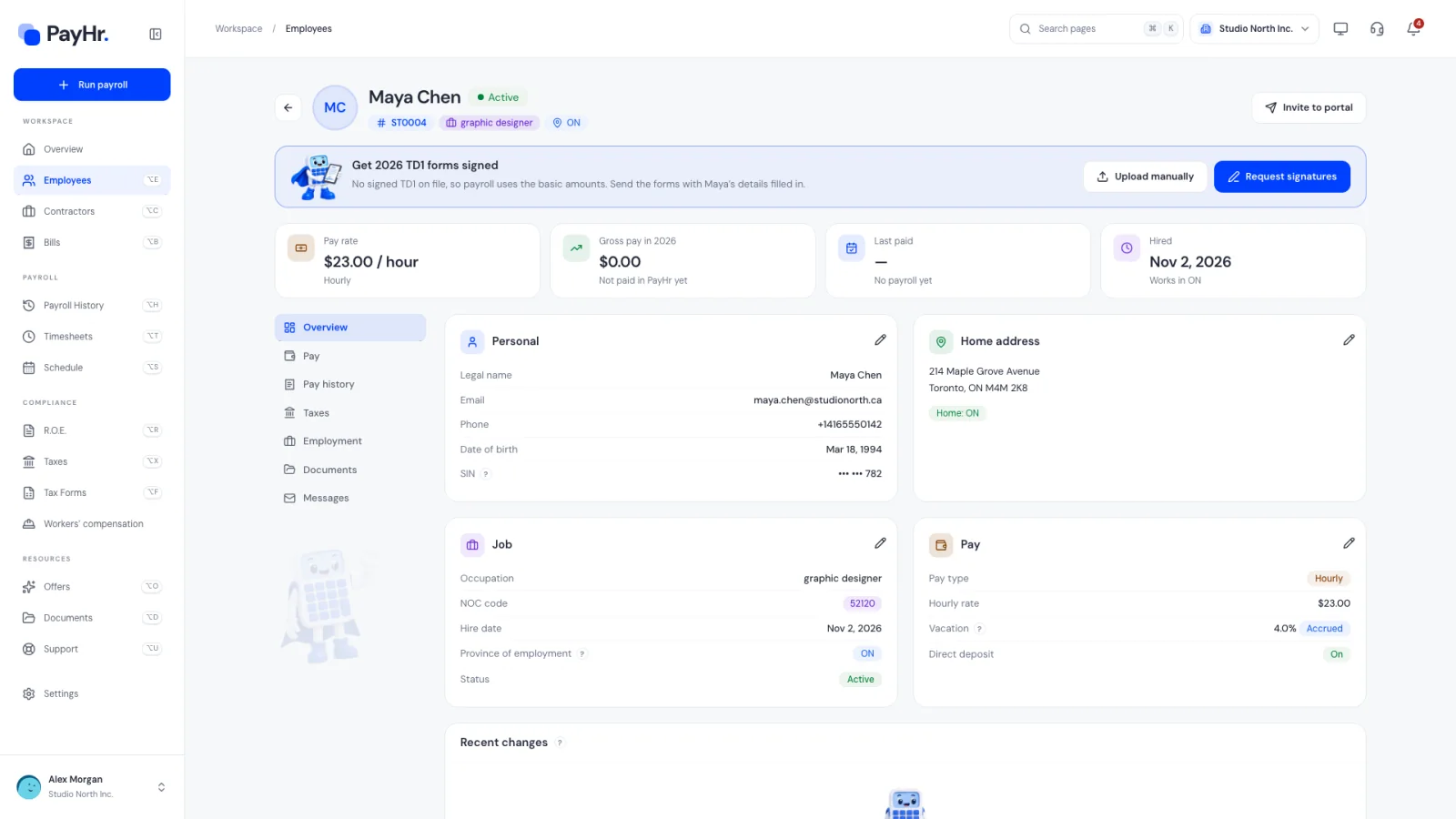
01Find the TD1 banner on the employee’s page
Open Employees and select the employee. When an active employee has no signed TD1 for the current year, a banner reads Get [year] TD1 forms signed: No signed TD1 on file, so payroll uses the basic amounts.
That fallback is what CRA expects: without a completed TD1, you withhold as if the employee claims only the basic personal amount. It is safe, but it can be wrong for someone with extra credits (for example a disability amount, caregiver amount or tuition) or with a second job who should claim zero. Two buttons: Upload manually to record paper forms, and Request signatures to send them electronically.
02Review the request and send it
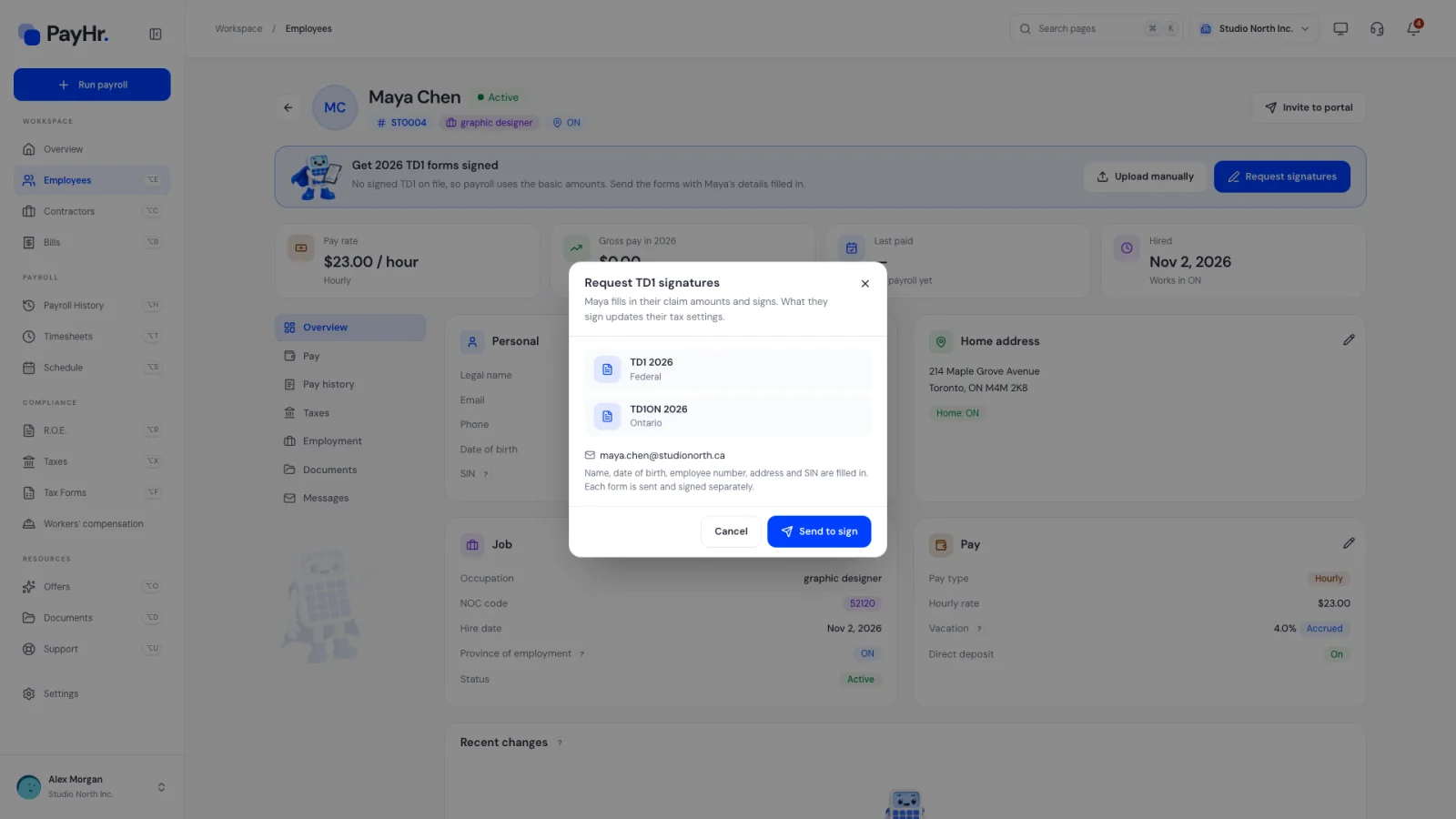
Select Request signatures. The Request TD1 signatures popup lists the forms that will go out:
- The federal TD1 for the year.
- The provincial or territorial form for the employee’s work location, for example TD1ON for Ontario or TD1BC for British Columbia. Provincial credits differ, which is why both forms are needed.
It shows the email the forms go to. The employee’s name, date of birth, employee number, address and SIN are filled in from their profile and locked, so the details match your records. If the email is missing, add it on the Overview first. If no payment method is saved, the popup links to Billing. Select Send to sign; PayHr confirms TD1 forms sent to [name] to sign.
03Track Sent, Signed and Applied
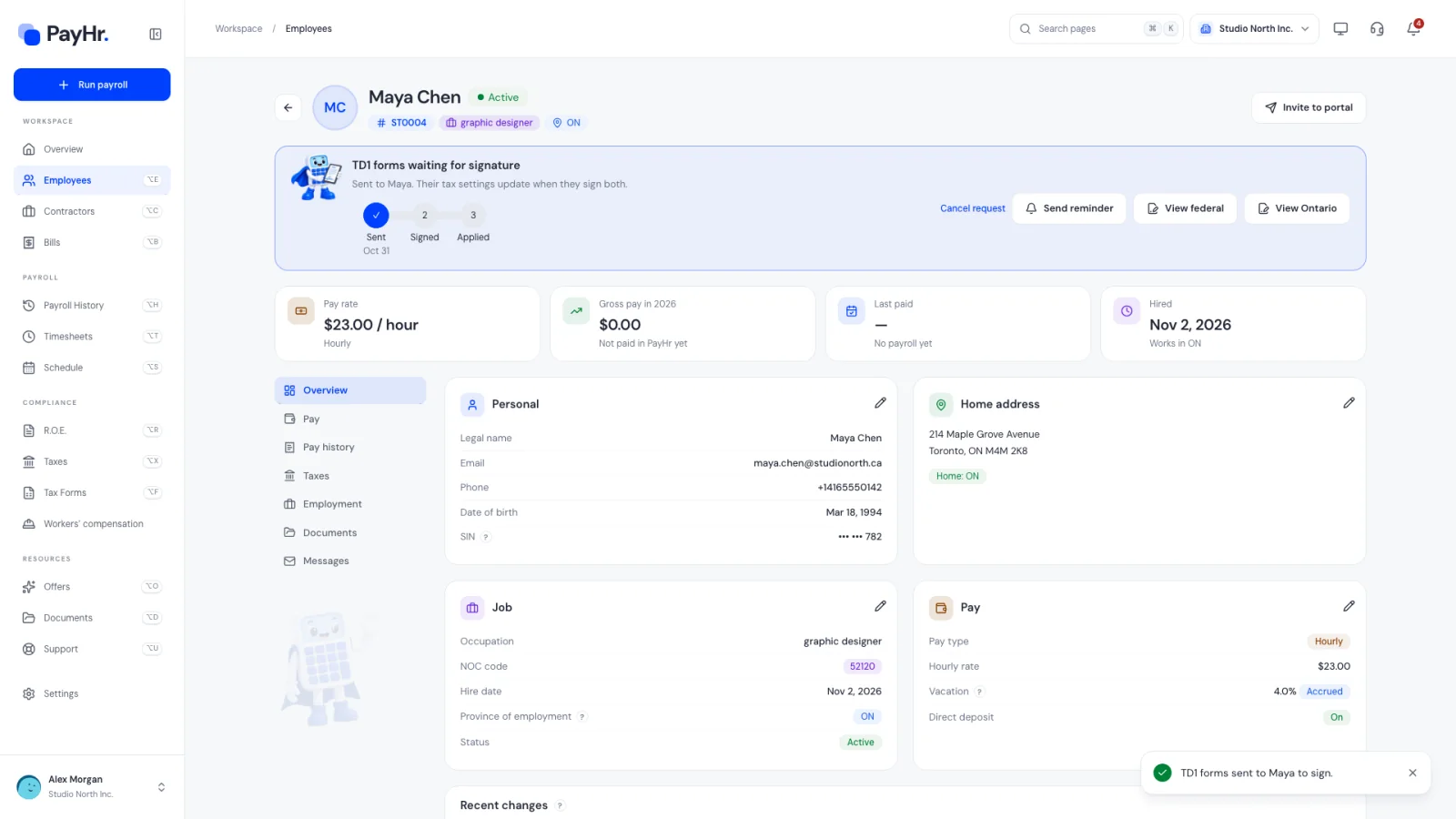
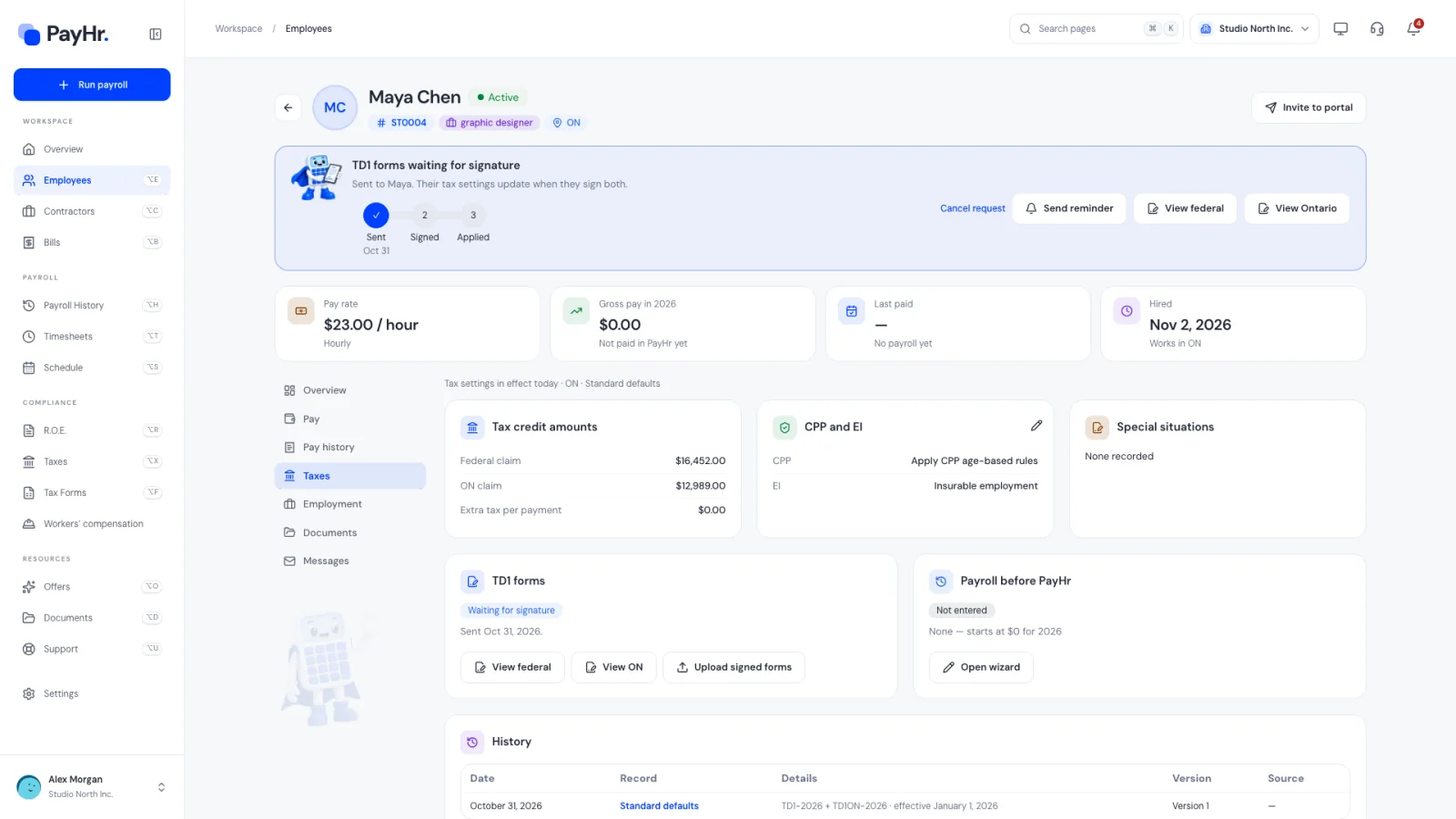
Each form is sent as its own signing request, so it is signed (and billed) on its own. The banner changes to TD1 forms waiting for signature with three steps:
- Sent: the date the forms went out.
- Signed: fills in when the employee signs, showing for example 1 of 2 along the way.
- Applied: the signed amounts have been saved as the employee’s tax settings.
While waiting, Send reminder emails the link again, and Cancel request (available until a form is signed) stops the links so you can send again or upload instead. View federal and View [province] open each request in Documents.
04What the employee does
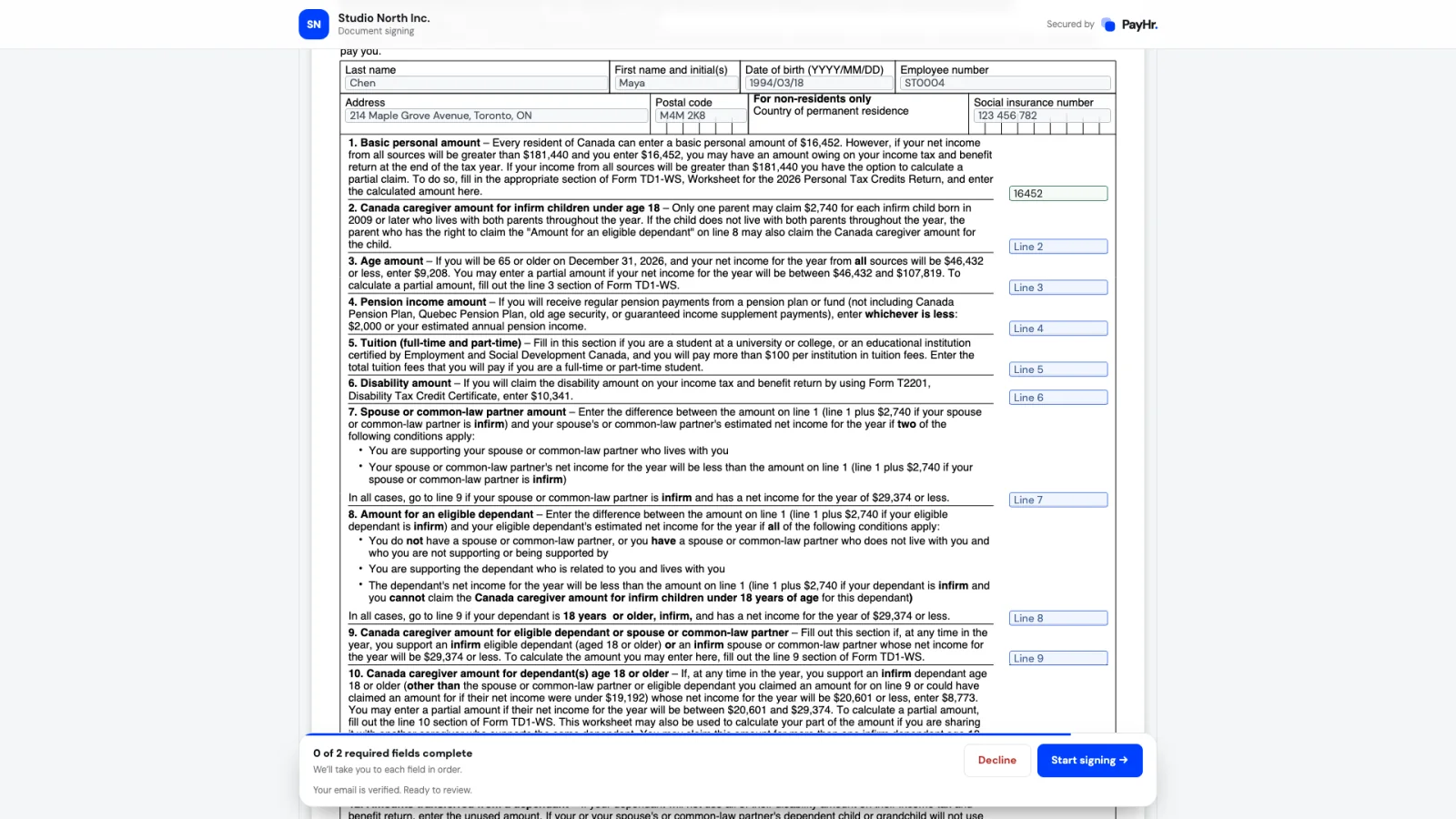
The employee receives one email per form from your workspace, explaining that you use it to set their tax deductions. The link opens a private signing page: they select Send verification code, enter the six-digit code from their email, and the form opens with their details already filled in.
They complete their claim amounts. Line 1 starts at the basic personal amount, and the total claim adds itself up. They can tick the page 2 choices (for example more than one employer, or income lower than the total claim), enter any extra tax to deduct, then sign and select Finish and sign. The employee is responsible for what they claim.
05See the signed declaration on the Taxes page
Open the employee’s Taxes section. The TD1 forms card shows where things stand: Waiting for signature, Signed · updating, then Signed TD1 on file with the date it was recorded.
When every form is signed, PayHr saves what the employee signed as their tax declaration, effective from the signing date (or January 1 if signed earlier in the year it applies to). Tax credit amounts then show the signed Federal claim, provincial claim and Extra tax per payment, and payroll withholds from them on the next pay. CPP and EI settings are unchanged. The two signed PDFs are combined into one file, kept with the tax record and listed in Documents as Signed TD1 forms · [year]. The change also appears in the History card.
06Handle special situations and problems
- Non-resident, CRA authorization or commission answers: if the employee ticks one of these, a banner asks you to Finish the special situations on the TD1 forms page before payroll can use the declaration.
- Signed TD1 needs attention: the signatures are recorded but the sealed PDF couldn’t be finished. Retry it from the request.
- Check the signed TD1 forms: the employee signed but the amounts couldn’t be saved. Select Record signed forms and enter them from the signed PDFs.
07Or record paper forms yourself
If the employee filled in paper or PDF forms, select Upload manually on the banner or Upload signed forms on the Taxes page. On Record signed TD1 forms, choose the effective date, enter each claim line from the federal and provincial forms, tick any elections, attach the signed PDF (up to 5 MB) and select Save signed forms. The result is the same: new claim amounts and the PDF kept as evidence.
Questions people ask
Do I have to collect TD1 forms?
Employees should give you a TD1 when they start and whenever their credits change. Without one, CRA tells you to withhold using the basic personal amount, which is what PayHr does until a signed TD1 is on file.
Why are there two forms?
Income tax is withheld federally and provincially, and each has its own credits. The federal TD1 sets federal withholding and the provincial form (for the province where the employee works) sets the provincial part.
How much does it cost?
Each form is billed as one signed document, $1, when it is signed, so a federal and provincial pair is $2. Requests you cancel aren’t charged.
When do the new amounts take effect?
From the date the employee signs, or January 1 of the form’s year if that is later. Payroll calculated after that uses them. Approved payroll isn’t changed.
The employee didn’t get the email. What can I do?
Check the email on their Overview, then use Send reminder. If the address was wrong, cancel the request, correct the email and send again.
Where can the employee see their TD1?
In the employee portal, Tax information lists their TD1 declarations on file and which one is current.