PEOPLE & RECORDS
Send a document for e-signature
PayHr’s Documents module collects signatures on PDFs such as offer letters, employment agreements and policy acknowledgements. You prepare a document once as a template, send it to employees, contractors or anyone with an email, and get back a sealed PDF with a record of how it was signed. Workspace owners and admins can use Documents. It costs $1 per signed document.
 NARRATED TUTORIALWatch: Send documents for e-signatureSee every step below in the actual PayHr screens, with captions.
Before you start
- A payment method saved in Settings → Billing (sending is turned off without one)
- The document as a PDF: unsigned, not password protected, up to 25 MB
- The email address of each person who signs (employees and contractors with an email are listed for you)
01Open Documents
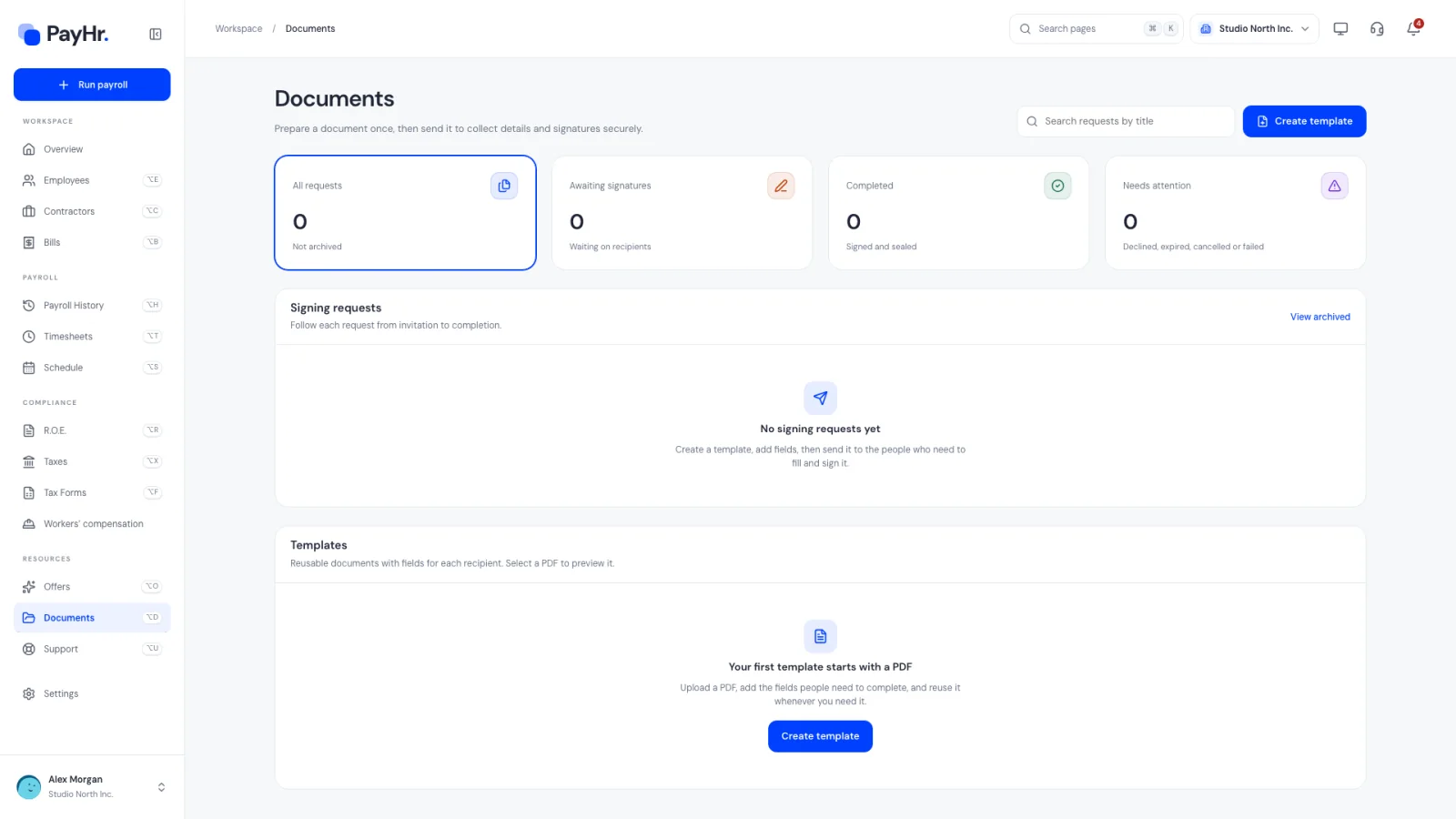
Select Documents in the sidebar. The cards count All requests, Awaiting signatures, Completed (signed and sealed) and Needs attention (declined, expired, cancelled or failed); selecting a card filters the list.
Signing requests follows each request from invitation to completion, showing every recipient, how many have signed, and when it was sent and expires. You can search by title and see archived requests with View archived. Templates lists your reusable documents, with Edit fields and Send for signature on each.
02Create a template from your PDF
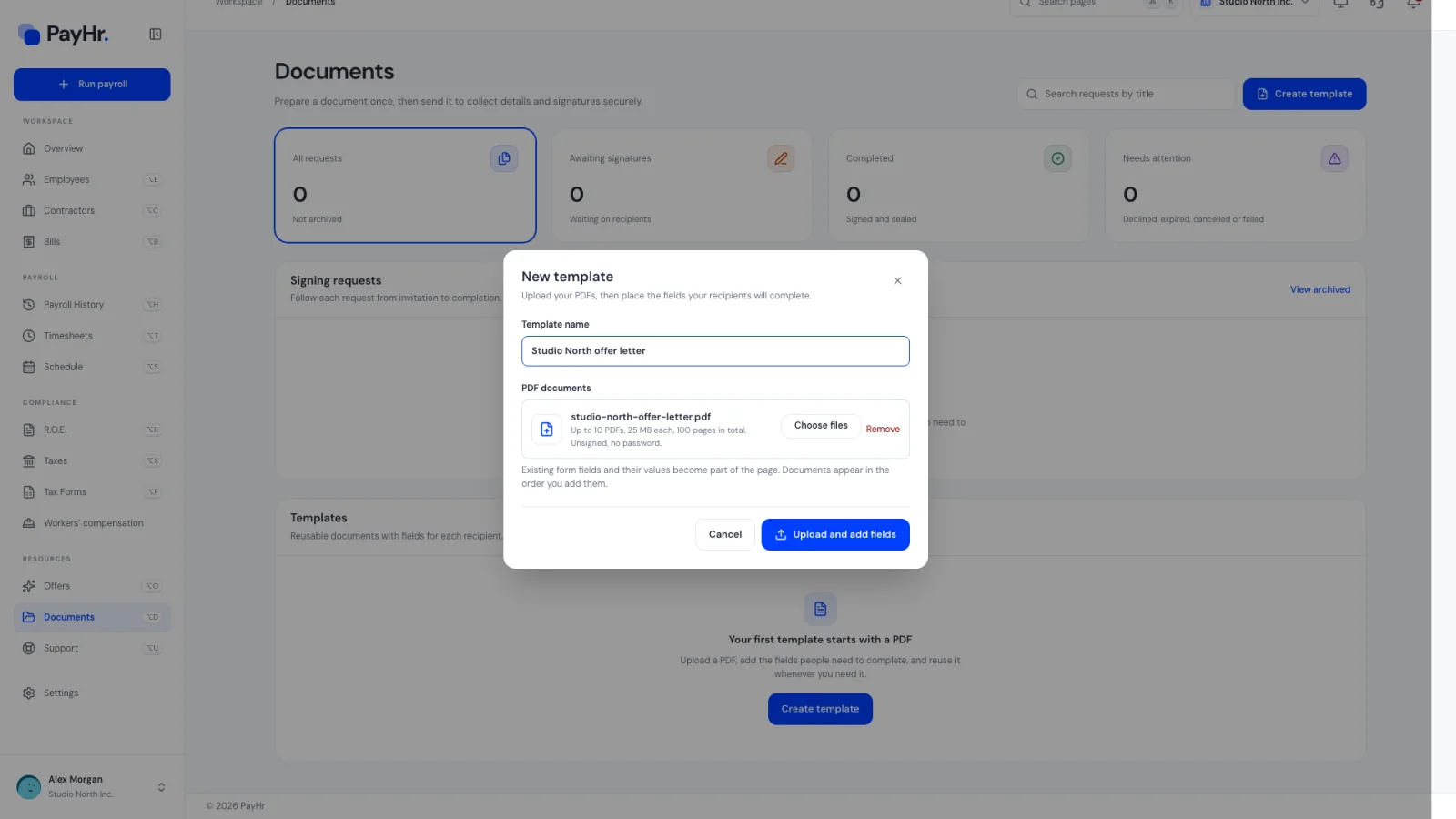
Select Create template. Enter a Template name you’ll recognize, such as Employment agreement, then drop or choose your PDF documents:
- Up to 10 PDFs, 25 MB each and 100 pages in total. They appear in the order you add them, and are signed together as one package.
- The PDF must be unsigned and not password protected. If it already has fillable form fields, their contents become part of the page.
Select Upload and add fields. PayHr prepares the pages and opens the template editor.
03Add recipients and place fields
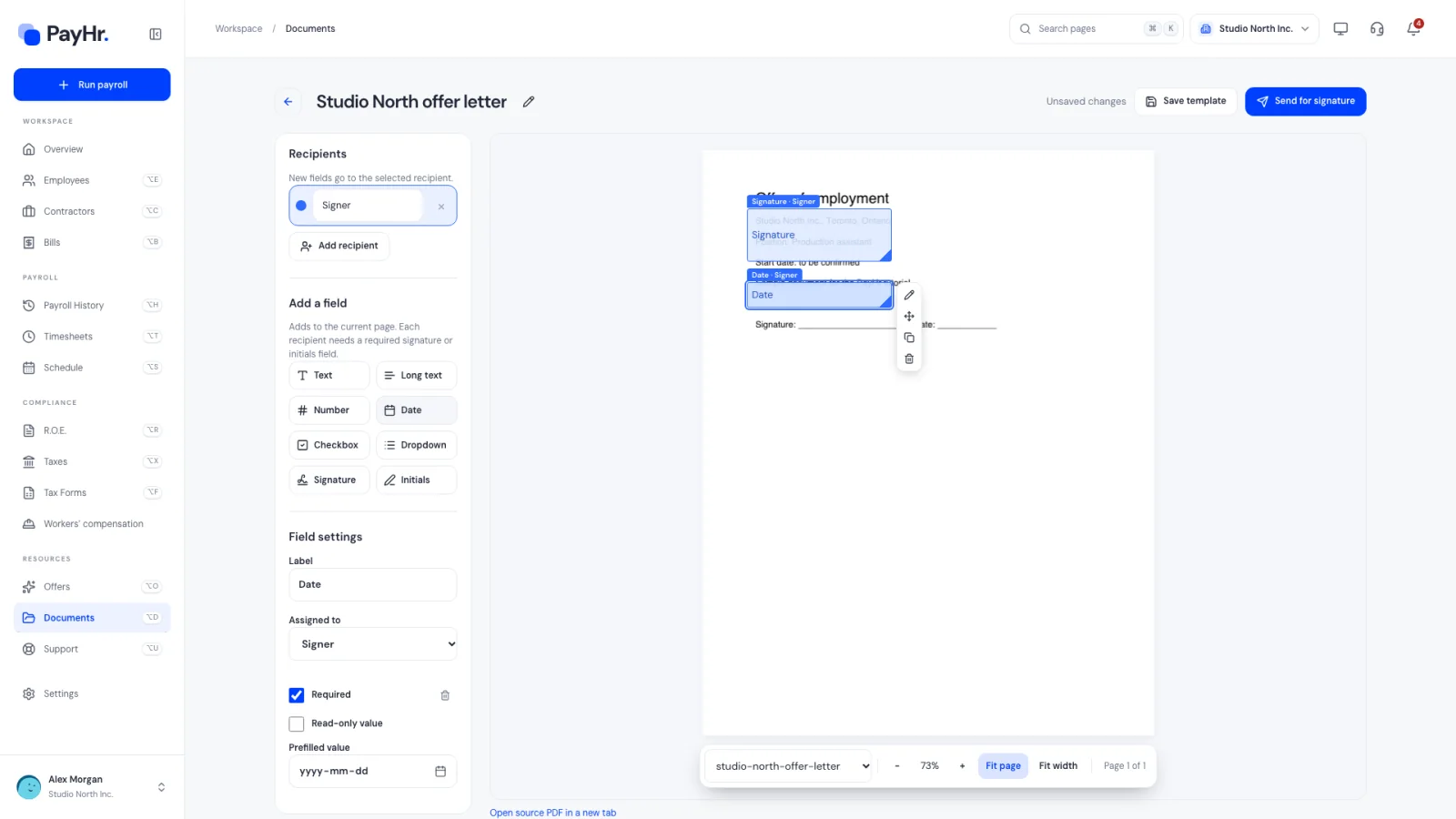
The editor shows your document on the right. On the left:
- Recipients: the roles that sign, starting with Signer. Use Add recipient for a second signer, for example your own signature after the employee’s. New fields go to the selected recipient, and each recipient fills in only their own fields.
- Add a field: Text, Long text, Number, Date, Checkbox, Dropdown, Signature and Initials. A field is added to the current page; drag it into place and drag its corner to resize. Arrow keys move the selected field and Shift with arrow keys resizes it.
- Field settings: select a field to change its recipient, make it required, or give it a read-only value you fill in yourself, such as a start date. Signatures can’t be filled in for someone.
Every recipient needs at least one required signature or initials field. Rename the template with the pencil next to its name, then select Save template.
04Send it for signature
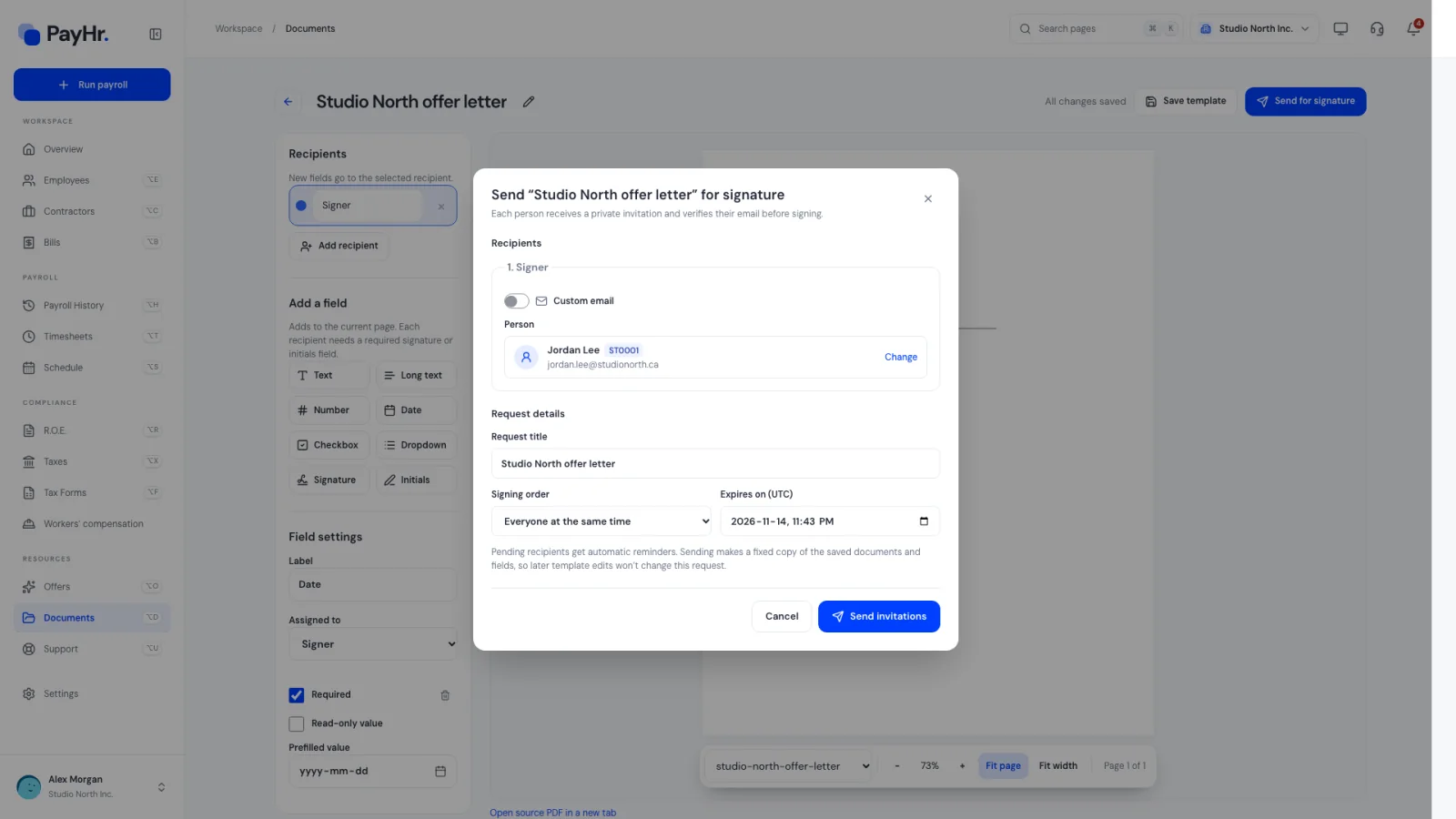
Select Send for signature in the editor or next to the template. For each recipient role, choose a Person by searching your employees and contractors (only people with an email are listed), or switch on Custom email and type a Full name and Email address.
- Request title: what recipients see in their invitation, for example Offer letter · Jordan Lee.
- Signing order: Everyone at the same time, or One at a time, in the recipient order above (drag recipients to reorder).
- Expires on (UTC): 14 days from now by default, and up to 90 days ahead.
Sending makes a fixed copy of the saved documents and fields, so later template edits don’t change requests already sent. Select Send invitations. If no payment method is saved in Billing, PayHr asks you to add one first.
05What the signer sees
Each recipient gets an email from your workspace with a Review and sign button. The link opens a private page where they select Send verification code and enter the six-digit code from their email, so only the person at that address can sign. They don’t need a PayHr account.
They then select Start signing; PayHr takes them to each field in order. Signature and initials fields open a pad where they type their name or draw. Progress is saved as they go. At the end they confirm the consent statement and select Finish and sign, or Decline if they disagree.
06Follow the request and download the signed PDF
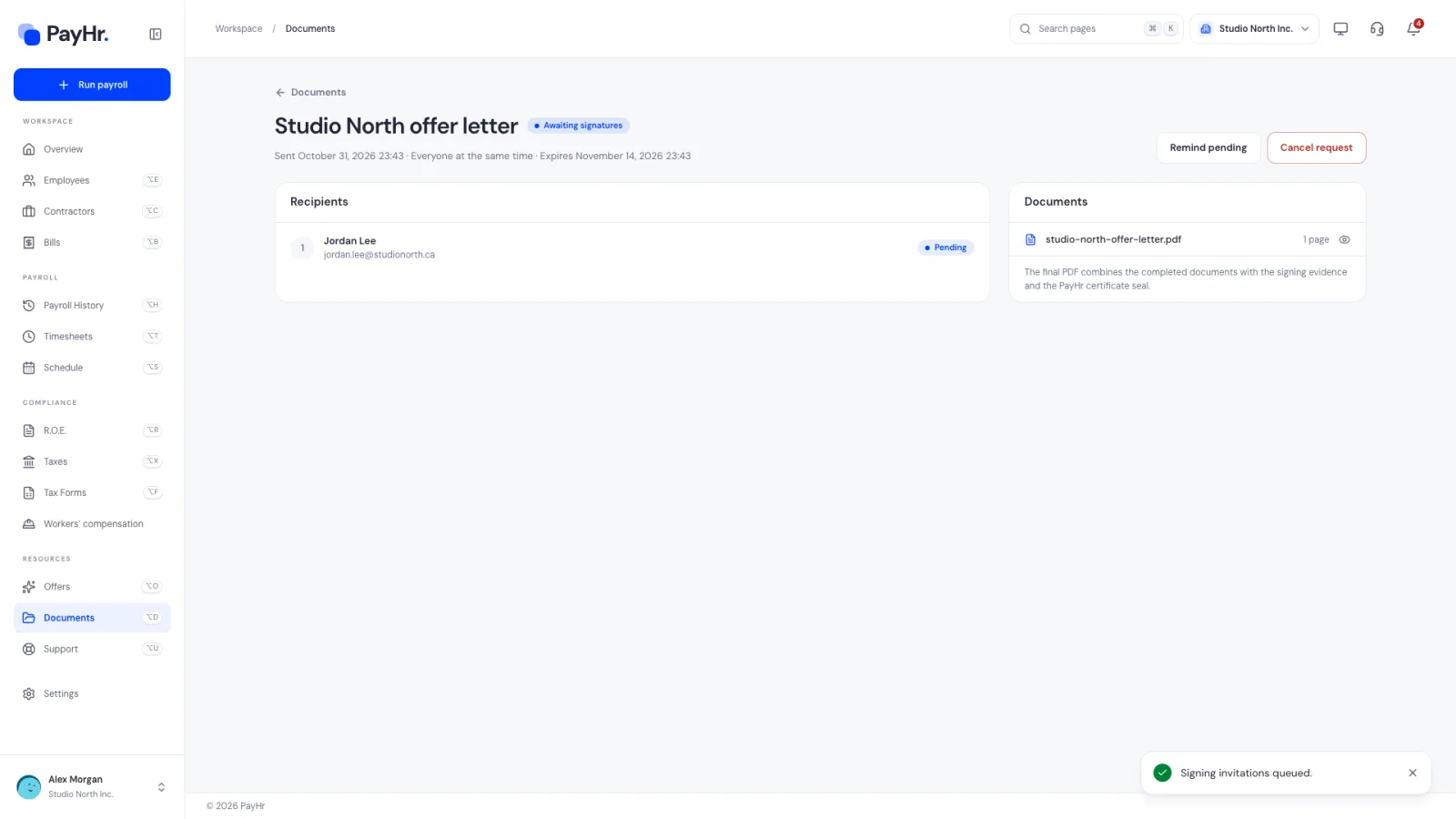
Open a request from the list to see each recipient’s status and preview the documents exactly as sent. While it is waiting you can select Remind pending; PayHr also reminds pending recipients automatically every three days. Cancel request stops the signing links.
When everyone has signed, PayHr seals the package and the request shows Completed. Select Signed PDF for the combined document with a signing-evidence page and the PayHr certificate seal, and Signing receipt for a file recording the evidence and the document’s fingerprint. You’re notified in the app and by email when a document is signed. Finished requests can be archived to keep the list tidy.
07Keep a copy on the employee’s file
To file a signed document with the employee, open their page, go to Documents and choose Attach from document signing. Their completed requests are listed; select Attach to copy the sealed PDF into their documents.
Questions people ask
How much does document signing cost?
$1 per signed document, plus applicable taxes. A charge is recorded once when a request is completed, whatever the number of pages or signers, and appears on your next monthly invoice. You need a payment method in Billing to send.
Does the signer need a PayHr account?
No. They open the private link in their email and confirm a six-digit code sent to the same address before they can see and sign the document.
Can I change a document after sending it?
No. Sending freezes a copy of the documents and fields. Cancel the request, edit the template, and send it again.
What PDFs can I upload?
Unsigned PDFs without a password, up to 25 MB each, 10 files and 100 pages per template. Fillable PDFs are flattened so their contents stay on the page. Encrypted PDFs, already-signed PDFs and XFA forms aren’t supported; print them to a new PDF first.
How long can a request stay open?
It expires on the date you set: 14 days by default and up to 90 days. After that the signer can’t sign and the request moves to Needs attention.
Where can the signer get their copy?
When the request is complete they receive an email with a link to download the signed copy, and can reopen it for 90 days after completion.