TAXES & COMPLIANCE
Add PayHr as your CRA representative
With Add PayHr as representative, our team files your T4 and T4A slips for you. You give PayHr access to your payroll account once, in CRA My Business Account, in about 2 minutes. After you tell us, we check the access, file within 24 hours and email you the CRA confirmation number. PayHr then emails each person their slip.

Before you start
- Automatic filing paid for in PayHr (or included in your Automated Pay plan)
- Your slips reviewed and locked in PayHr (Taxes > Tax Forms, open the year, then the representative guide, step 1)
- Your CRA My Business Account sign-in, as an owner or someone allowed to authorize representatives
- PayHr's RepID, shown in the guide (copy it with one click)
01Copy PayHr's RepID
In PayHr, open Taxes, choose Tax Forms and open the year. In step 2, Add PayHr in CRA, select Copy beside PayHr's RepID.
The video shows the whole authorization in about 4 minutes.
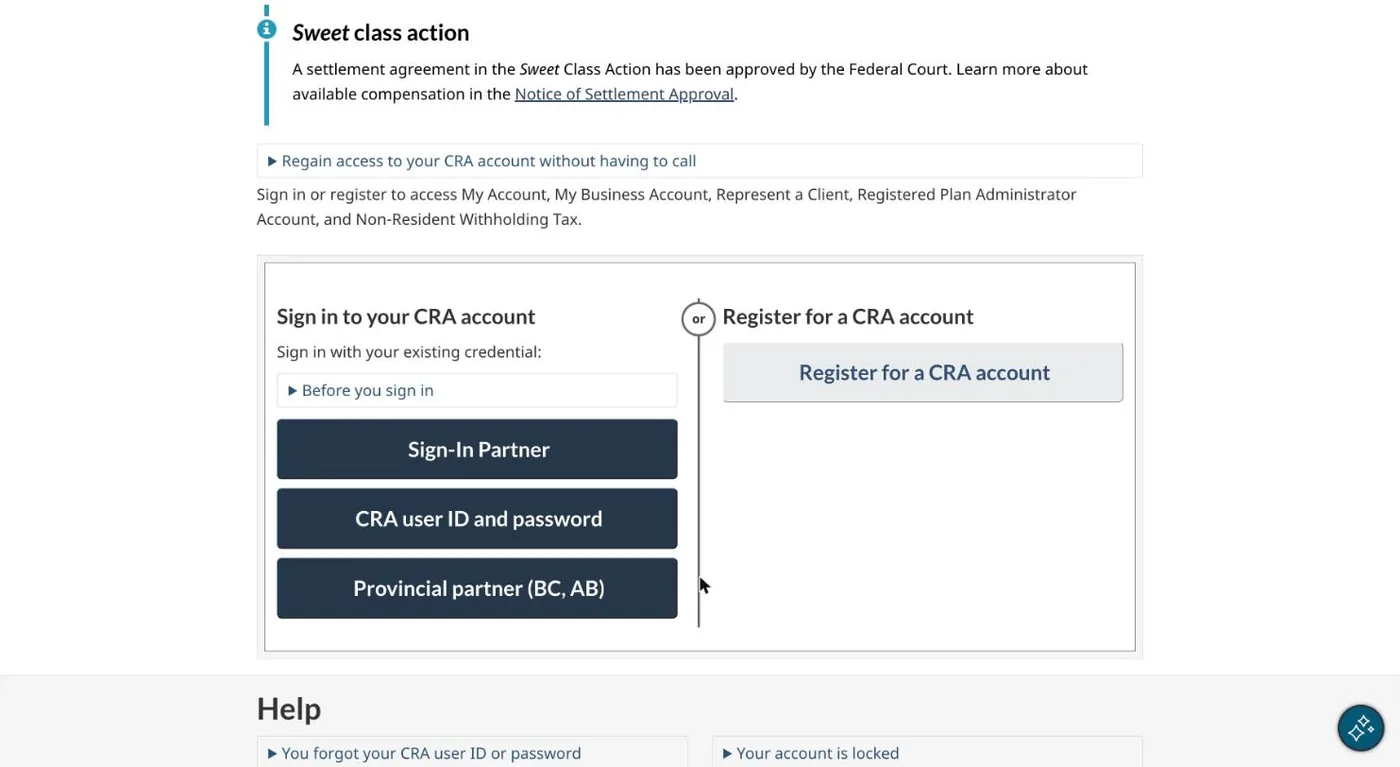
02Sign in to CRA My Business Account
Go to CRA My Business Account and sign in the way you usually do, then choose the business the slips are for.
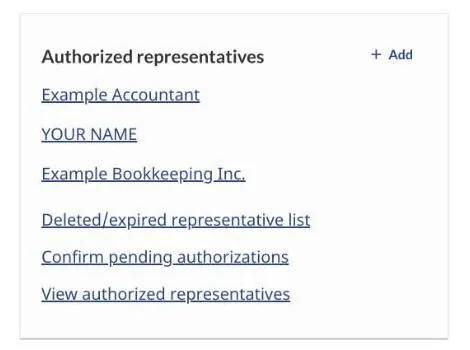
03Open Authorized representatives
Go to Profile. On the Authorized representatives card, select + Add.
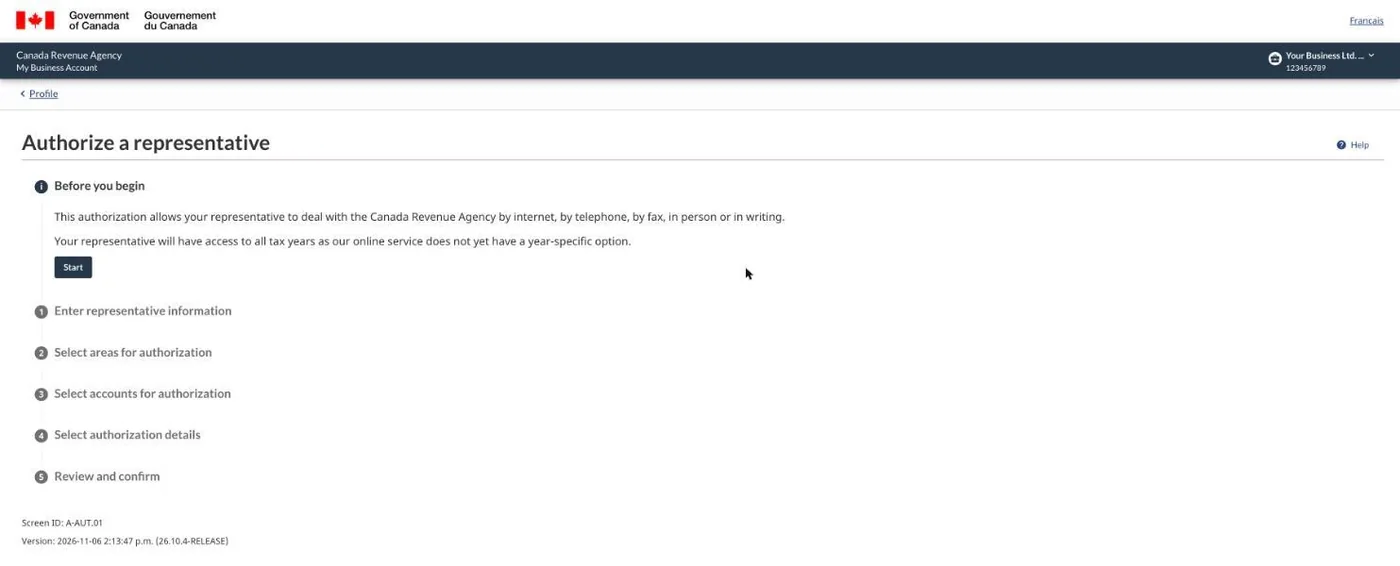
04Start
Read Before you begin, then select Start.
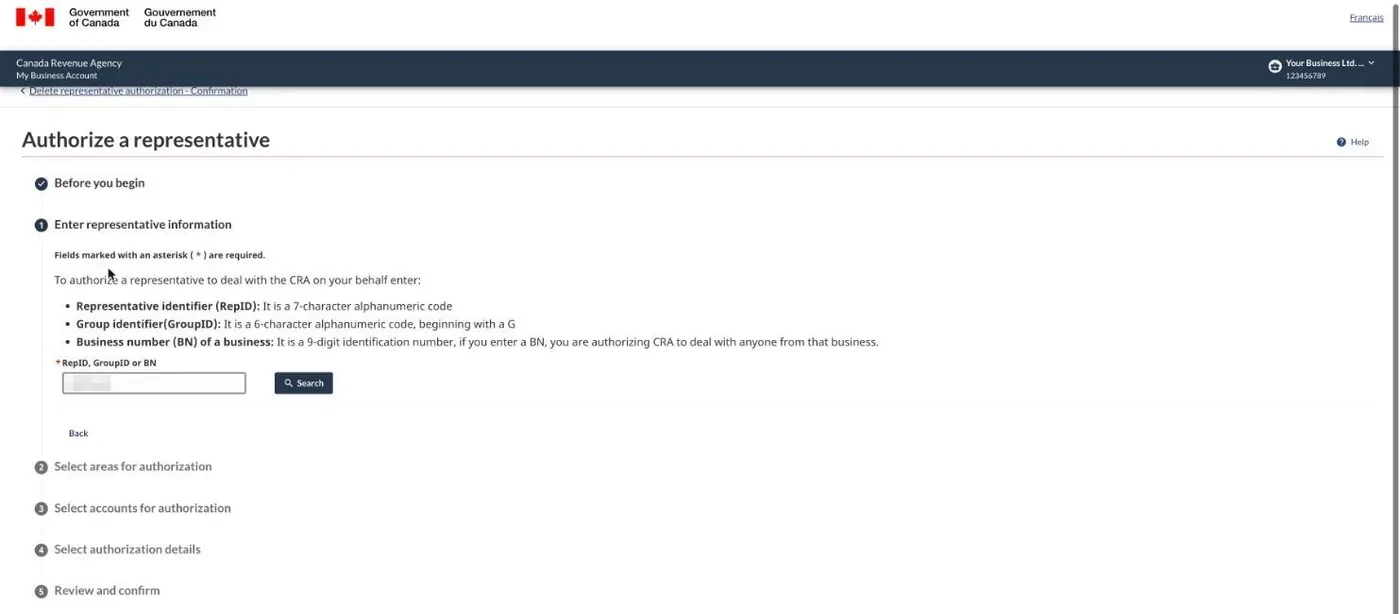
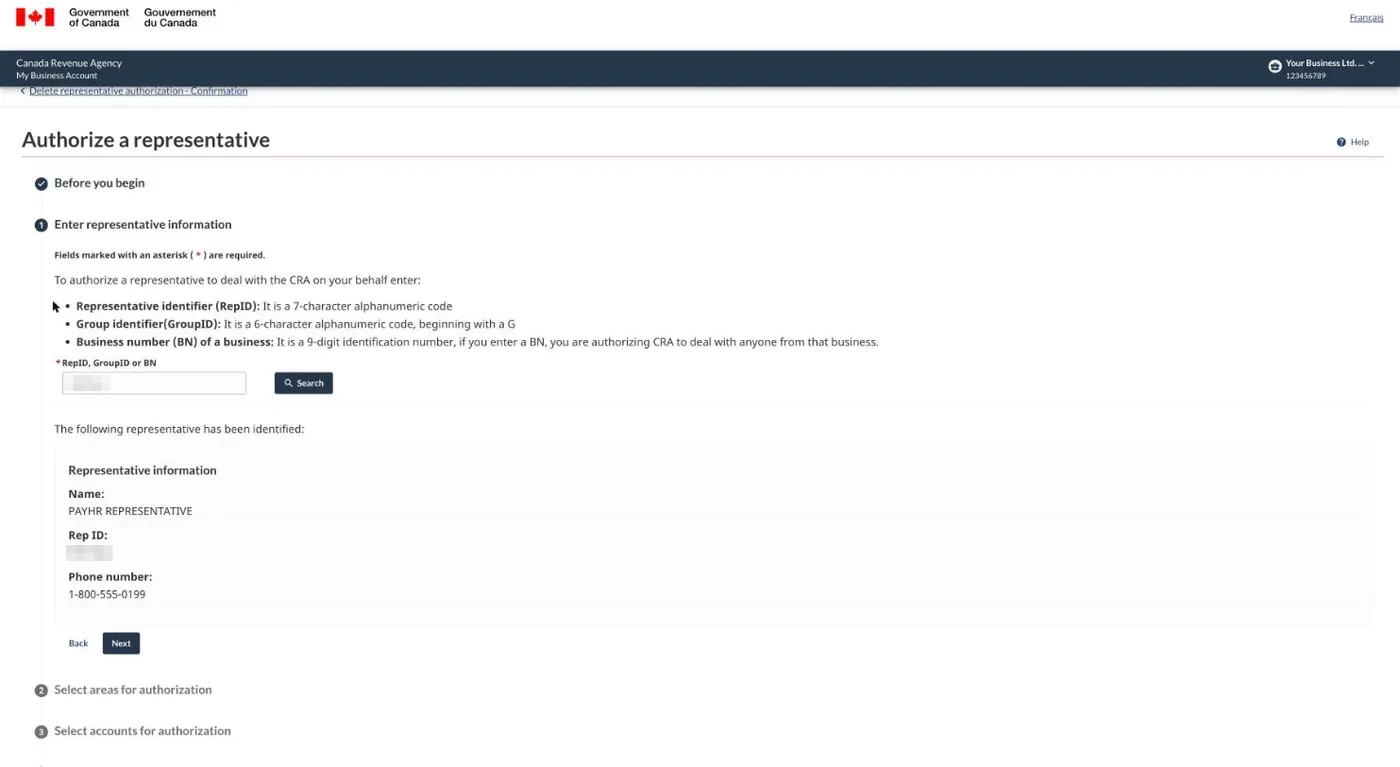
05Search for PayHr's RepID
Paste the RepID and select Search. If the CRA says You have already authorized this representative, you're done: go back to PayHr and tell us.
06Confirm it's PayHr
The CRA shows PayHr's registered representative and the RepID. Select Next.
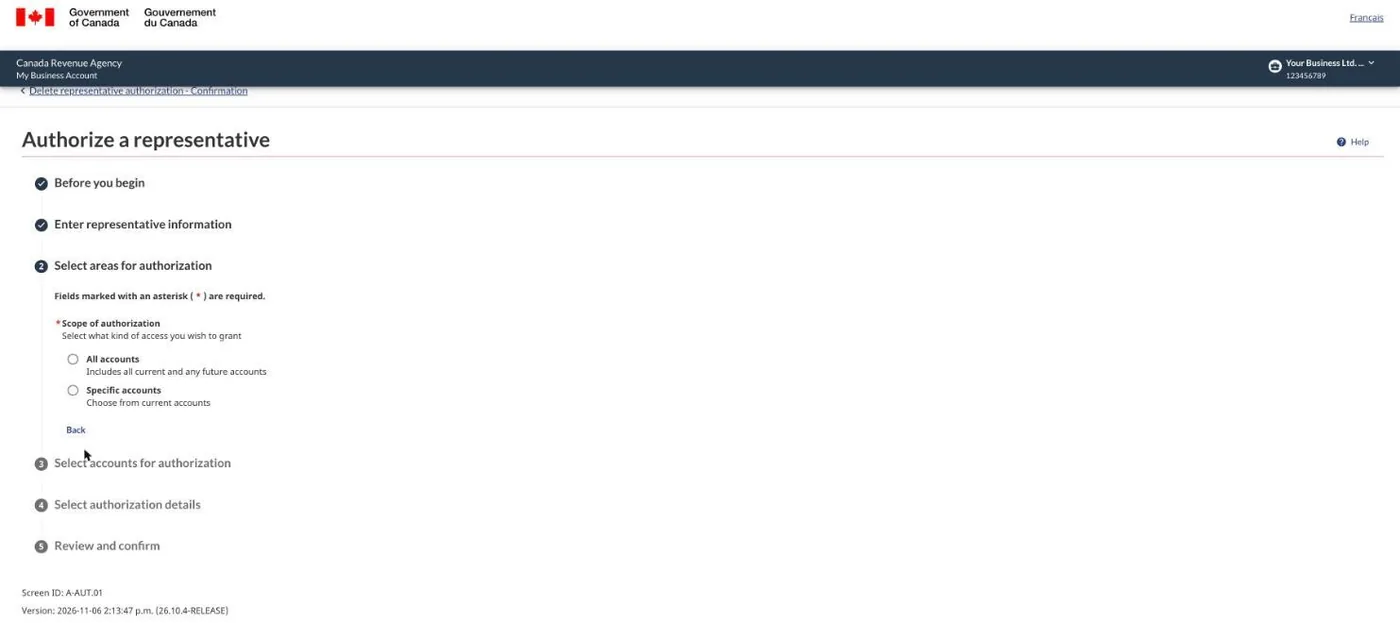
07Choose Specific accounts
For access, choose Specific accounts. PayHr only needs your payroll account.
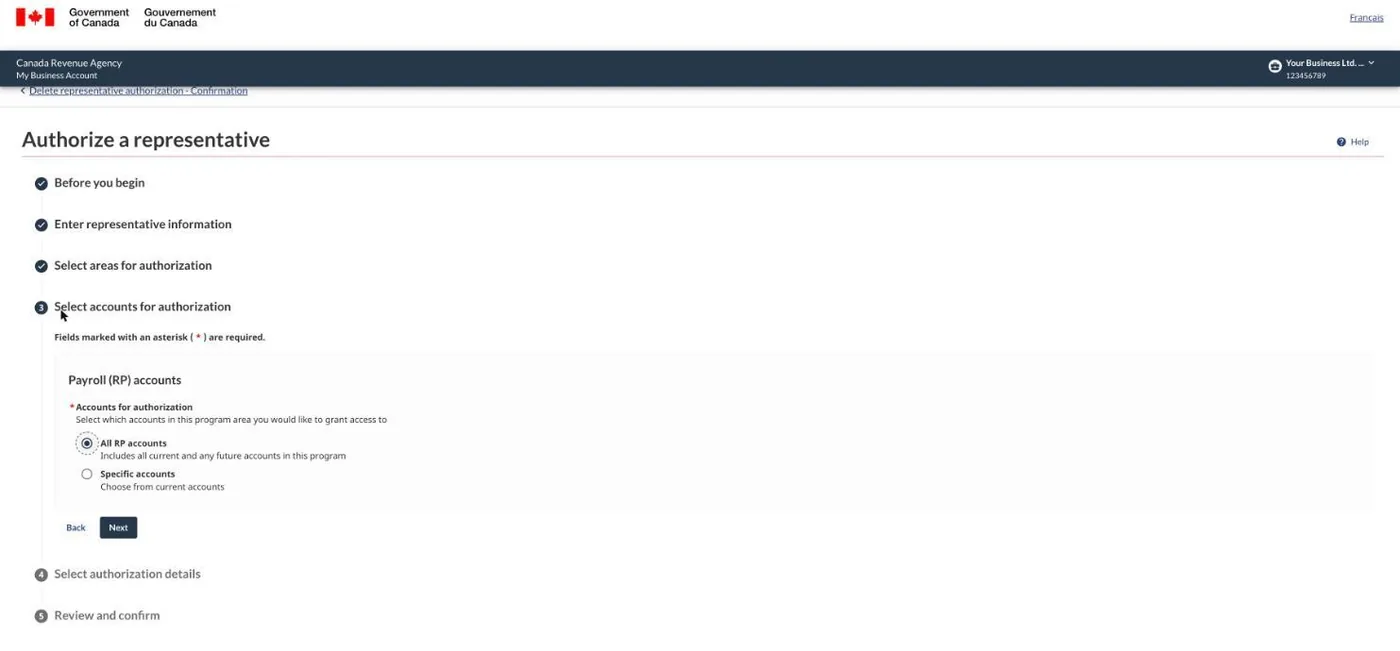
08Tick Payroll (RP) accounts, then All RP accounts
Tick Payroll (RP) accounts, then choose All RP accounts.
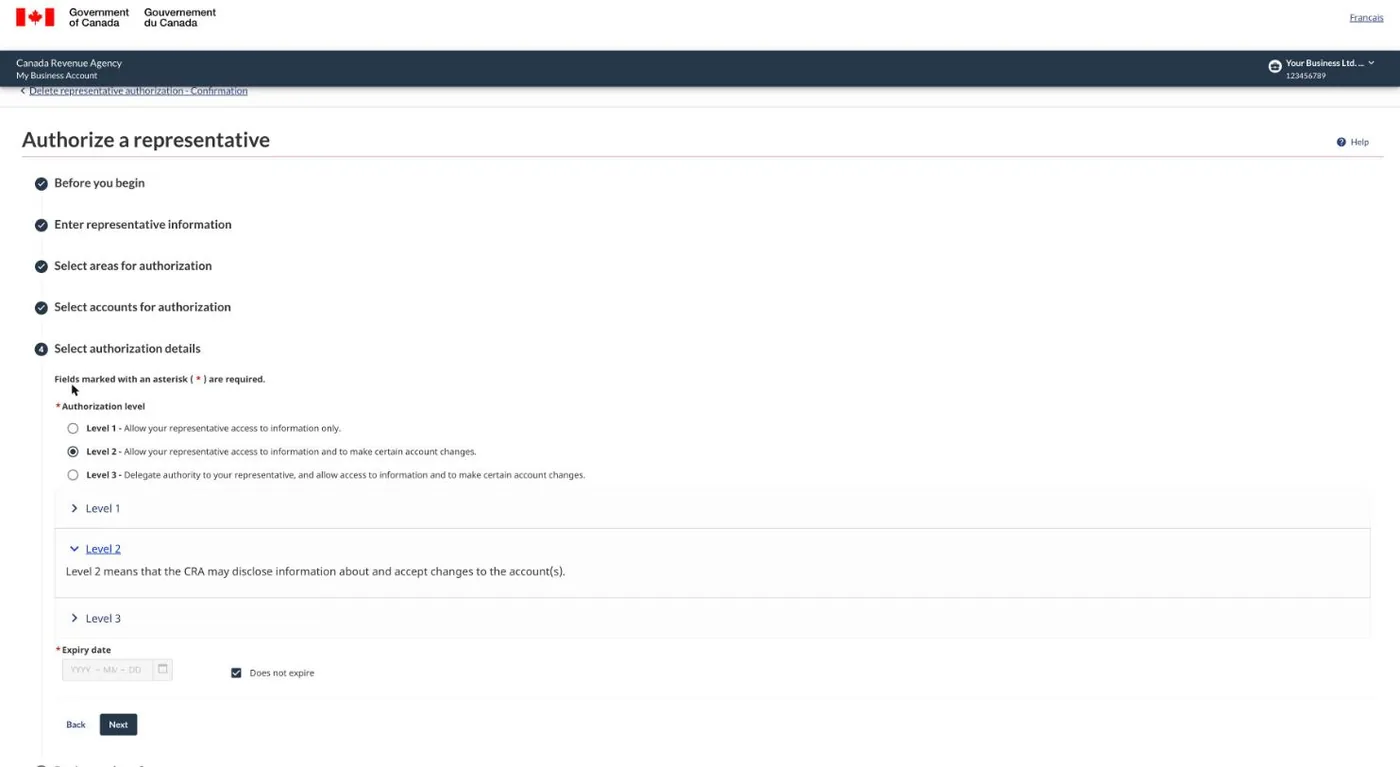
09Choose Level 2, with no expiry
Choose Level 2 and Does not expire. Level 2 lets PayHr file your slips. Level 1 only lets us read.
10Review and submit
Check the details, tick the confirmation, then select Submit. The CRA confirms the authorization.
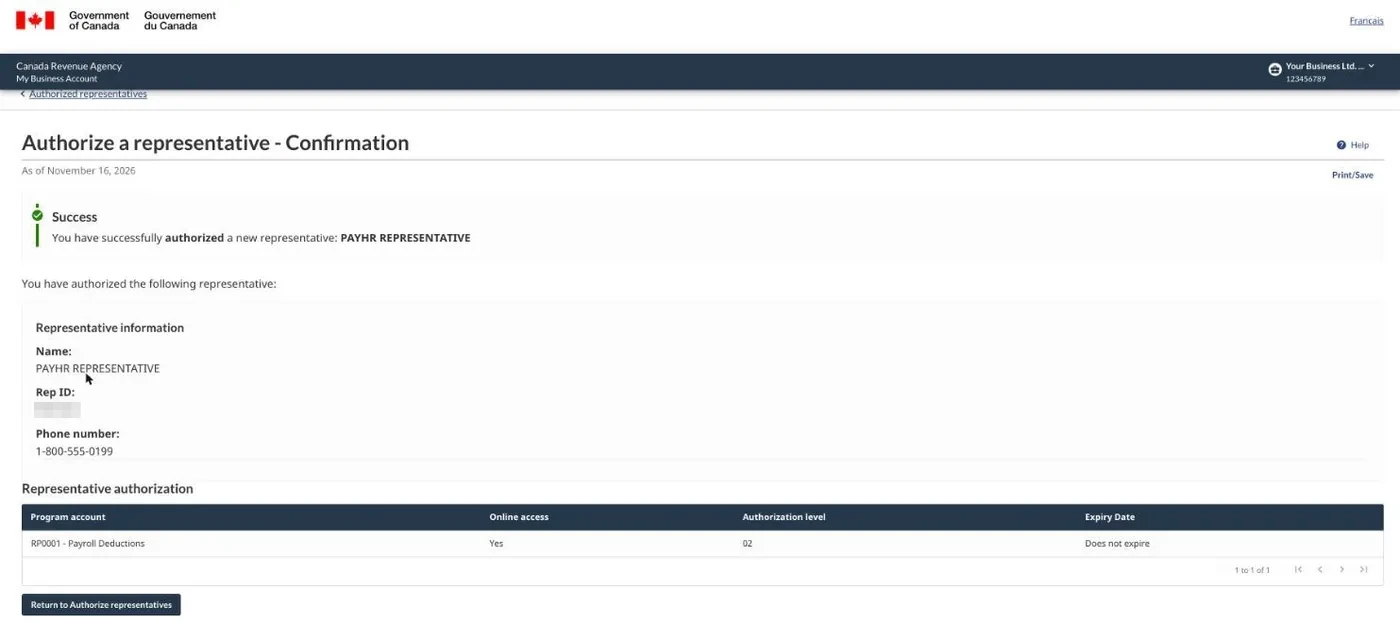
11Tell PayHr
Back in PayHr, select I've added PayHr as my representative. We check the CRA and email you once access is confirmed. Then our team files your slips within 24 hours and emails you each confirmation number. PayHr emails every person their slip, and the guide moves to Filing completed.
Questions people ask
What can PayHr see and do?
Only your payroll (RP) accounts. Level 2 lets us file and view returns there. We can't see your GST/HST or corporate tax accounts.
How long does it take?
About 2 minutes for you. After you tell us, we confirm access and file within 24 hours.
Would rather upload it yourself?
Choose File with XML instead. See Upload your T4 and T4A XML files to the CRA.