TAXES & COMPLIANCE
Review, edit and lock your T4 and T4A slips
Before you file with the CRA, PayHr puts every employee (T4) and contractor (T4A) slip for the year on one page. This guide shows how to read that page, edit a recipient, take someone off the return and put them back, and what happens when you lock your slips. It is for owners and admins. Your tax forms need to be prepared first.

Before you start
- Your tax forms prepared in PayHr (Taxes > Tax Forms, open the year, then Prepare Tax Forms)
- Employee and contractor details up to date: names, SINs, addresses and emails
01Open the slips page
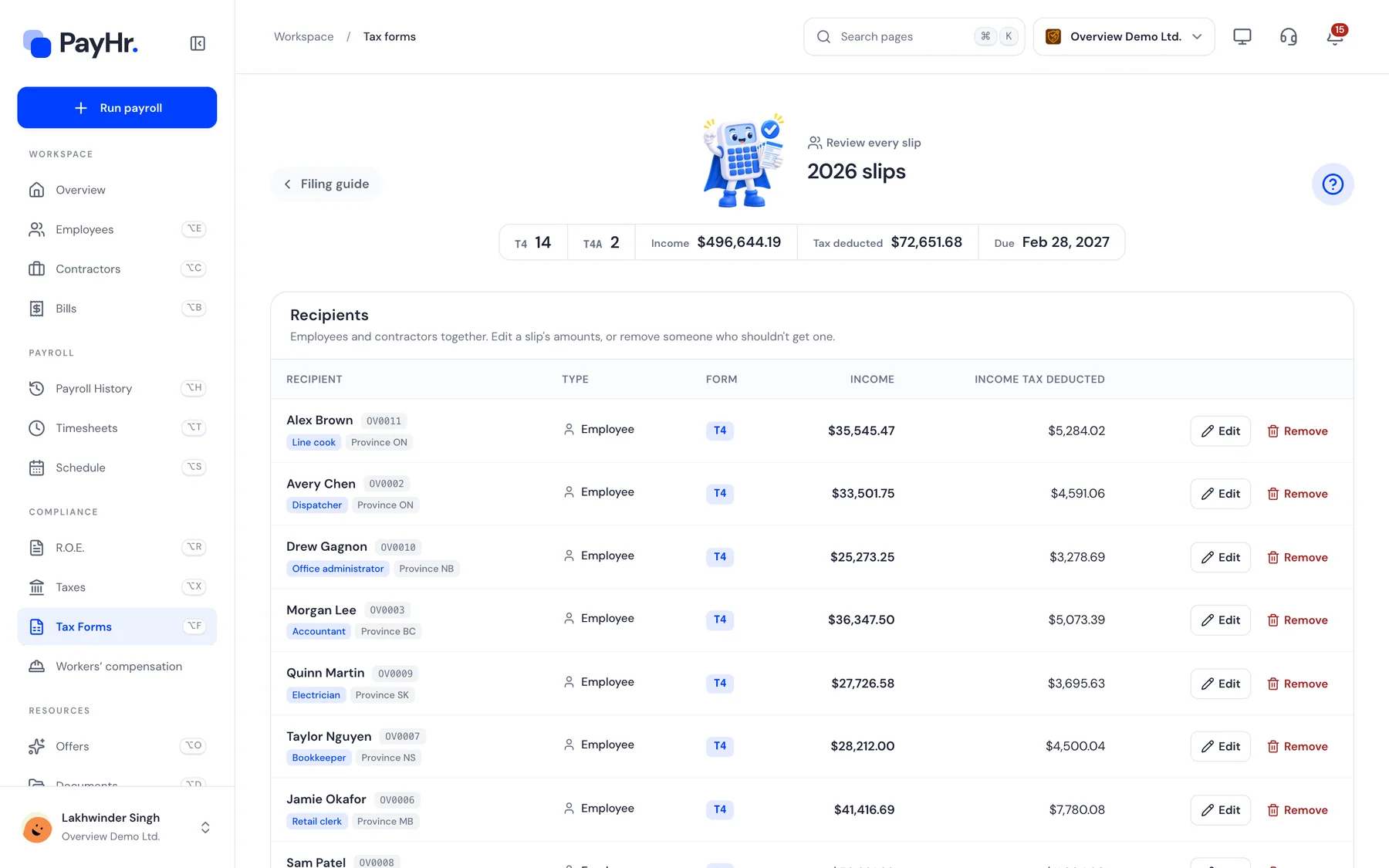
In PayHr, open Tax Forms and the tax year. From your filing guide, select Review slips. The page lists every slip for the year, employees and contractors together.
The card at the top sums up the year: how many T4 and T4A slips you have, total income, total income tax deducted and the filing due date. Select the ? button on the right any time to open this guide.

02Read the recipients list
Each row is one slip:
- Recipient: the person's name, their employee ID (for example OV0011), their occupation, or Individual / Business for a contractor, and the province of employment.
- Type: Employee or Contractor.
- Form: T4 for employees, T4A for contractors.
- Income and Income tax deducted: T4 box 14 and box 22, or T4A boxes 020 and 048 and box 022.
03Edit a recipient
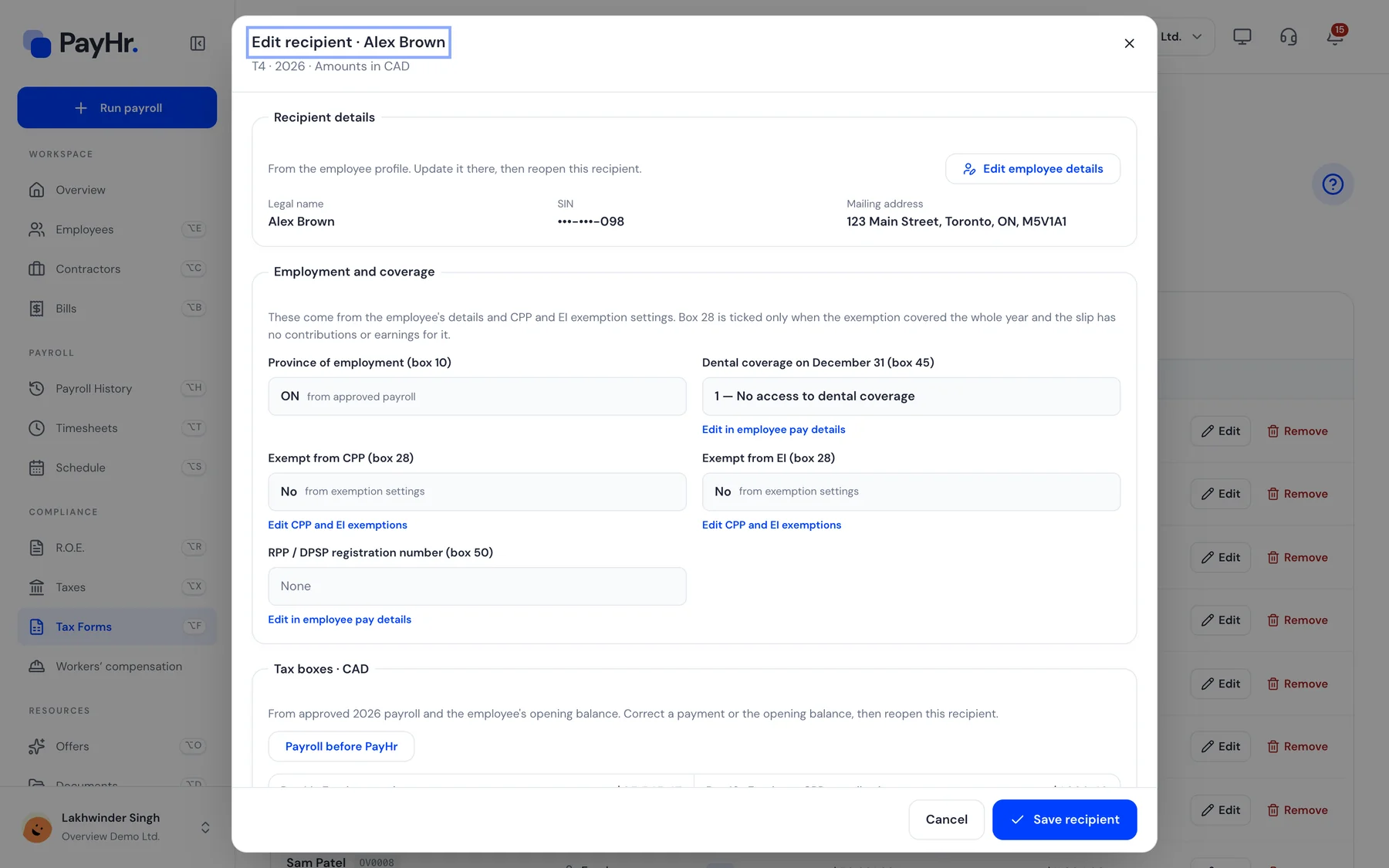
Select Edit on a row. A window opens with that person's slip:
- Recipient details and Employment and coverage come from the person's profile in PayHr. To change a name, SIN, address, box 28 exemptions or box 45 dental coverage, use the links in the window (for example Edit employee details), then open the slip again.
- Tax boxes come from your approved payroll and any opening balances. Correct a payment or an opening balance, then open the slip again.
Select Save recipient to keep your changes, or Cancel to go back to the list.
04Remove someone, or restore them
If someone shouldn't get a slip this year, select Remove on their row. They stay in the list, greyed out, with the note This person will not be included in this tax run. They aren't counted in the totals, and their slip isn't filed or sent.
Changed your mind? Select Restore to put them back on the return. You can remove and restore people any time before you lock your slips.

05Check the totals, then continue
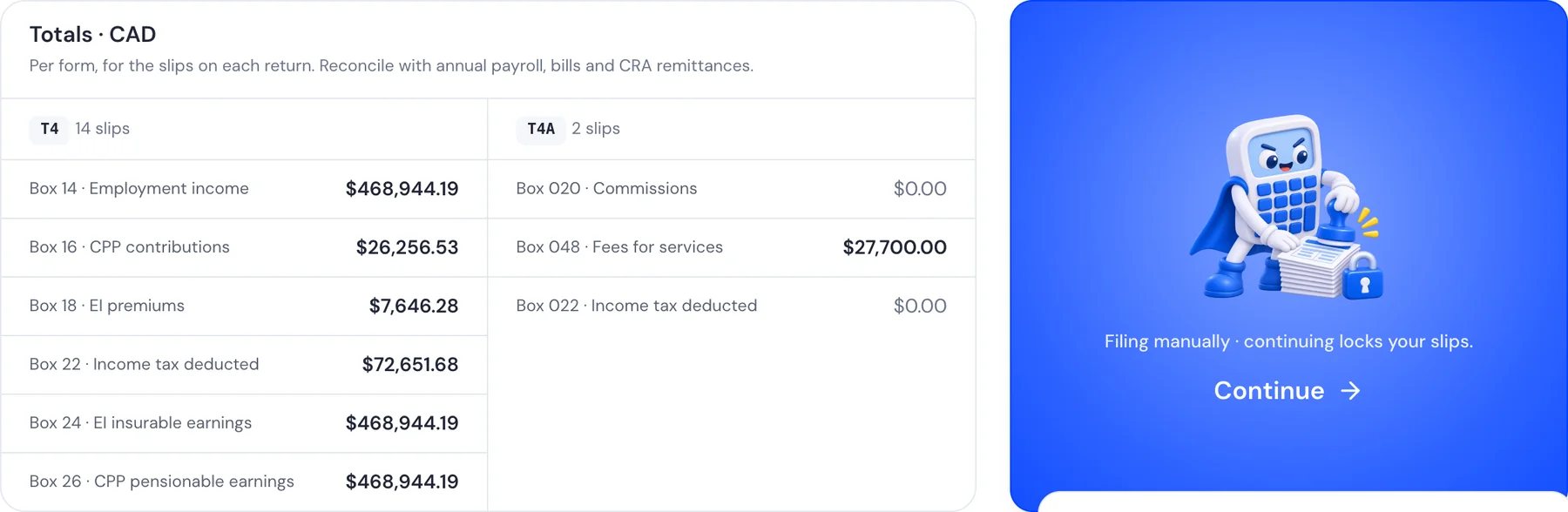
Under the list, Totals shows each form's boxes added up. Compare them with your payroll reports, contractor bills and CRA remittances for the year.
When everything matches, select Continue. What it does depends on how you file:
- Filing manually: Continue opens a short checklist and locks your slips (see the next step), then takes you through each person for CRA Web Forms.
- Filing automatically: Continue opens your upload or PayHr representative guide.
- Not chosen yet: Continue takes you to choose how to file.
06What locking means
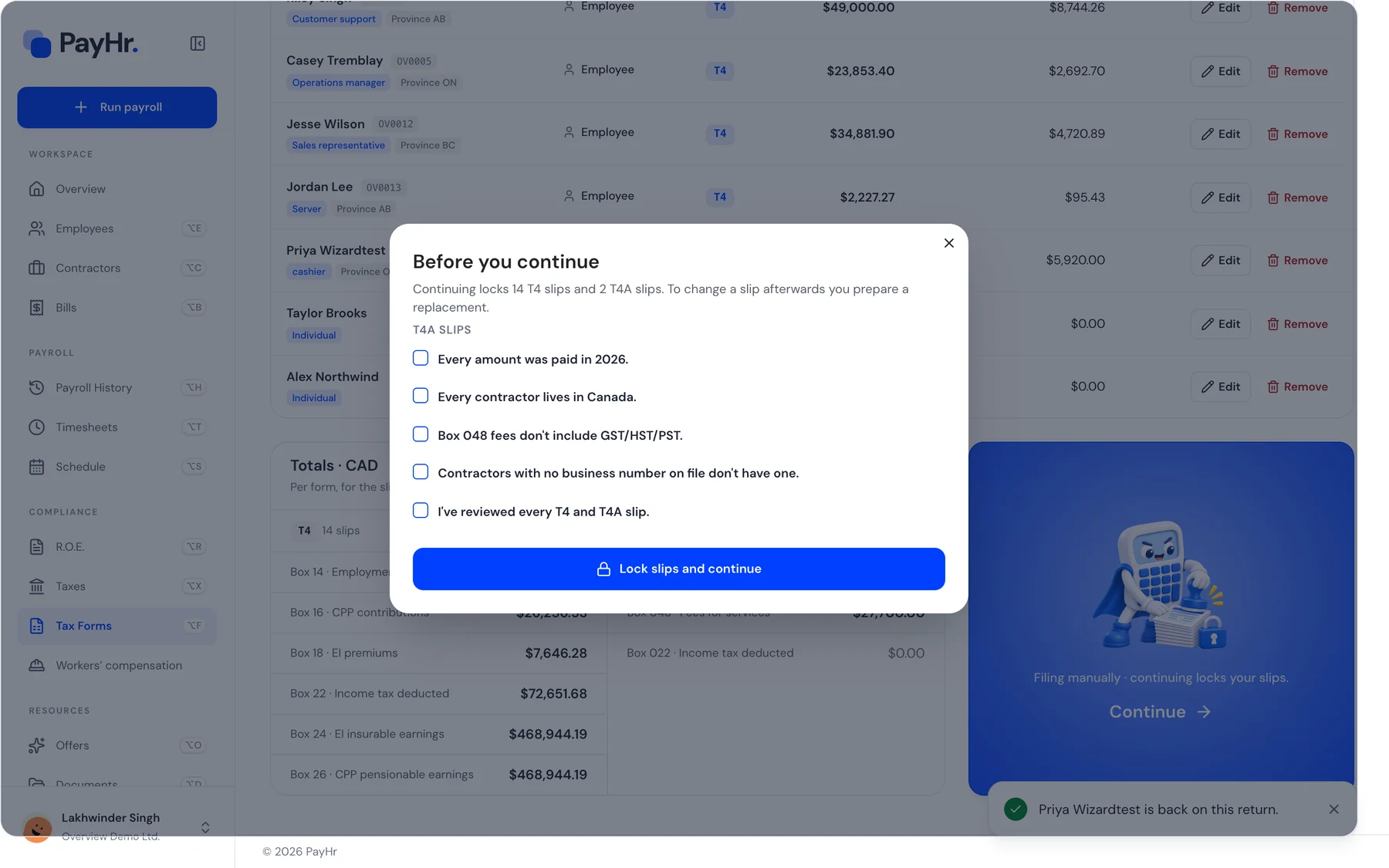
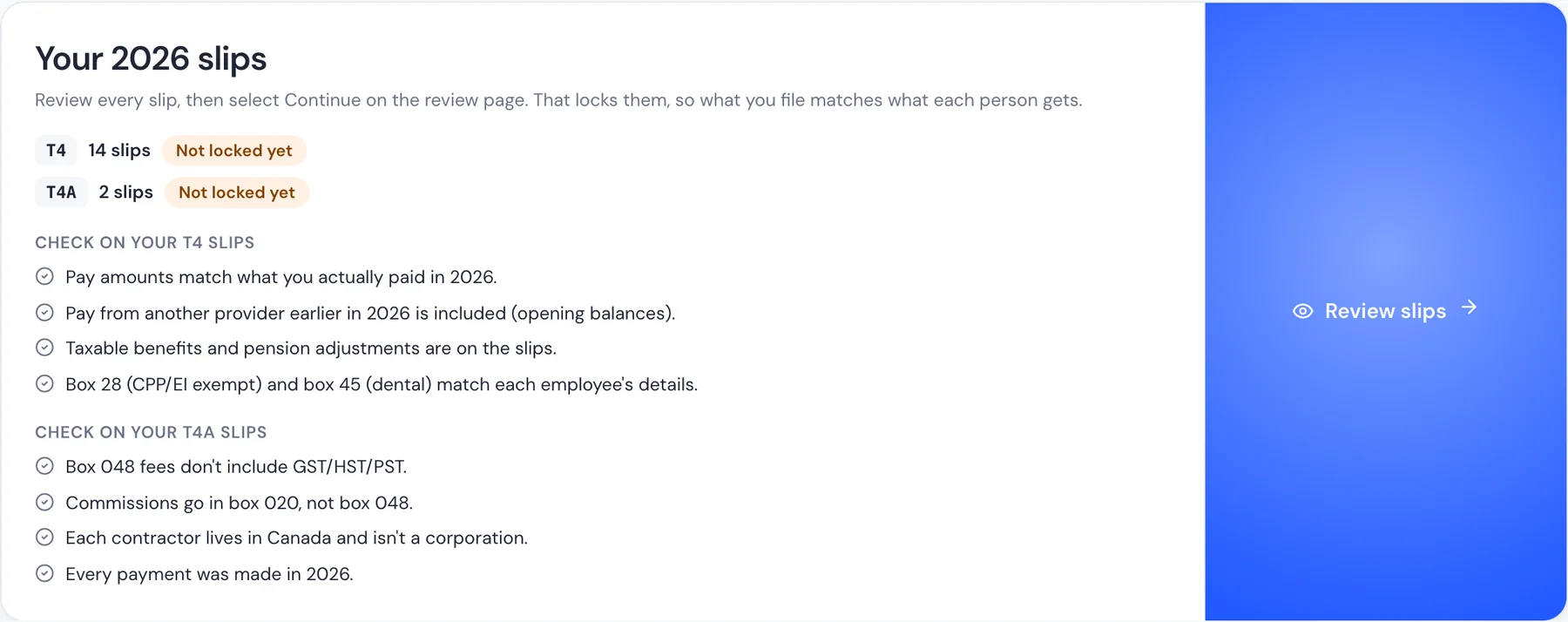
Locking (also called issuing) freezes your T4 and T4A slips exactly as they are, so what you file with the CRA matches what each person receives. Before locking, PayHr asks you to confirm a few points, such as that every T4A amount was paid during the year and excludes GST/HST, and that you've reviewed every slip.
- Both forms lock together. If a confirmation is missing, nothing is locked.
- After locking, slips can't be edited, removed or restored. To change a locked slip before you file, prepare a replacement. After you file, file an amendment.
- Locking doesn't file anything with the CRA and doesn't send slips to anyone. You still file the return and send each person their slip.
07Back in your filing guide
Your filing guide shows whether each form is locked. Until then, the guide's main button is Review slips, which brings you back to this page. Once locked, select File each person to type each slip into CRA Web Forms, record the CRA confirmation number and send each person their slip.
Questions people ask
Why can't I edit a slip any more?
Your slips are locked. Locked slips can't change, so what you file matches what each person gets. To correct one before filing, prepare a replacement from the year page. After filing, file an amendment.
Does removing someone delete their pay records?
No. Removing only takes their slip off this year's return. Their pay history stays as it is, and you can restore them before locking.
Does locking file my slips with the CRA?
No. Locking freezes the slips. You still file them (by CRA Web Forms, an XML upload or through PayHr as your representative) and send each person their slip.