TAXES & COMPLIANCE
Sign in to the CRA and type your slips into Web Forms
This guide walks you through filing T4 and T4A slips by hand with CRA Web Forms, the free way to file. You sign in to CRA My Business Account, open your payroll account, then fill in each Web Forms screen using the values from your slips in PayHr. Plan on a few minutes per slip.

Before you start
- Your slips issued in PayHr (Taxes > Tax Forms, open the year, then the manual filing guide, step 1)
- Your CRA My Business Account sign-in
- Your CRA payroll account number (it ends in RP0001)
01Have your slip values ready in PayHr
Every value you type comes from your slips in PayHr. In PayHr, open Taxes, choose Tax Forms, open the year and select Open Manual. Under step 1, select Review slips next to each form to see every person's boxes. Keep this tab open beside the CRA tab.
The video shows the whole Web Forms filing, screen by screen, in about 5 minutes.
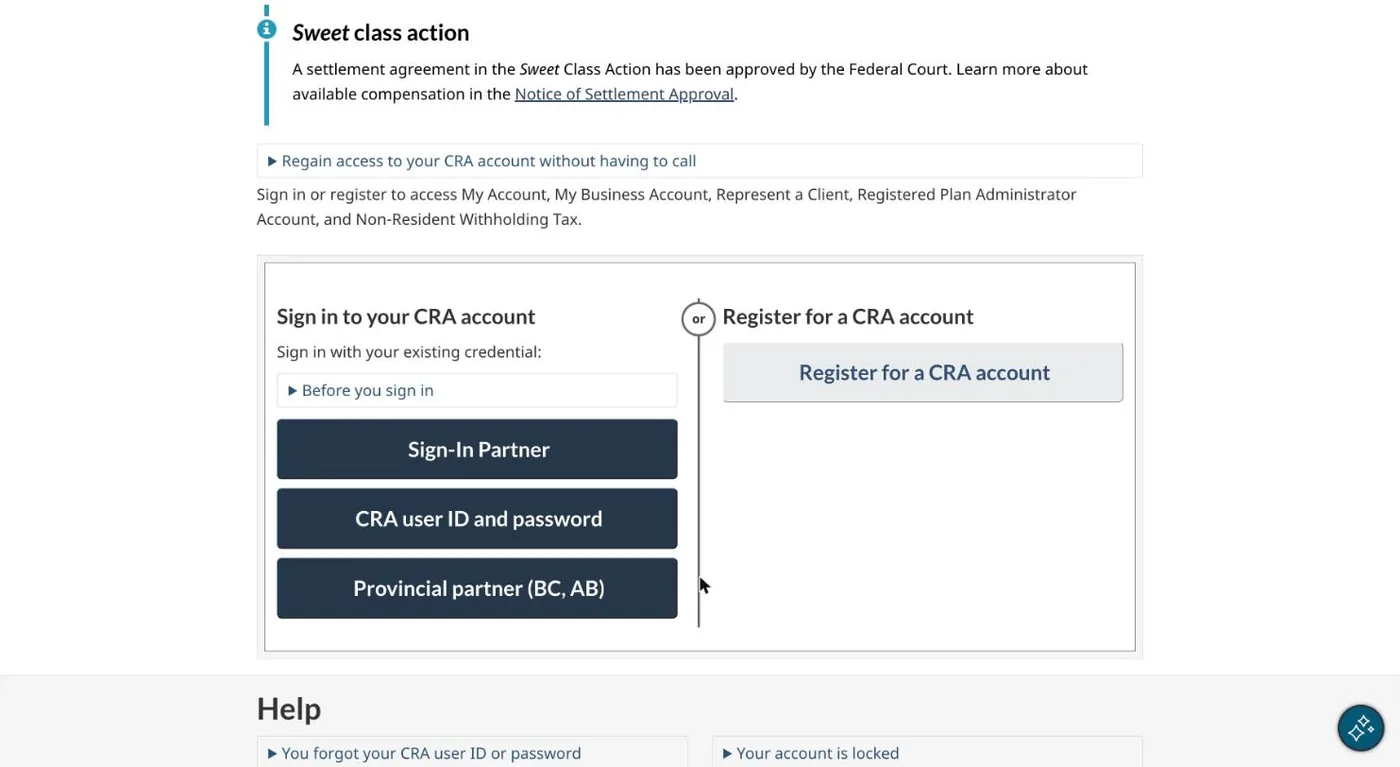
02Sign in to CRA My Business Account
Go to CRA My Business Account and sign in the way you usually do: with your CRA user ID and password, a Sign-In Partner (your bank), or a provincial partner.
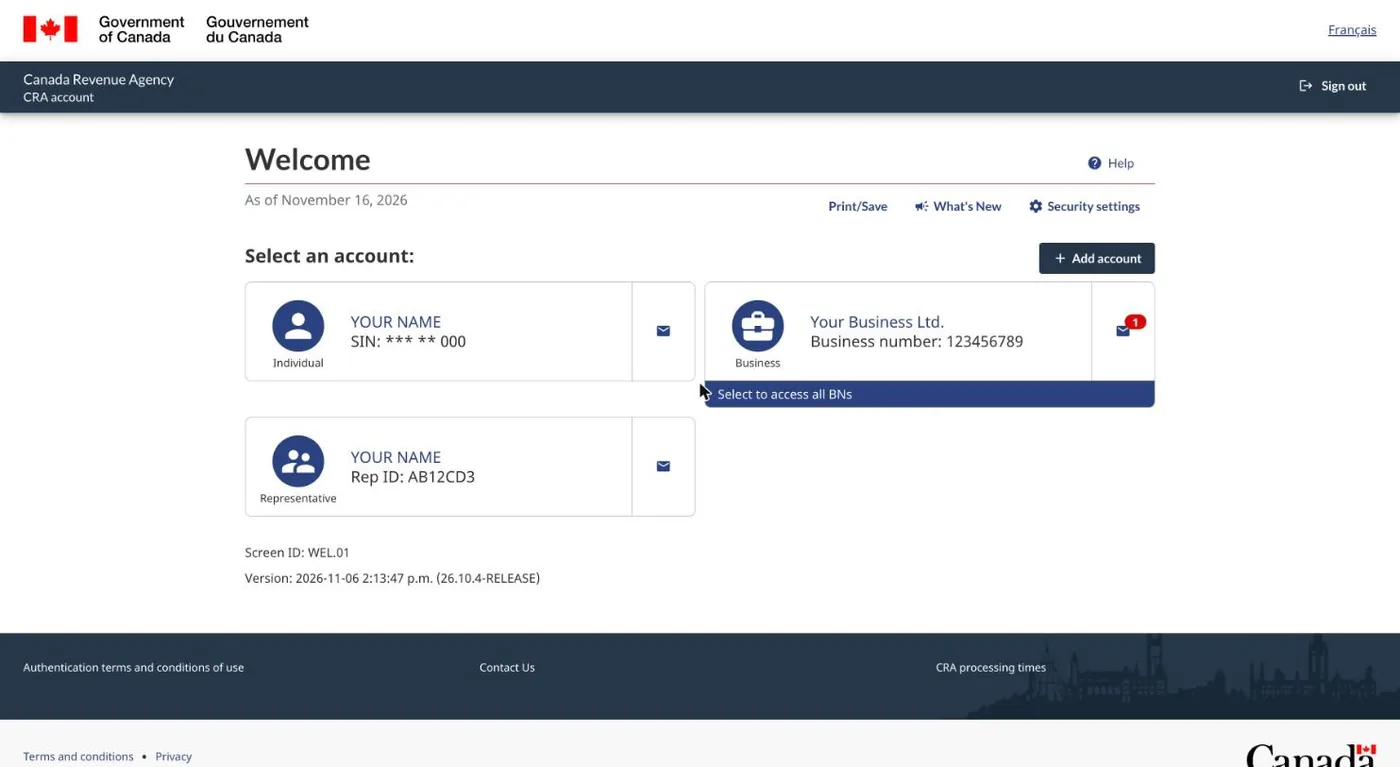
03Choose your business
If you manage more than one business, choose the one the slips are for. You land on the business overview.
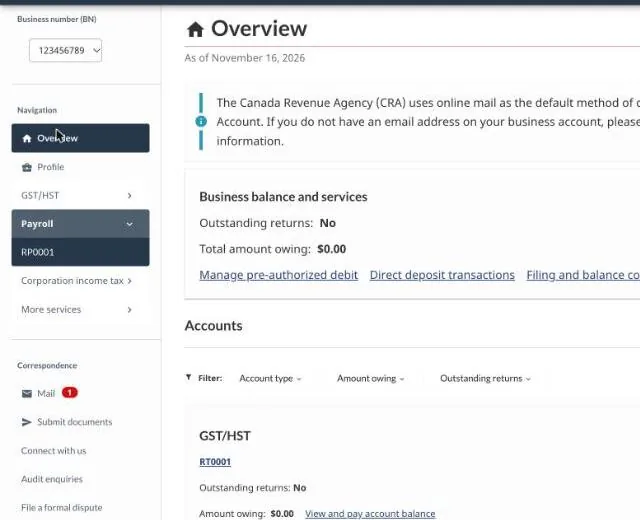
04Open your payroll account
In the left menu, open Payroll, then choose your payroll account: RP0001, or the account number printed on your slips.
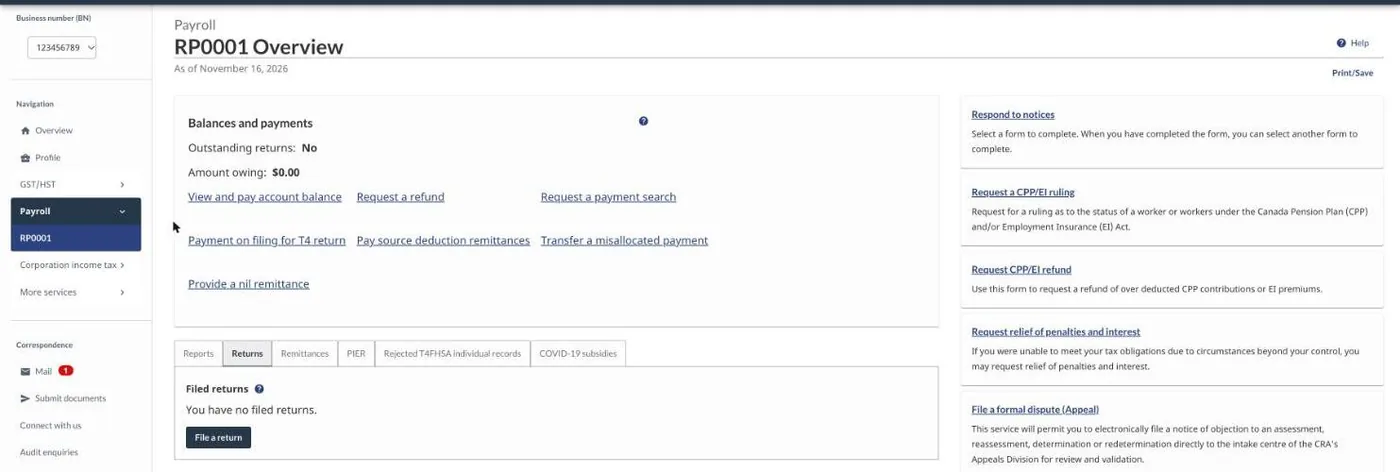
05Go to Returns and choose File a return
Open the Returns tab and select File a return. Read Before you begin, then select Start.
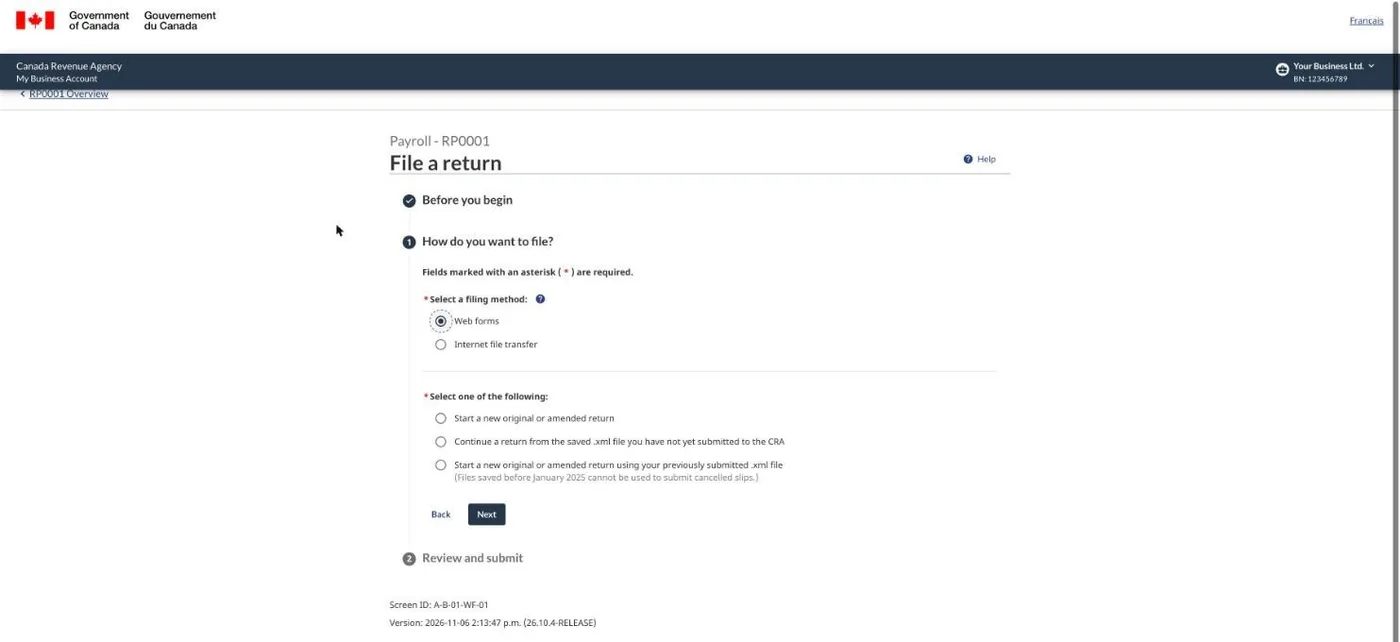
06Choose Web forms and start a new return
For the filing method, choose Web forms. On the Web Forms start page, choose Start a new original or amended return.
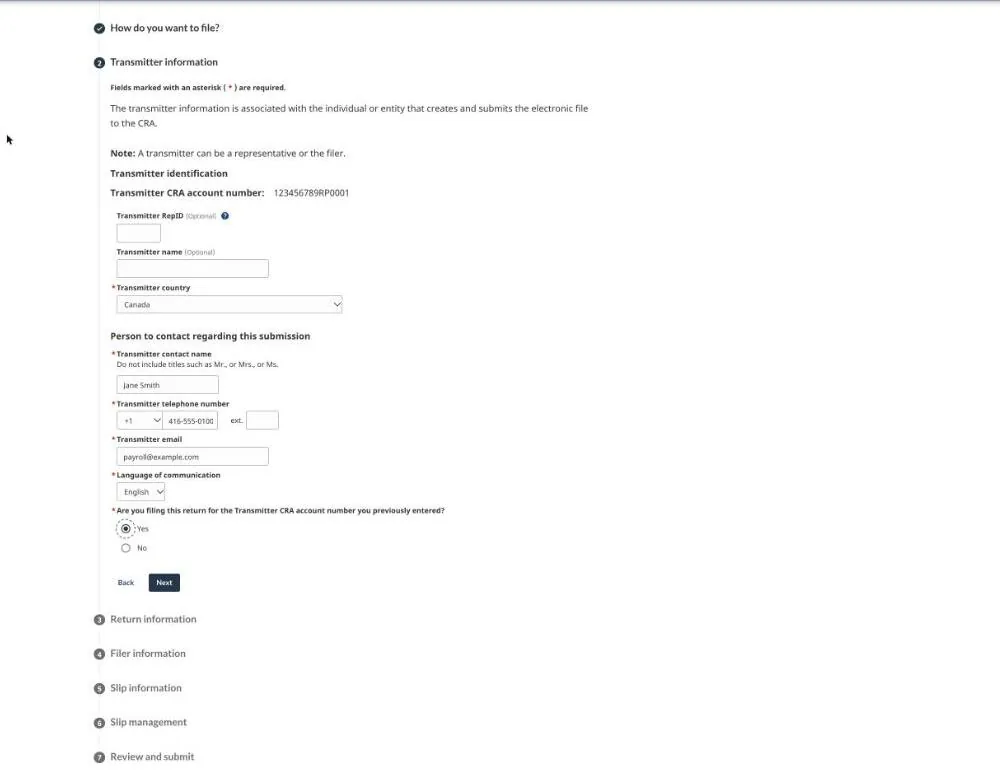
07Fill in the transmitter information
This is who is sending the return, which is you.
- Leave Transmitter RepID and Transmitter name blank.
- Country: Canada.
- Enter your contact name, telephone number and email, and choose your language of communication.
- When asked if you are filing for the account number you entered, answer Yes.
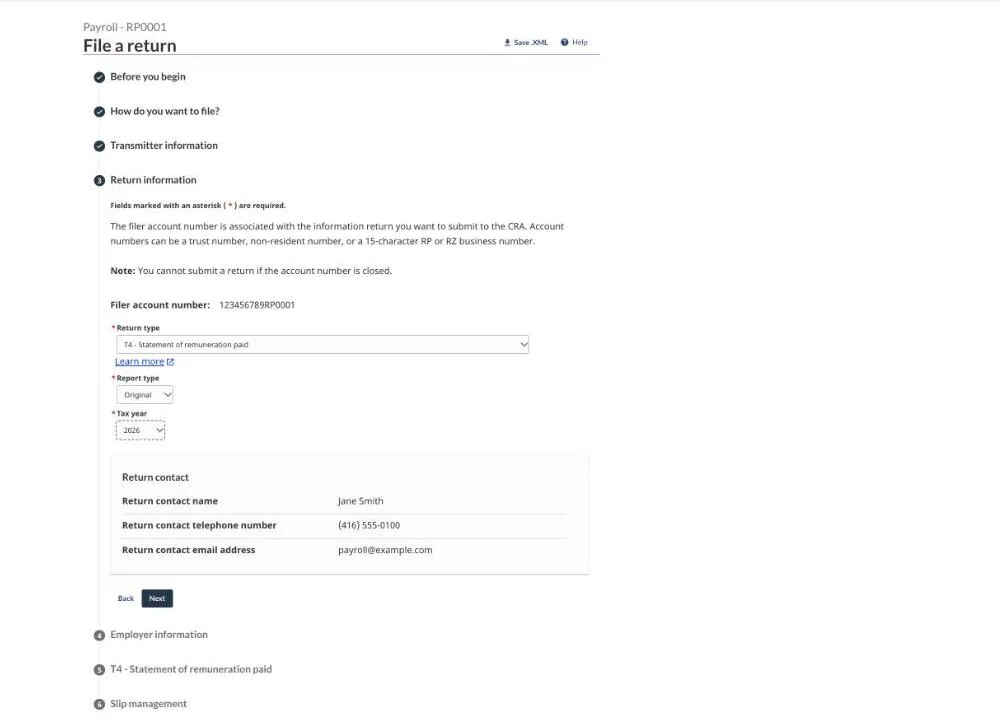
08Check the return information
The CRA shows your filer account number. Check it matches the account on your slips. Choose the return type (T4 - Statement of remuneration paid, or T4A), report type Original (or Amended when you are correcting a filed return) and the tax year.
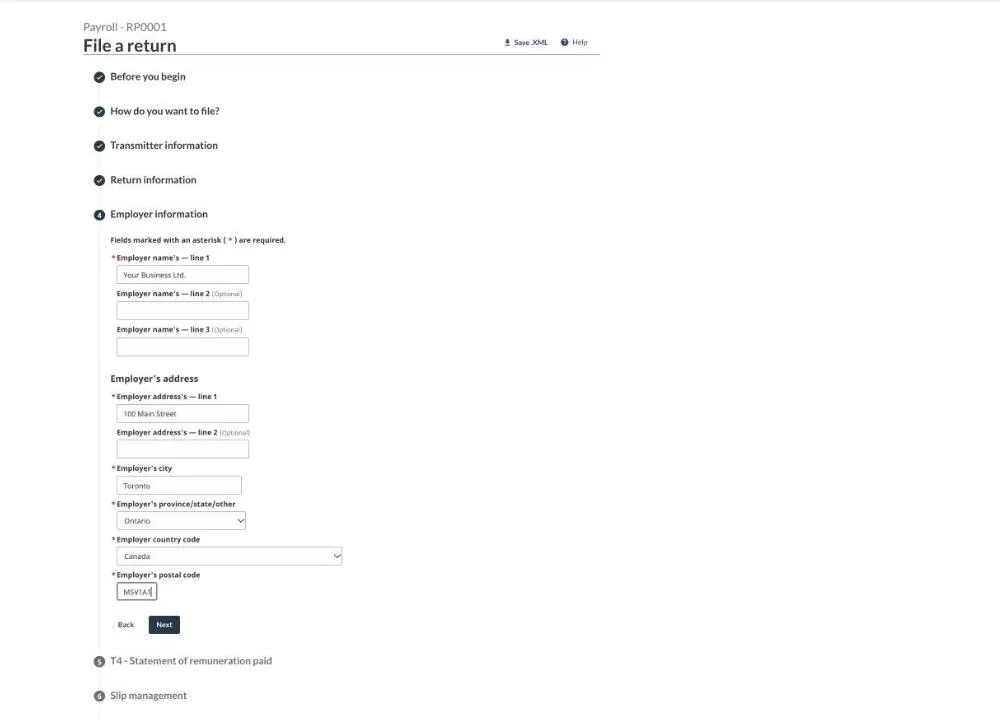
09Enter your employer information
Type your business name exactly as it appears in PayHr, then your business address. For a T4A return this screen is called Payer information.
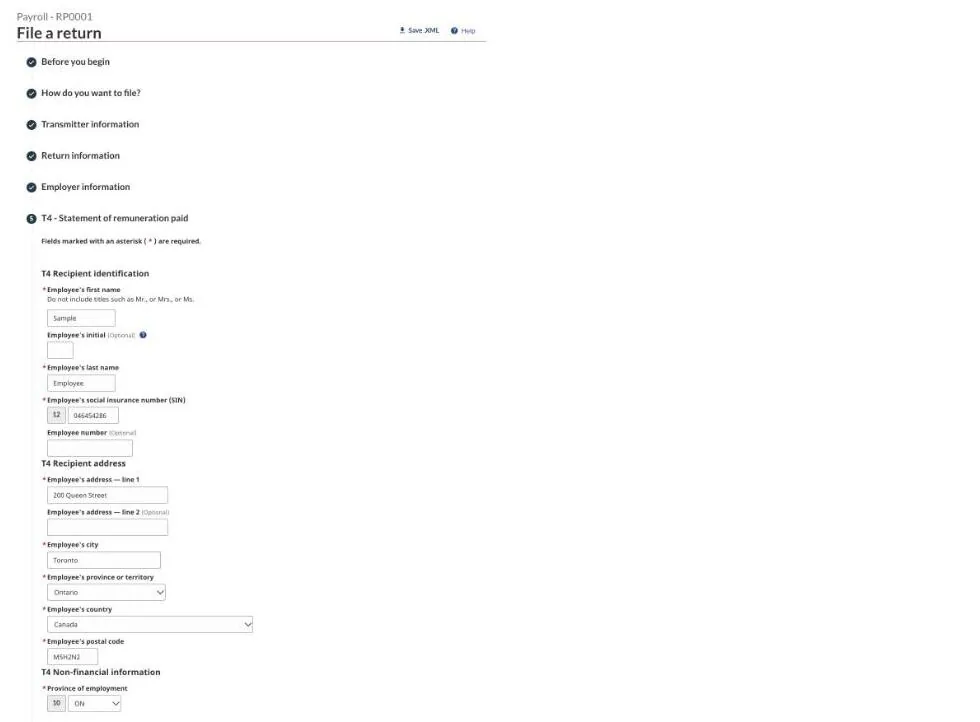
10Type the first slip: recipient
Enter the person's first name, last name, social insurance number (box 12), employee number if you use one, and their address. If PayHr has no SIN on file, the CRA accepts 000000000, but add the real SIN as soon as you have it.
11Type the codes and amounts
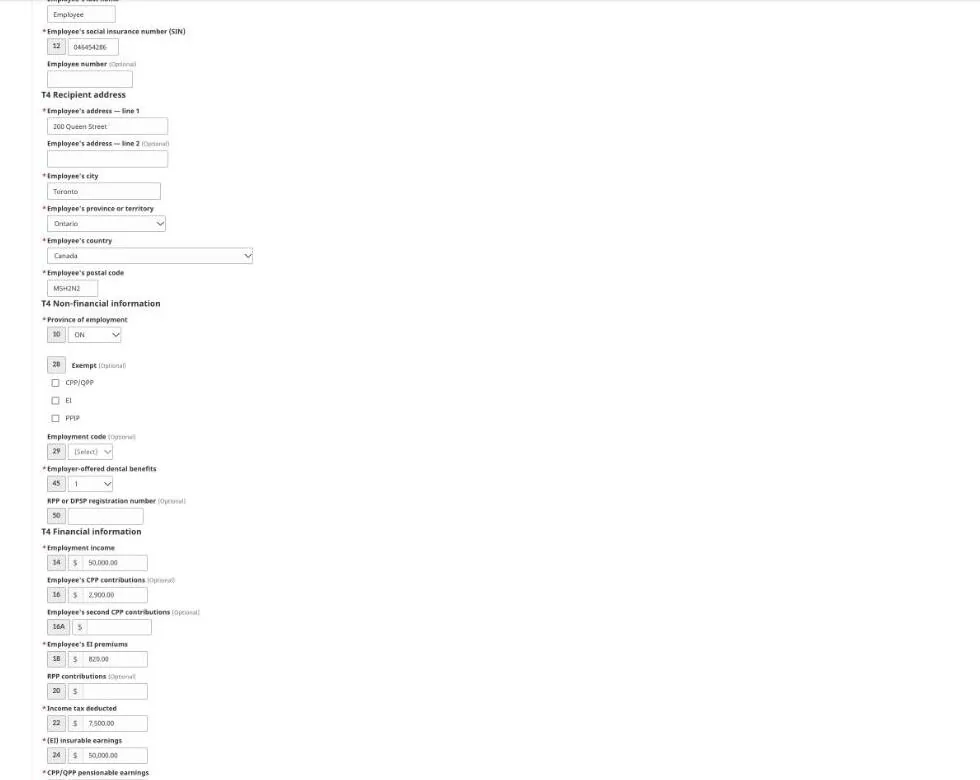
Copy each box from the slip in PayHr, top to bottom:
- Box 10: province of employment.
- Box 28: tick CPP/QPP or EI exempt only if PayHr shows it. Leave PPIP unticked outside Quebec.
- Box 29: employment code, only if one applies.
- Box 45: the dental benefits code.
- Boxes 14, 16, 18, 22, 24, 26 and the other boxes PayHr lists: type the amounts exactly, with cents.
12Add other information codes and validate
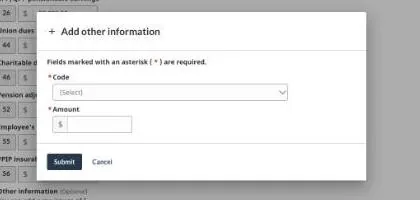
If the slip in PayHr has Other information codes (for example taxable benefits), choose Add, pick the code and type the amount. Then select Validate. The CRA checks the slip and points out anything it can't accept.
13Add the next slip
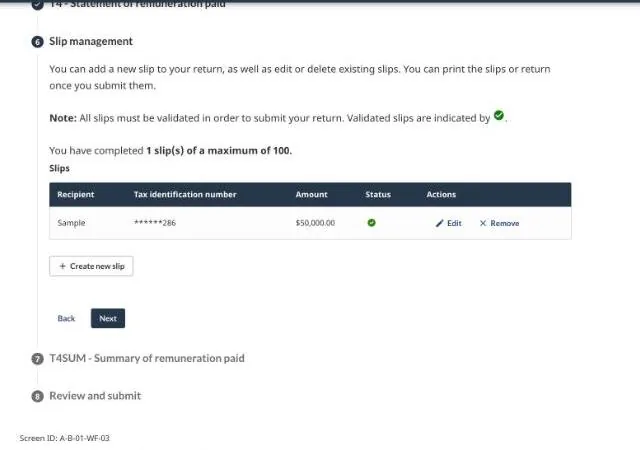
On Slip management you see every slip you have typed. Select Create new slip and repeat the recipient, codes and amounts for each person until every slip in PayHr is on the list.
14Check the summary against PayHr
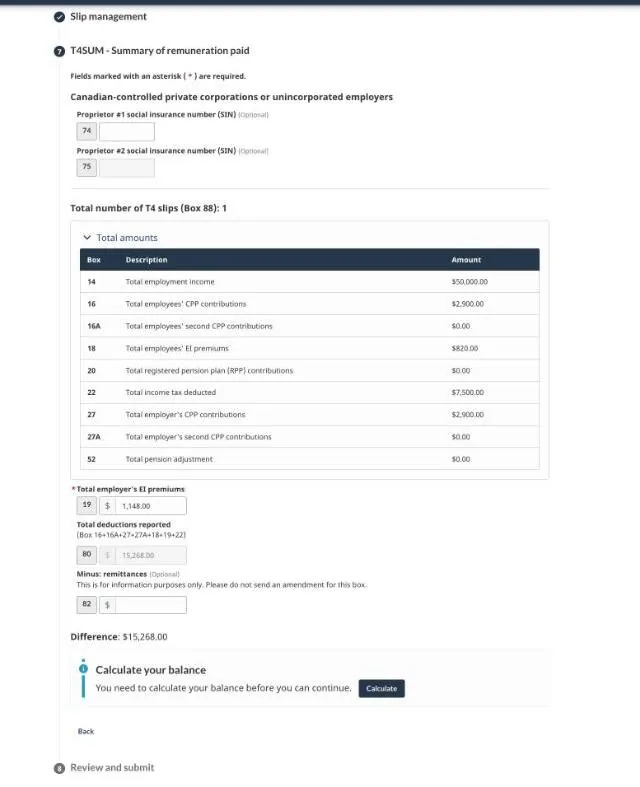
When all slips are in, open the summary (T4 Summary or T4A Summary). The CRA adds up your slips. Compare the totals with the summary in PayHr: number of slips, employment income, CPP, EI and income tax deducted. If a total is off, a slip was typed wrong. Go back and fix it before you submit.
15Review and submit
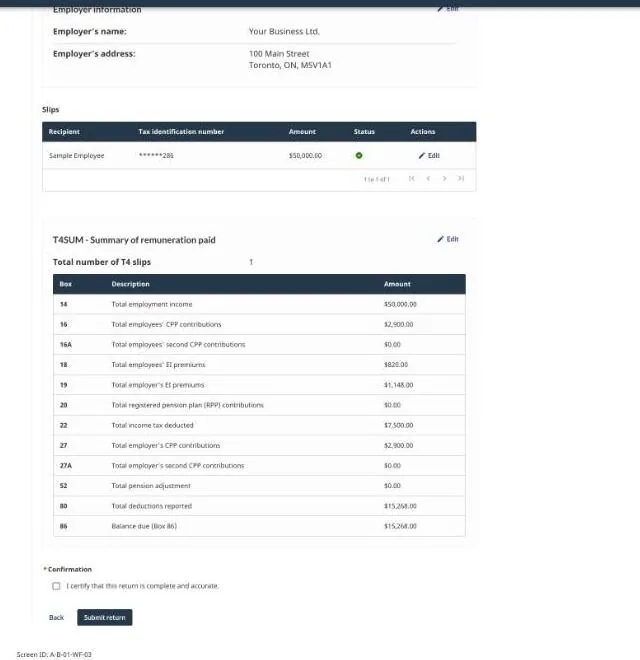
Review the return, tick the certification and select Submit. The CRA shows a confirmation number: it is your proof of filing. Save each slip from the CRA as a PDF.
Back in PayHr, continue in the manual filing guide: enter the confirmation number under Record your filing, then upload each person's slip PDF under Send each person their slip. We email it to them and add it to their employee app.
Questions people ask
Where do I find the values to type?
In PayHr, open Taxes, Tax Forms, open the year, select Open Manual, then Review slips under step 1. Each person's slip lists every box.
What if the CRA rejects a slip when I validate?
Read the message beside the field the CRA highlights. Most errors are a typing slip in a SIN, a province code or an amount. If a value is wrong in PayHr itself, fix it in the employee's details, prepare the year again and re-issue the slips.
Is there a faster way?
Yes. Auto issue sends every slip in one XML upload, or lets a PayHr rep file for you. It is $5 per slip, and free on the Automated Pay plan. See File your T4 slips with the CRA.