TAXES & COMPLIANCE
Upload your T4 and T4A XML files to the CRA
With automatic filing you don't type any slips. PayHr builds one CRA XML file per form, and you upload it in CRA My Business Account with Internet file transfer. The CRA accepts only one type of return per file, so T4 and T4A slips are two uploads, each with its own confirmation number. Plan on about 5 minutes.

Before you start
- Automatic filing paid for in PayHr (or included in your Automated Pay plan)
- Your slips reviewed and locked in PayHr (Taxes > Tax Forms, open the year, then the upload guide, step 1)
- Your CRA My Business Account sign-in
01Download your CRA XML files from PayHr
In PayHr, open Taxes, choose Tax Forms and open the year. In step 2, Upload to CRA, select Download CRA XML beside each form. You get payhr-t4-2026.xml and, if you paid contractors, payhr-t4a-2026.xml. Each file holds every slip and the summary for that form.
The video shows the whole upload in about 3 minutes.
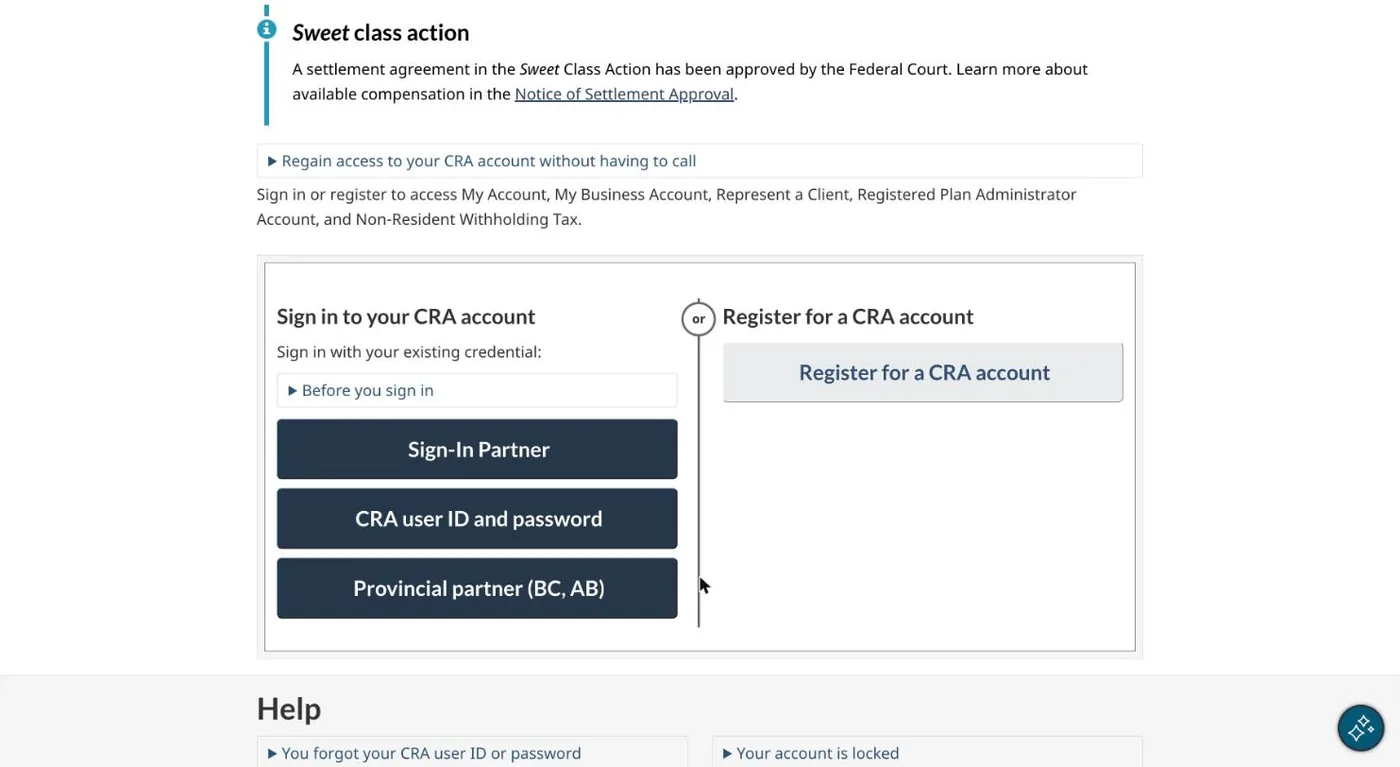
02Sign in to CRA My Business Account
Go to CRA My Business Account and sign in the way you usually do: with your CRA user ID and password, a Sign-In Partner (your bank), or a provincial partner.
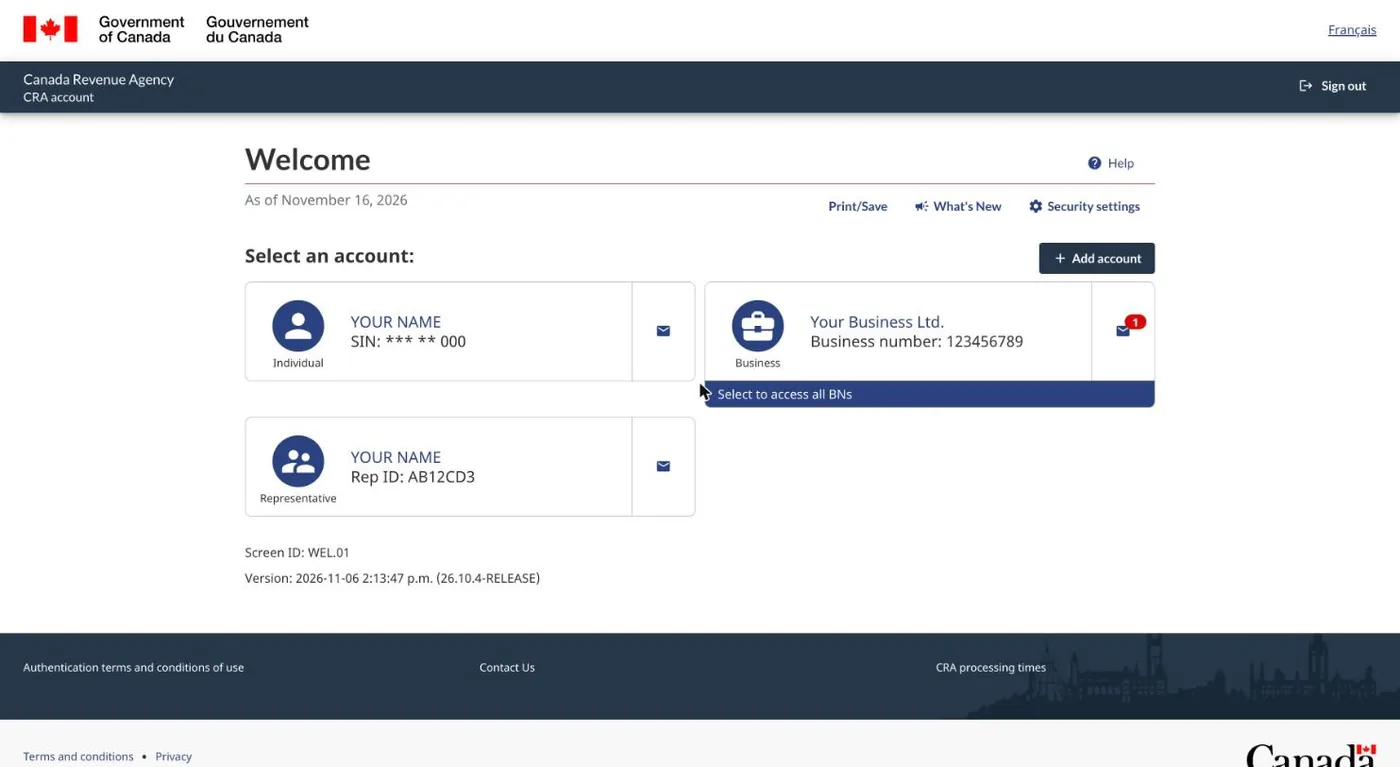
03Choose your business
If you manage more than one business, choose the one the slips are for. You land on the business overview.
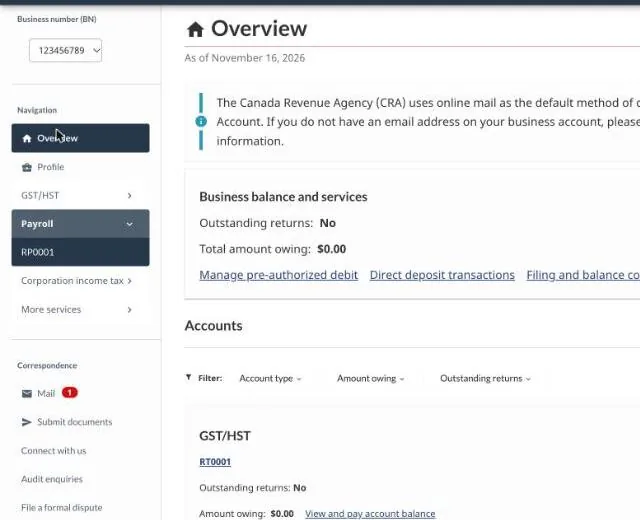
04Open your payroll account
In the left menu, open Payroll, then choose your payroll account: RP0001, or the account number printed on your slips.
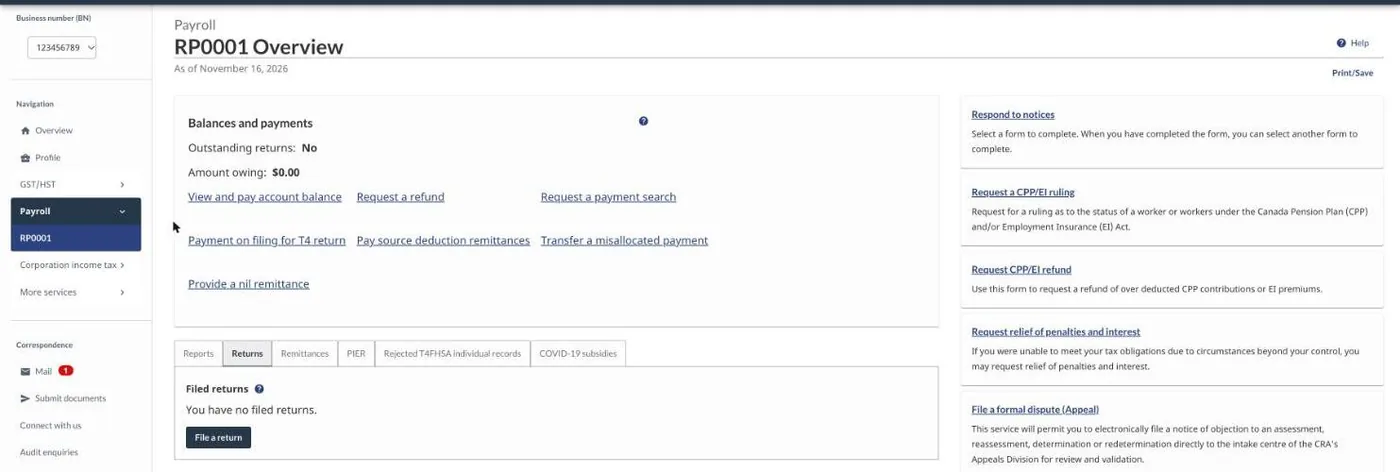
05Go to Returns and choose File a return
Open the Returns tab and select File a return.
06Start the return
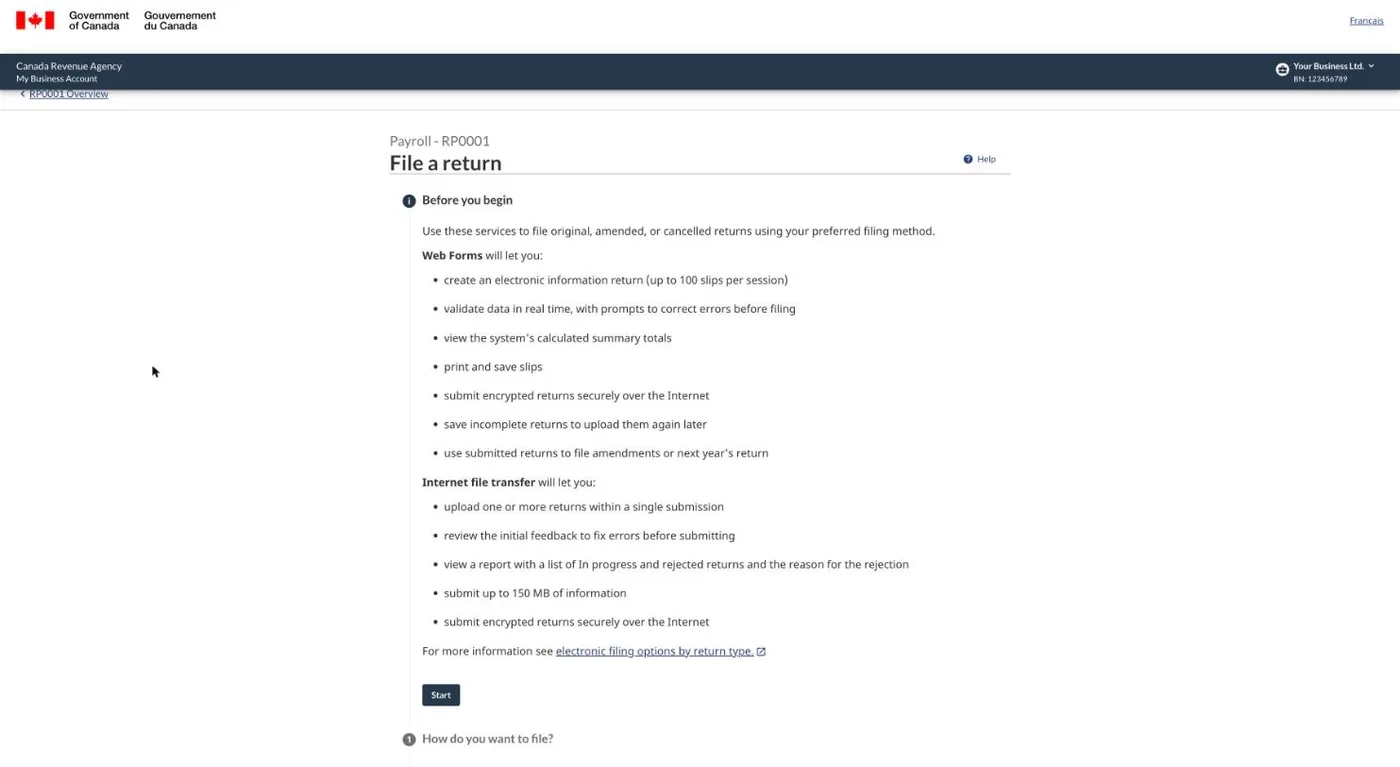
Read Before you begin, then select Start.
07Choose Internet file transfer
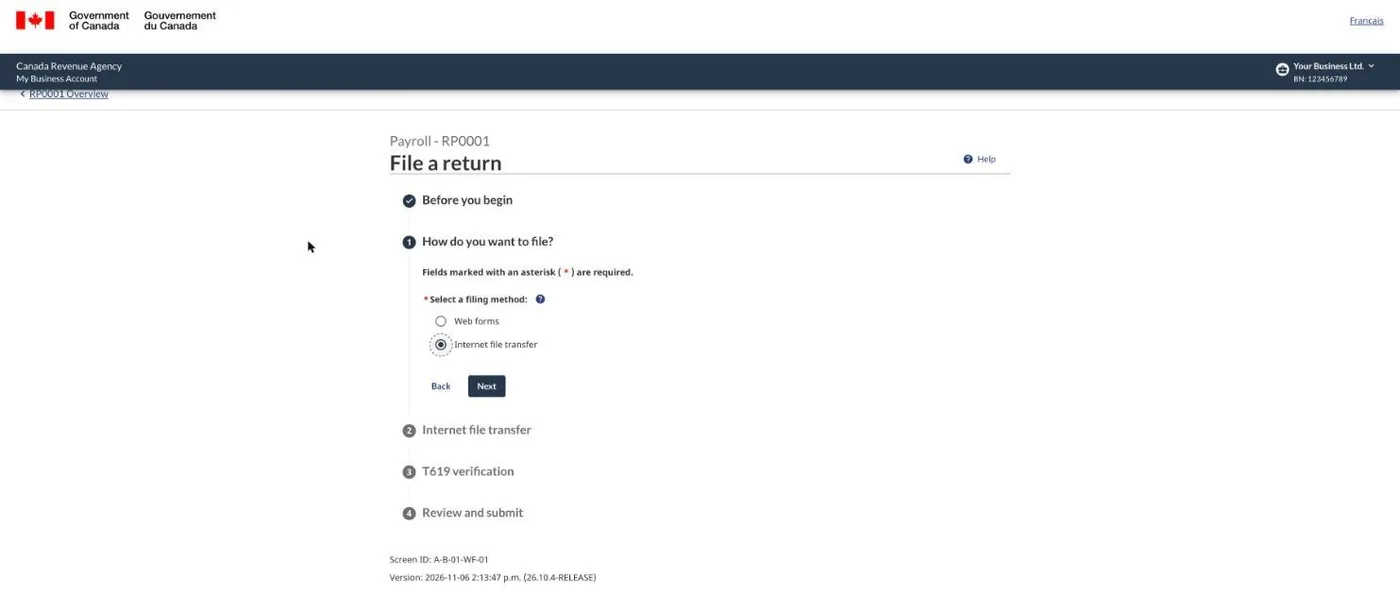
For the filing method, choose Internet file transfer (XML).
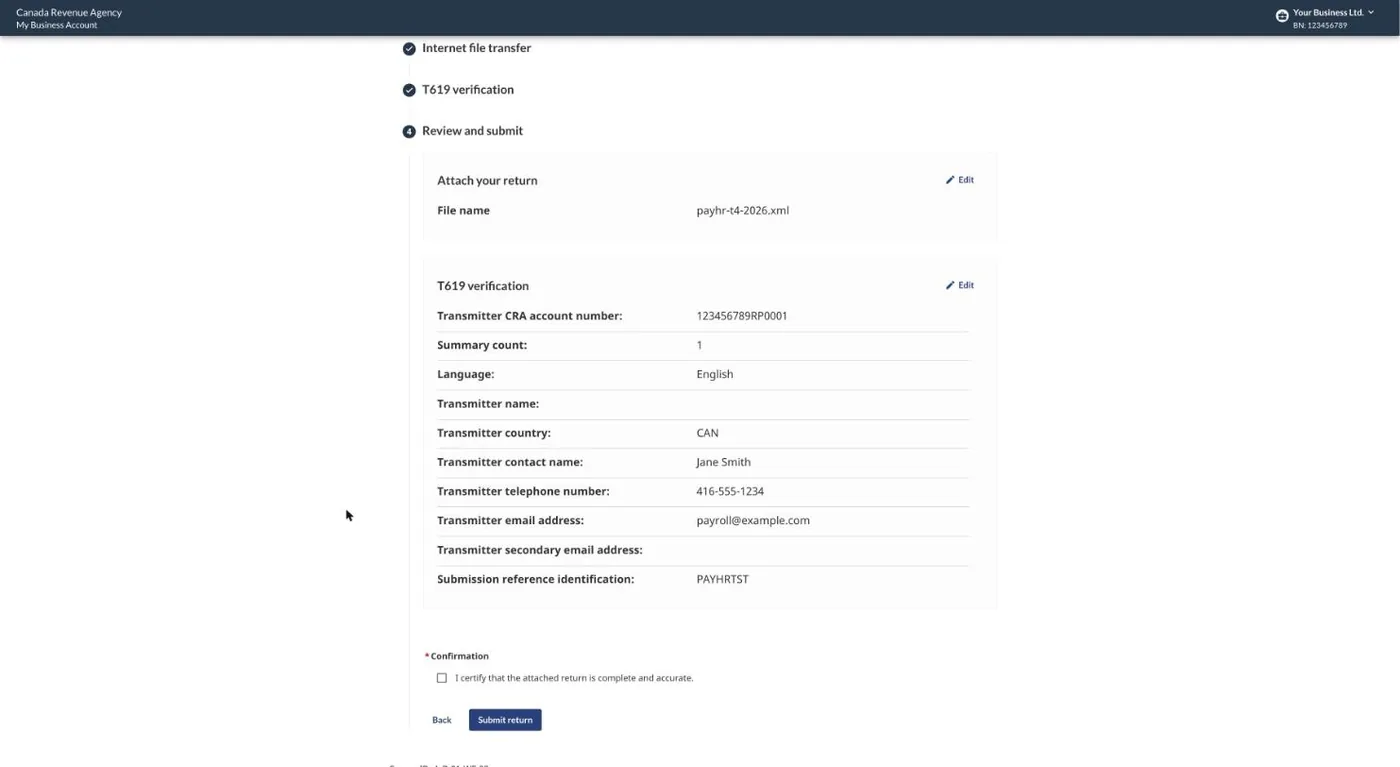
08Attach the XML file
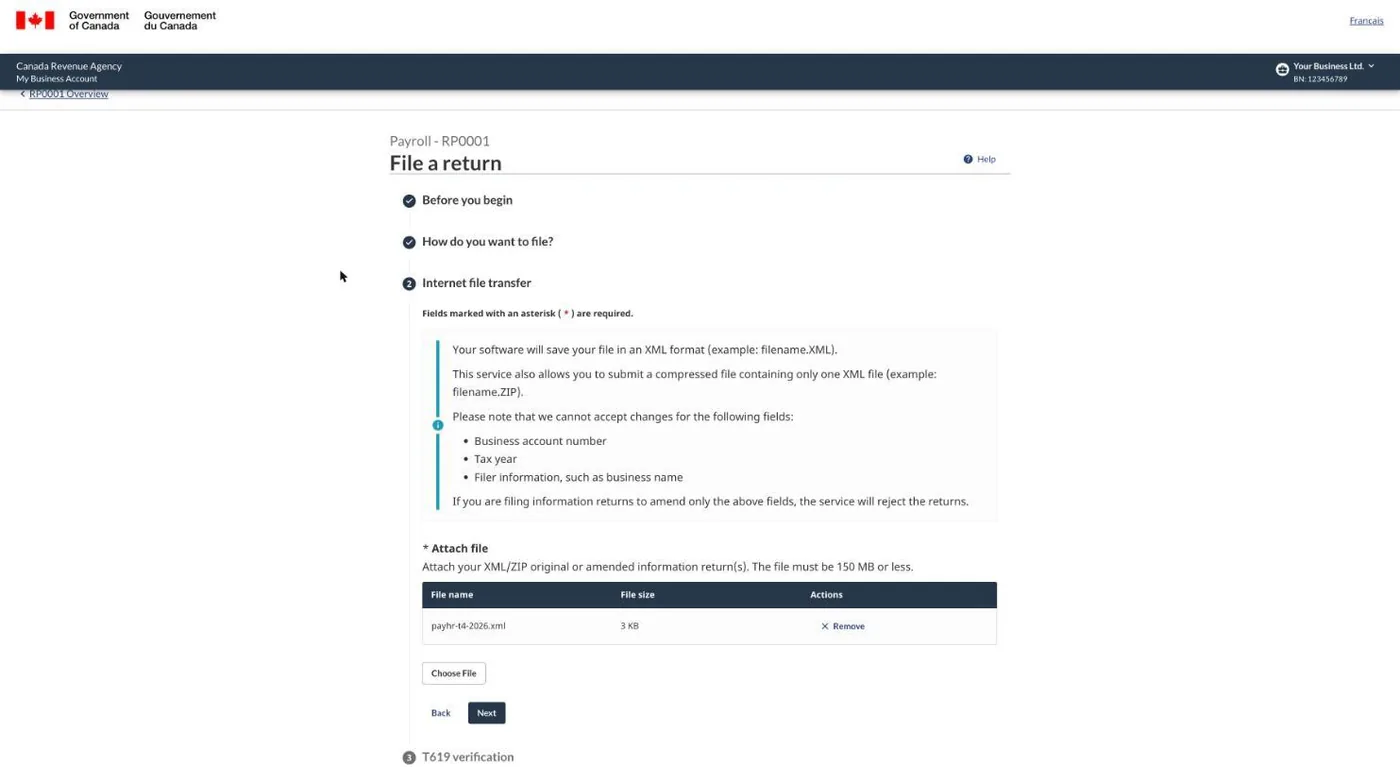
Select Choose File and pick payhr-t4-2026.xml. Check that the file name shows, then continue.
09Check the transmitter details
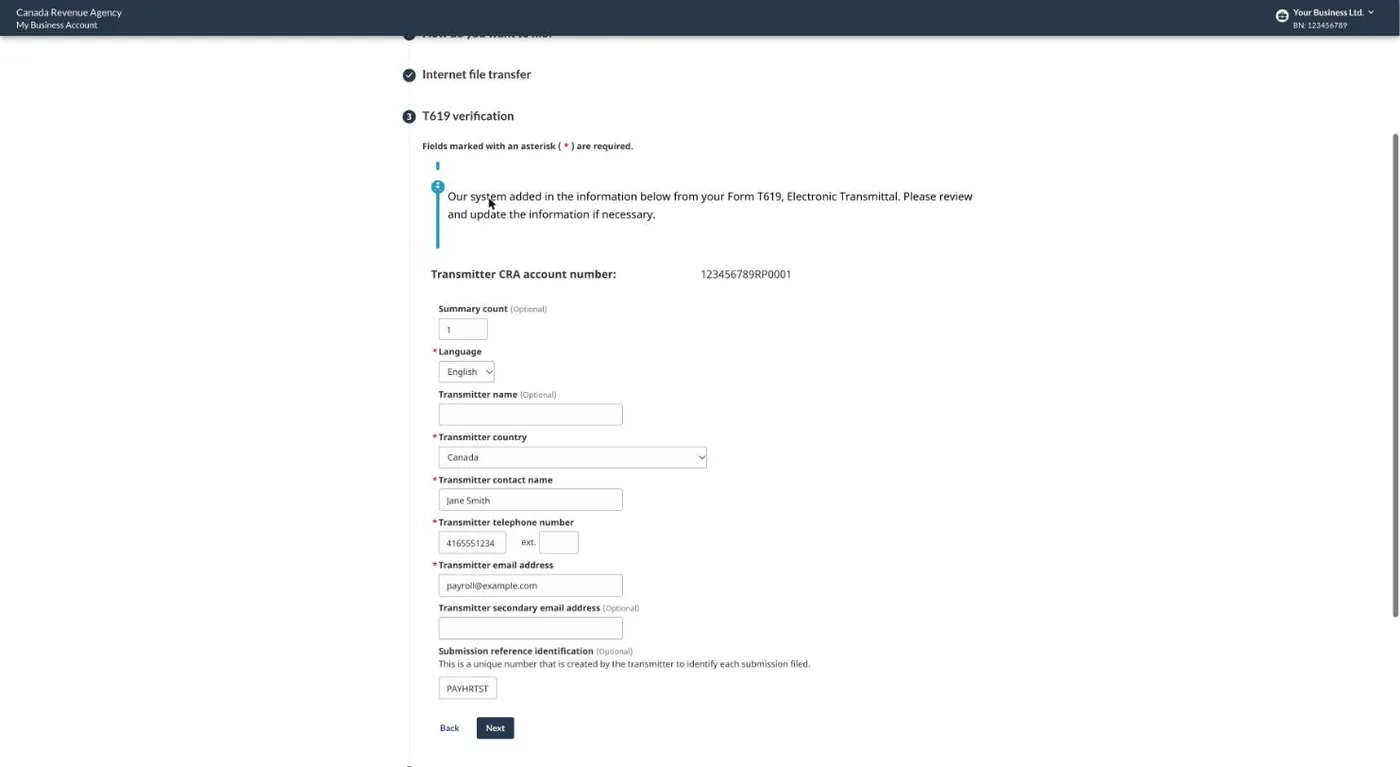
The CRA reads the transmitter details (the T619) from the file. Check the contact name and phone number, then select Next.
10Certify and submit
Tick I certify…, then select Submit return. The CRA shows a confirmation number: it is your proof of filing. Write it down.
11Upload the T4A file the same way
If you have a T4A file, go back to Returns, select File a return again and repeat the upload with payhr-t4a-2026.xml. The CRA doesn't accept T4 and T4A slips in the same file, so you get a second confirmation number.
12Save each confirmation number in PayHr
Back in PayHr, under Enter CRA's confirmation number, type each form's confirmation number and the date you filed, tick the confirmation and select Save. PayHr then emails every employee and contractor their slip, and employees find it in their PayHr app. Once every form is saved, the guide moves to Filing completed.
Questions people ask
Can I upload T4 and T4A slips in one file?
No. Since January 2025 the CRA accepts only one type of return per Internet file transfer submission. Upload the T4 file, then the T4A file, and save both confirmation numbers in PayHr.
Do I need to type the T4 Summary?
No. The summary is inside the XML file. The CRA reads it with the slips.
Would rather not do the upload?
Choose Add PayHr as representative instead. Our team files for you within 24 hours, at no extra cost. See Add PayHr as your CRA representative.